Which days did you actually train this month?
A month is the right length to judge a training plan: long enough to smooth out one bad week, short enough to still remember why things went the way they did. To see which days you actually trained, log each session and open a month view at the end of the block. Every session is on its day, so the count and the pattern are both in front of you.
What a month tells you that a week cannot
One week with two sessions instead of three is normal. Four weeks are where the real questions get answered:
- Did the plan hold? Twelve planned sessions and eleven done is a plan that works. Twelve planned and six done is a plan that needs changing.
- Which weekdays work? If every gap falls on a Friday, the problem is Friday, not you.
- Did a week break the pattern? One empty week in the middle often has a clear cause: illness, travel, a deadline.
- Did the month end weaker than it started? A plan that fades in week three or four is a sign it is too big to keep up.
At the end of a training block, these answers decide the next one: keep the plan, adjust the days, or scale it down.
How to review a month of training
- Count the sessions for the whole month and compare with what you planned.
- Look for the weekday pattern. Which days are reliably filled, which ones are reliably empty?
- Find the gaps of four or more days and remember what happened there.
- Compare session types, if you train a split: is each day of the split there about as often as the others?
- Write one change for next month, not five. Moving one session to a better day does more than a new program.
This takes ten minutes on the last day of the month, and it only works if the log is complete. Log every session, including the short ones.
The month view in EasyRoutine
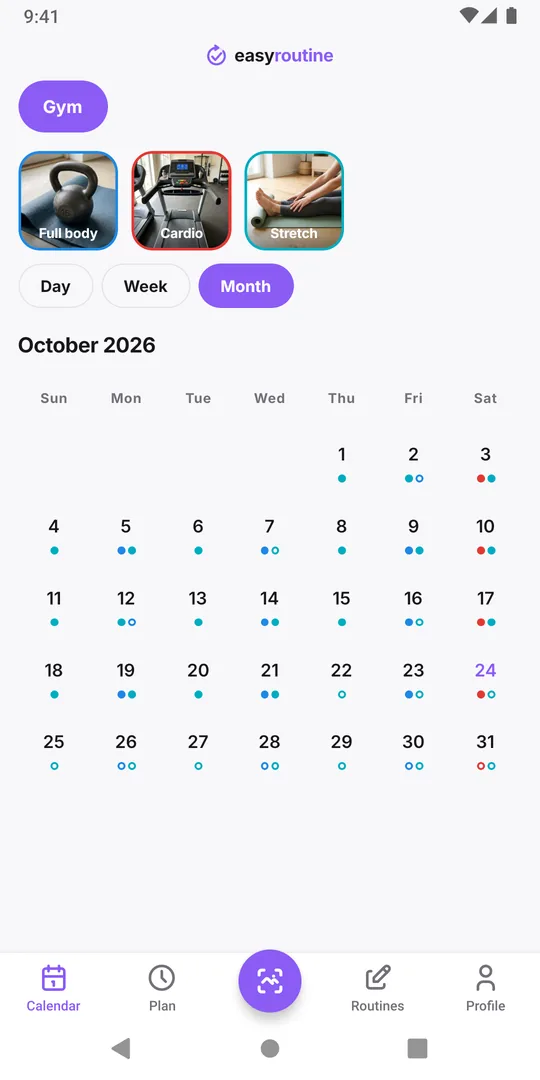
Create a Gym routine with one activity per session type, such as Full body, Cardio and Stretch, and log each session from Log on the day you train. Logging and the calendar are free.
Open the Calendar and switch to Month. Each day shows a dot for the sessions logged that day, in the activity's color, so the whole month is visible at once: which days have training, which do not, and which session type shows up where. Tap an activity's tile above the calendar to highlight that session type; the others stay visible. With Premium and a schedule, planned sessions that were not logged appear as hollow rings, so missed planned days stand out from rest days. More about the calendar.
The totals on your profile
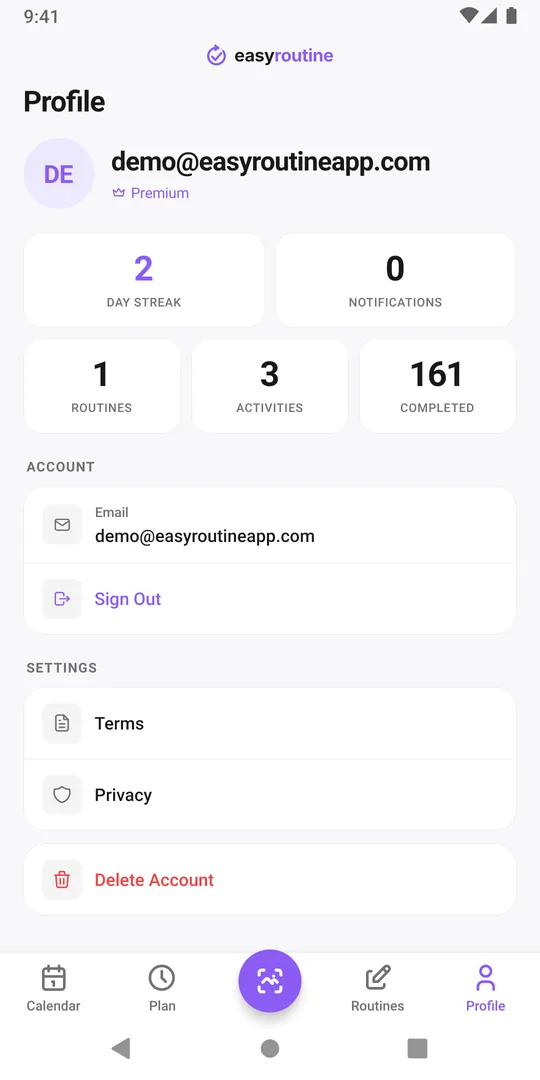
The Profile tab adds the long view beyond the month: Completed counts every log you have ever made, and the Day streak counts days in a row with any log. The total is useful at the end of a longer block, for example comparing it with the number three months ago. Note that both count all your routines together, not only training; the month view of your Gym routine is the training-only picture.
Use the review to set next month
If the month says your plan is right, keep it. If it says the plan does not match your real week, move it: your schedule doesn't match your actual routine shows how. If one session type keeps falling out, see not training legs enough. For the weekly check in between, switch the calendar to the Week view, and see the workout log page for the full setup.
Common questions
How do I see how many days I went to the gym this month?
Open the Calendar in the Month view of your Gym routine. Every day with a logged session has a dot, so you can count the training days at a glance.
Does EasyRoutine show a monthly total or chart?
No. There are no charts or monthly totals. The month view shows each session on its day, and the profile shows totals across all time.
Can I look at earlier months?
Yes. Move back through the month view to any earlier month. Your logs stay on their days.
What do the hollow rings in the month view mean?
They are planned sessions that were not logged on that day. They only appear for activities with a schedule, which is a Premium feature.
How many times did I actually go to the gym this week?
Switch the calendar from Month to Week. Each logged session is a tile on its day from Monday to Sunday, so three tiles means three sessions, whatever the week felt like. With Premium and a schedule, planned sessions you did not log stay faded in the Week view, so you also see which one was skipped.
Keep reading
- Simple workout log app or full tracker: which one is best for you?Gym tracker app or simple workout log? What a full set and rep tracker does well, when logging that you trained is enough, and how to keep it useful.
- Weekly workout split template: three splits to copy and logCopy a 3, 4 or 5 day weekly workout split template with weekdays and times, see who each one suits, and check which sessions you actually did each week.
- Track a new gym routine when you are just starting outJust joined a gym? A first-month plan that starts small, fixed gym days, and a simple tracker that shows whether you went. No sets or reps to fill in.
- Does a rest day break your workout streak?A planned rest day only breaks the Day streak if nothing at all is logged that day. How the streak counts, what keeps it going, and a better measure.
- Always quit a new gym routine after a few weeks?Strong start, then the gym fades out by week four? Why it happens, how to restart smaller, and a log so light you keep using it after the first rush.
- Forget which exercises you did last session?Can't recall what you did at the gym last time? Write one line per session, like the key lifts and weights, and read it back before the next one.
- Your gym routine falls apart when you travel?Every trip breaks your training habit? Plan a smaller travel version, log hotel room and park workouts too, and pick the routine up the day you get home.
- Losing motivation because you can't see your workout streak?Need to see your gym streak to keep going? Make consistency visible with a running streak, a total of sessions and a month of logged workouts.
- Not training legs enough compared to your other days?Think you skip leg day more than the rest of your split? Log each split day separately and count a month of push, pull and legs sessions side by side.
Free on iPhone and Android. Sign in with Apple, Google or your email to start.