Workout log app for your weekly split: copy a template, log every session
Did I train legs this week, or did I skip Friday again? A weekly split answers that only if you write it down and check it off. Here are three templates you can copy into EasyRoutine, plus how to use it as your exercise log app, with each session logged in a few seconds.
Choose a split you can actually keep
The best split is the one that fits the days you can really get to the gym. Count your realistic training days first, then pick the template with that many sessions. Which exercises go into each session is up to you or your coach; the templates below only decide which day gets which session.
One rule makes the log useful: give each session type its own activity. If you log a single "Gym" task, you know you went, but not whether it was push or legs. With one activity per session, the week view shows exactly what you trained.
Three templates to copy
3 days: push, pull, legs
Routine: Gym
- Push: Monday, 18:00
- Pull: Wednesday, 18:00
- Legs: Friday, 18:00
- Stretching (optional, for rest days): Tuesday, Thursday and Saturday, 7:30
4 days: upper and lower
Routine: Gym
- Upper: Monday and Thursday, 18:00
- Lower: Tuesday and Friday, 18:00
5 days: push, pull, legs, upper, lower
Routine: Gym
- Push: Monday, 18:00
- Pull: Tuesday, 18:00
- Legs: Wednesday, 18:00
- Upper: Friday, 18:00
- Lower: Saturday, 10:00
Active period: none for an ongoing plan. If you are running a fixed block, say an eight-week program, set an end date so the sessions disappear from the calendar when the block is over.
Rest days need nothing in the app: if no session is scheduled, the day simply stays empty. If you like seeing something on those days, add a light activity such as Stretching or Walk and schedule it on the rest days, as in the 3-day template.
A free workout log: the session, not the sets
When you finish, tap Log on the day and pick the session; it is logged with the current time. This works on the free plan, with no schedule at all. With a Premium schedule there is a shortcut: tap the session's faded planned entry on the calendar and save it with the planned time. If you photographed equipment, you can open the Scan tab and point the camera at it instead; the free scan matches it against your own activities that have a photo. Forgot until you got home, or until Sunday? Add the log on the right day afterwards and set the time.
EasyRoutine records that a session happened and when. It does not track sets, reps or weights, and you do not need to. If you want a quick record, write it in the note, like "bench 3x8 at 60 kg", and flag the session green, amber or red for how it felt. The log sheet shows your last few notes for that activity, which is handy for remembering what you did last Monday. If you want to log every set, a dedicated strength app does that better; see EasyRoutine vs a workout app.
Check your week and set a streak goal
The week view is your split at a glance: a colored tile for every session you logged, and faded entries for sessions planned but not yet done. A faded Legs entry on a past Friday is a missed leg day.
To answer "when did I last train legs?", tap the Legs tile at the top of the calendar. The calendar then shows only that activity, so the last tile is your last leg day. The month view shows the longer pattern, up to four dots per day, so a session that keeps slipping stands out over a few weeks.
The streak on your Profile counts days in a row on which you logged anything, in any routine. It is not tied to your schedule, so with gym sessions alone, every rest day resets it. Two honest ways to use it:
- Measure the week instead: your goal is no faded entries left in the past days of the week view. Three tiles out of three is a perfect week.
- Log something small on rest days: if you add Stretching on rest days, a goal like a 30-day streak becomes realistic, because every day has something to log.
Your Profile also shows Completed, the total number of logs, which grows with every session. Calendar and streaks.
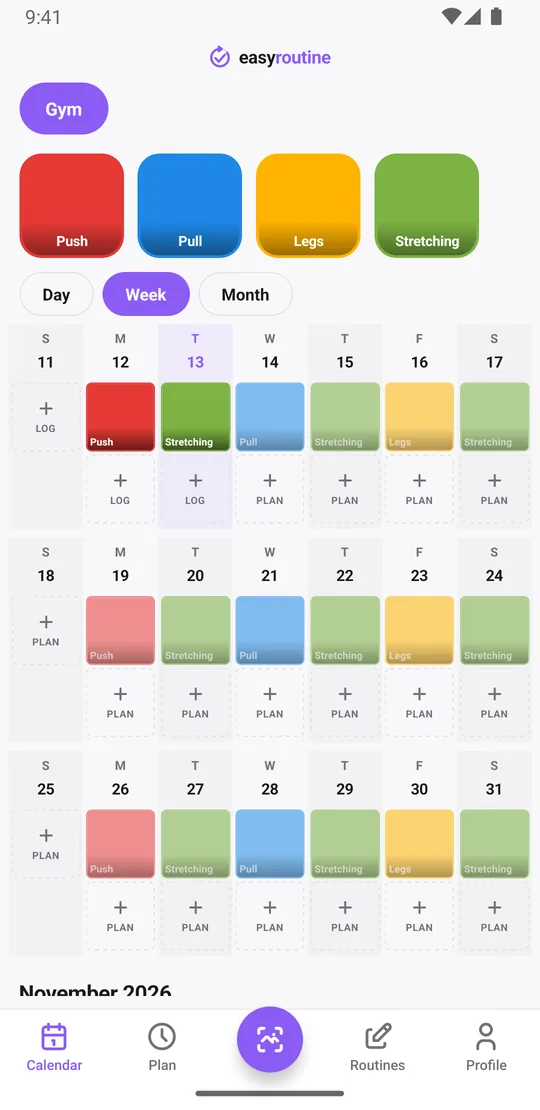
Schedule your gym days (Premium)
- On the Routines tab, tap Add routine and call it Gym, or make one routine per split if you prefer.
- Tap Add activity for each session type: Push, Pull, Legs. You can photograph a piece of equipment you always use in that session, so the photo scan can log it later.
- With Premium, open the Plan tab, pick an activity and under Recurring set the time and tap its weekdays. Push gets Monday, Pull gets Wednesday, and so on.
- Add a Notification if you want a nudge before you should leave, on time or up to 30 minutes before.
- Need different times on different days? Tap Add another time on the same activity, for example Legs at 18:00 on Friday and 10:00 on Saturday. Each activity can hold up to four recurring times.
Scheduling and reminders are part of Premium. Logging and the calendar are free, so the template also works as a plain checklist. More about scheduling.
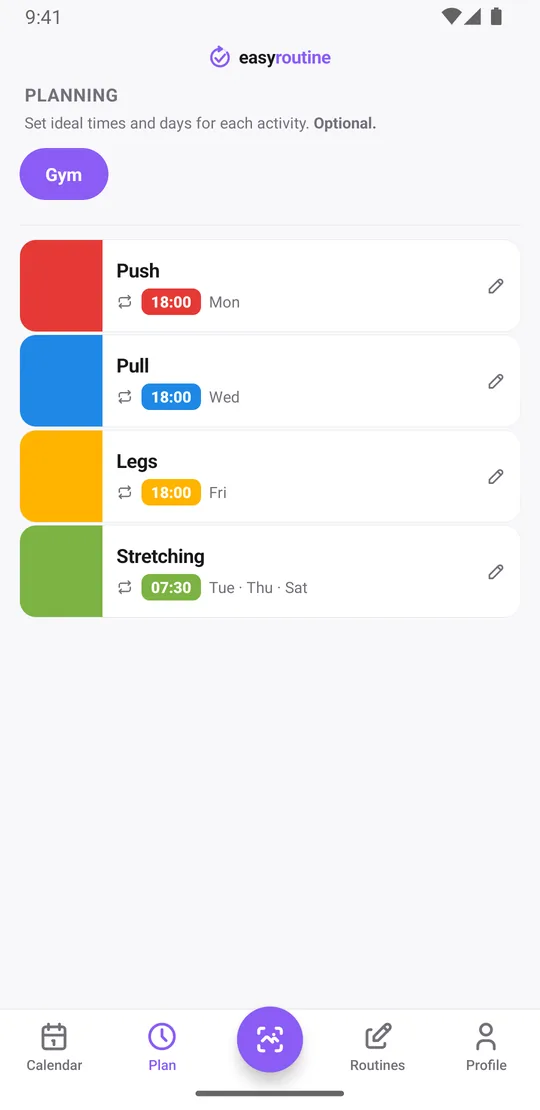
Changing the plan later
Splits change. To move leg day, open Legs in the Plan tab and tap a different weekday. To switch from three days to four, add the new activities and schedule them. Past logs stay on the calendar either way, so your history is never lost. An activity you stop doing can be archived: it disappears from the routine and the schedule, and its old logs stay. Just starting out? The new gym habit tracker covers the first weeks.
Common questions
Is EasyRoutine a free workout log app?
Logging is free: sessions, notes, flags, the photo scan and the calendar cost nothing. Scheduling gym days and reminders are Premium. It records that a session happened and when, not sets, reps or weights.
How do I plan my weekly workout split?
Count how many days you can realistically train, pick a split with that many sessions, and assign each session type to fixed weekdays, for example push on Monday, pull on Wednesday and legs on Friday. Add each session type as its own activity in a Gym routine.
How do I schedule gym days in the app?
With Premium, open the Plan tab, pick the session and set the weekdays and time under Recurring. Add a notification if you want a reminder. Logging sessions without a schedule is free.
How do I see when I last trained a session?
Tap that session's tile at the top of the calendar. The calendar then shows only that activity, so the last tile is the last time you logged it. This is free.
How should I handle rest days?
Leave them empty, since unscheduled days show nothing. If you want something to log, schedule a light activity like stretching on rest days, which also keeps your day streak going.
Keep reading
Free on iPhone and Android. Sign in with Apple, Google or your email to start.