Year in review: look back on a year of logged habits
Did I actually keep running after the spring? Late December is a good time to find out. EasyRoutine has no automatic yearly summary, but every log you made is on the calendar, and twelve month views tell you honestly which habits stuck and which faded.
What EasyRoutine gives you to look back with
Before you start, it helps to know what is there and what is not:
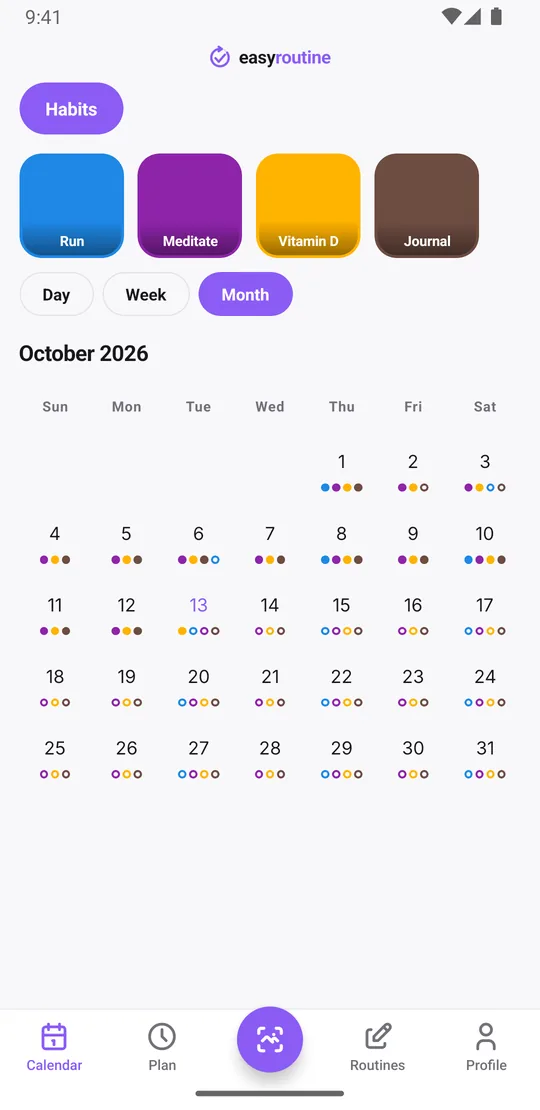
- The month view. Every day you logged something shows colored dots, one color per activity (up to four per day). Scroll back month by month through the year.
- The day view. Tap any day to see exactly what you logged and at what time, with a dot for any red, amber or green flag you added. Tap a log to read its note.
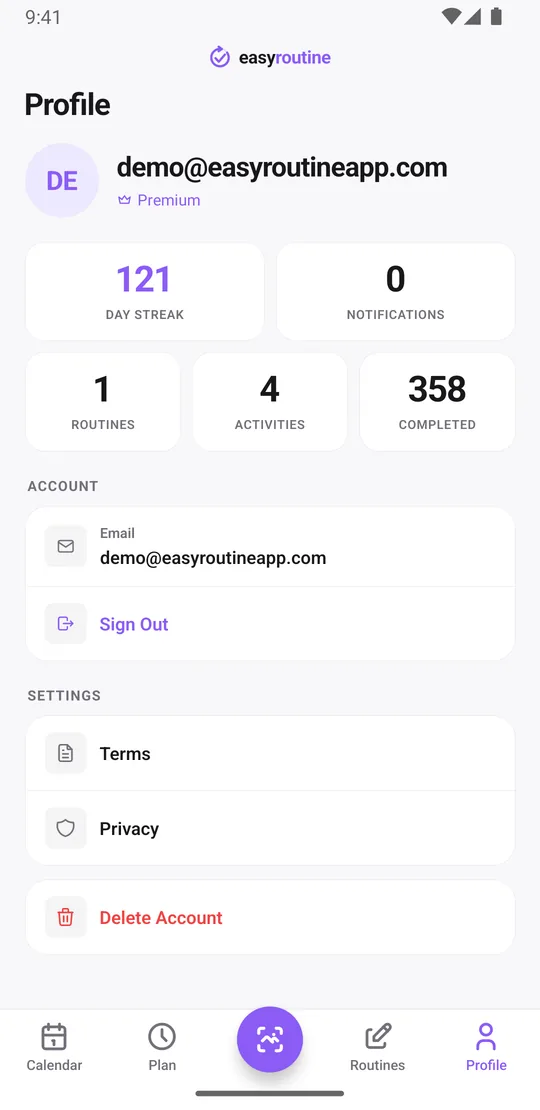
- The Profile tab. Your current Day streak and totals for routines, activities and completed logs.
There are no charts, no completion percentages, no per-activity statistics, no "longest streak" record and no export or shareable yearly summary. The review is something you do by looking. The upside is that nothing is averaged away: you see the actual days.
Review the year month by month
Open the Calendar tab, switch to the month view and start at January. For each month, look for three things:
- Which colors are there. Each activity has its own color, so a month dense with blue dots is a month of runs. A color that thins out and disappears marks when a habit faded.
- The empty stretches. Days without any dots are days you logged nothing. Holidays, illness and busy weeks show up clearly.
- Faded dots. If an activity had a schedule, planned days you did not log appear as faded outlines. Many of them in a row mean the plan and real life drifted apart.
When a day looks interesting, tap it, then tap a log to open it: the Log Entry sheet shows the note you left, like "knee sore" or "new running shoes", which often explains a change better than the dots do. If you used flags, the day and week views show them as dots, and a run of amber or red is worth a second look.
One habit at a time. Tap an activity's tile at the top of the calendar to filter the calendar to that activity alone. Scroll back through the months and you see only its days, so the last tile is the last time you did it. That answers "when did I actually stop running?" in seconds.
Jot down one line per activity as you go: "Vitamin D: almost every day all year. Running: strong until June, patchy after." That list is your year in review.
Streaks and totals
The Profile tab shows your current Day streak: the number of days in a row, up to today, on which you logged at least one activity. It covers all activities together and resets after a day with nothing logged, so it tells you how consistent you are right now rather than how the whole year went. EasyRoutine does not keep a record of your longest streak. To find your best runs, look for the longest unbroken stretches of dots in the month view.
Completed is the total number of logs in your account. It is an all-time count, not a per-year number, but it is a satisfying one to look at in December.
Fill the gaps, and leave notes for next December
If you know you did something but never logged it, such as runs on holiday, add the log now. Logs can be added for any past day and their date and time changed later, so the review shows what really happened.
The review is only as good as the notes behind it, and notes are free. Each log can carry a note and a green, amber or red flag, and the log sheet shows the last few notes for that activity when you log it. A few words are enough:
- Run: the route, how the knee felt, new shoes.
- Meditate: why you skipped, or what helped.
- Journal: "wrote in the paper notebook instead".
A flag adds a quick verdict: green for a good day, amber for a struggle, red for a bad one. Notes do not show on the calendar itself, but a tap on a log brings them back, and a run of amber flags in March explains a lot in December.
To keep logging quick next year, try the free photo scan: give an activity a photo, like your running shoes or the vitamin D bottle, and scanning it later logs that activity. It only matches your own activities that have a photo.
Use the review to plan next year
Your review list turns into next year's setup with a few changes:
- Keep what stuck. Activities you logged all year need nothing. Their history continues into January.
- Archive what faded. An activity you stopped in May can be archived. It disappears from the routine and its reminders stop, but its logs stay on the calendar, so next December's review still shows it.
- Fix the schedule to match reality. If you planned runs on Monday, Wednesday and Friday but logged them on Tuesday, Thursday and Saturday, move the schedule to the days that worked. With Premium you can also give a new habit an active period that starts on January 1. More about scheduling.
- Add reminders where you slipped. With Premium, each scheduled time can have a reminder, on time or 5, 10, 15 or 30 minutes before. Put one on the habit that faded first, not on the ones that already run themselves. How reminders work.
- Add new resolutions as activities. See the New Year's resolution tracker for turning a goal into something you can log.
If the review shows a long gap, getting back into routine after a break has ideas for restarting.
Reviewing is free
Everything you need to look back is free: the calendar with its day, week and month views, the activity filter, back-dated logs, notes, flags, the photo scan, the streak and totals. Premium adds scheduling and reminders for the year ahead, and removes the ads. Because everything is stored in your account, your history is also there on a new phone. Calendar and streaks.
Common questions
How do I see my whole year of habit tracking in one view?
EasyRoutine shows one month at a time. Open the month view and scroll back through the twelve months; each day you logged something shows colored dots for its activities, up to four per day. There is no single yearly summary screen.
Can I review how consistent I was with a routine over the year?
Yes, by looking at the month views. Each activity has its own color, so you can see in which months it shows up often and where it thins out. There are no percentages or charts.
Can I see when I last did one specific habit?
Yes. Tap that activity's tile at the top of the calendar to show only its logs. The most recent one is the last time you did it, and the month view shows its pattern across the year.
Can I export or share a yearly summary?
No. There is no export or shareable summary in the app. You can request a copy of your data by email under the privacy policy.
How do I use my past logs to plan next year's routine?
Keep the activities you logged all year, archive the ones that faded (their logs stay on the calendar), and move schedules to the days you actually did things. Add new goals as activities and, with Premium, start their schedules on January 1.
Keep reading
Free on iPhone and Android. Sign in with Apple, Google or your email to start.