How to plan and schedule activities in EasyRoutine
To give an activity a schedule, open the Plan tab, tap the activity, pick its days and time and tap Save. It then shows as a planned entry on the calendar on those days, and you tap that entry to log it.
Before you start
- Scheduling and reminders are Premium. Logging, the photo scan and the calendar stay free; see pricing.
- You need a routine with at least one activity. If you have none yet, create a routine and add an activity.
- A schedule is optional. Activities without one can still be logged any time.
1. Open the Plan tab
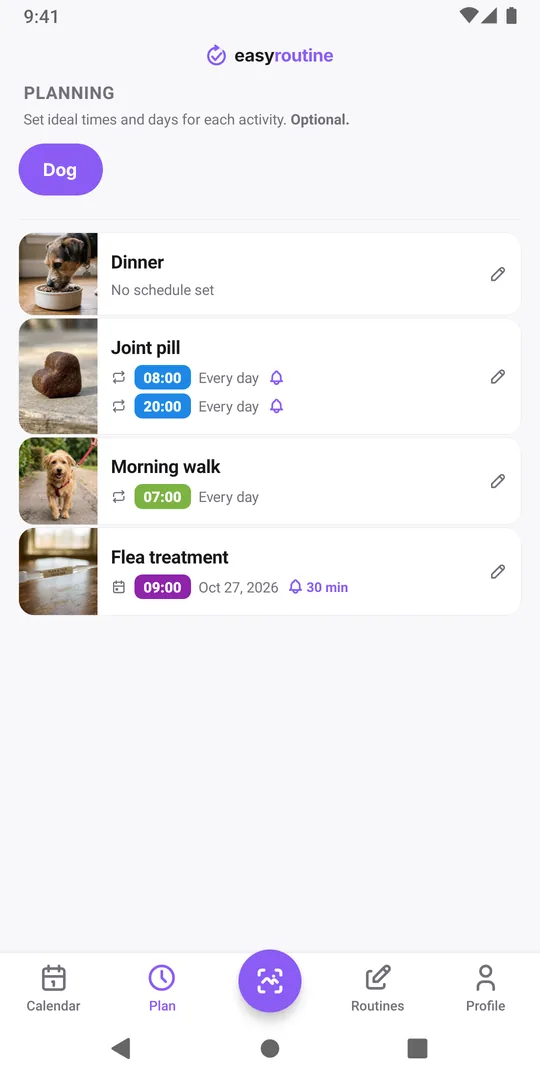
Tap Plan at the bottom and pick the routine at the top. Every activity is listed with its schedule, or No schedule set. Here the dog's joint pill already runs at 08:00 and 20:00 every day, and the flea treatment is planned for one date.
2. Tap the activity
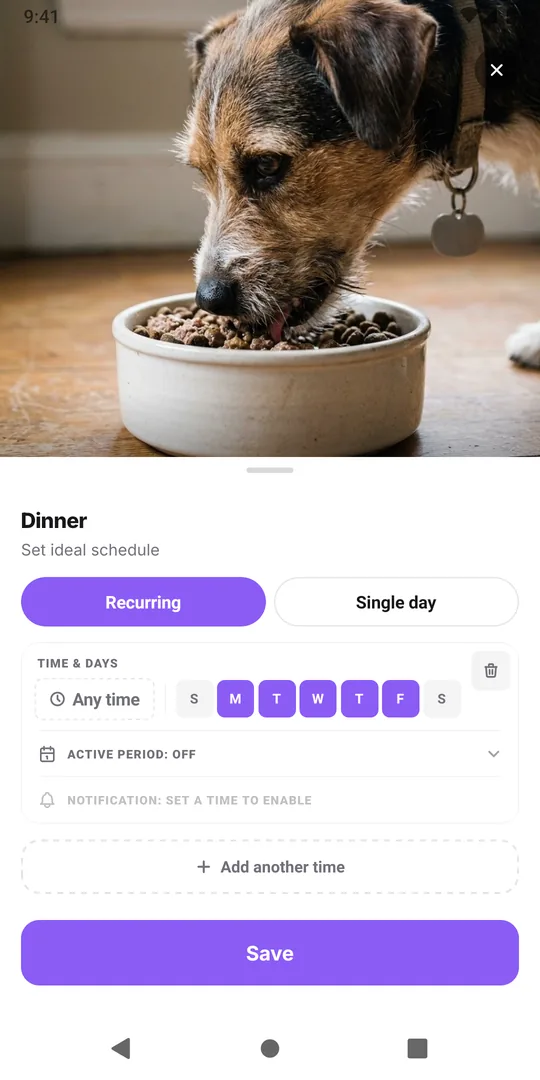
Tap the activity you want to plan, here Dinner. The schedule sheet opens on Recurring, with one time slot set to Monday to Friday and Any time. Switch to Single day for something that happens on a date rather than every week, such as a vet visit or a filter change.
3. Pick the days, the time and a reminder
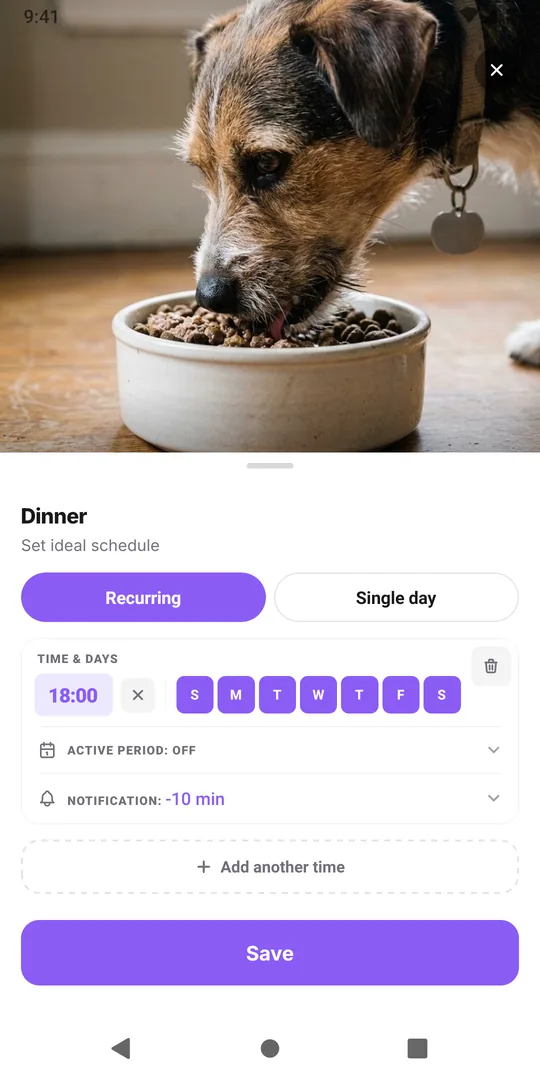
Tap the weekdays to turn them on or off; the dog eats every day, so add Saturday and Sunday. Tap Any time to pick a time, or leave it for something you do whenever it suits you. Then tap Notification and choose when the phone should remind you: on time or a few minutes before. A reminder needs a time, so it stays greyed out on an Any time slot.
- Add another time adds a second slot, for a pill at 08:00 and 20:00, or a gym session at 07:00 on weekdays and 10:00 at weekends. Up to 4 per activity.
- Active period sets a start and end date, for a two-week skin care treatment or a course of tablets. Leave it off to keep the slot going.
- On Single day, tap Add another date for each date you want, each with an optional time and reminder.
4. Tap Save
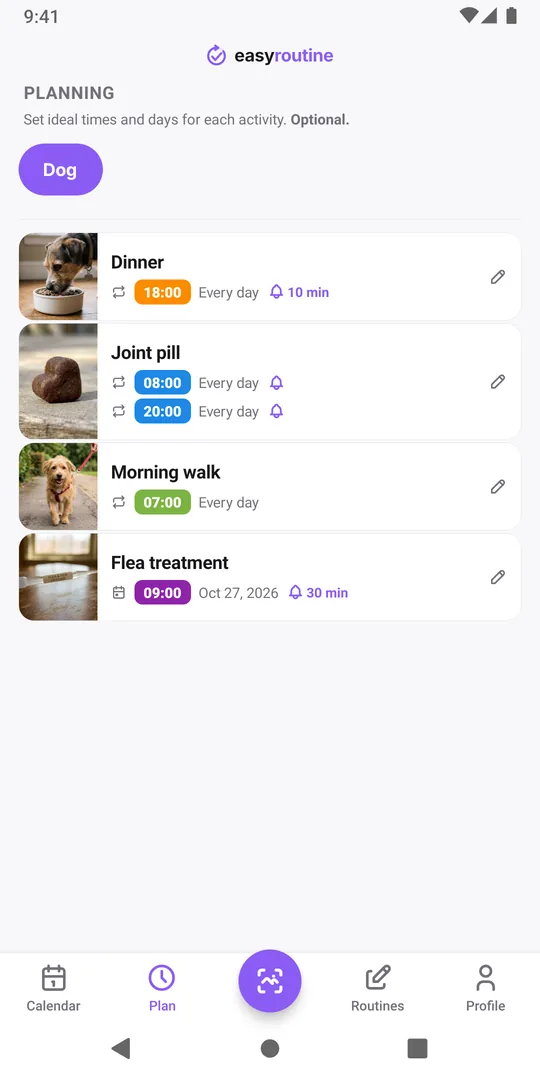
Tap Save. The Plan tab now shows the time, the days and a bell for the reminder. The first time you set a reminder, the phone asks to allow notifications; allow them, or the reminder cannot show.
5. Find it on the calendar and tap it to log
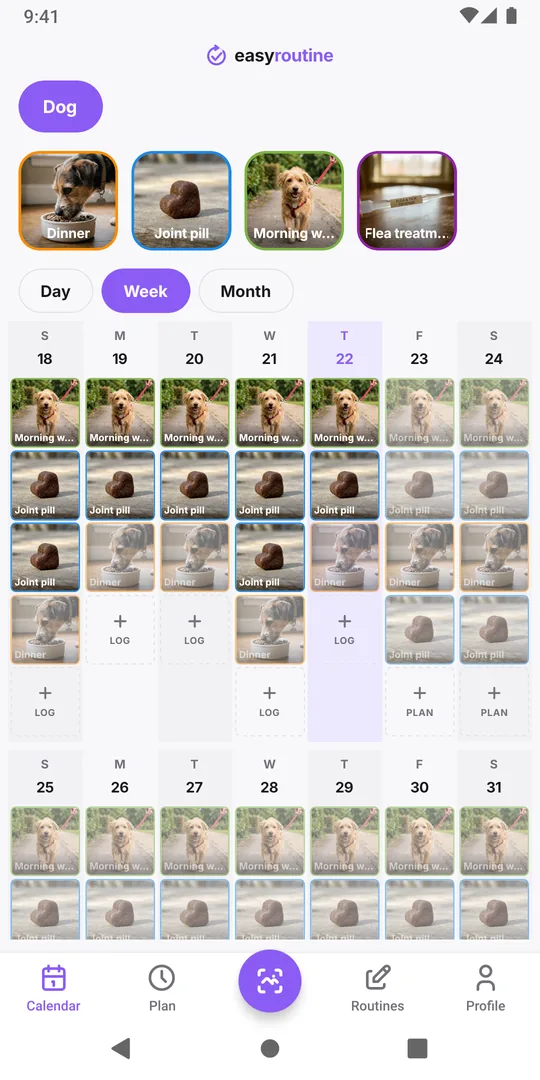
Open Calendar. On every planned day the activity shows as a faded entry at its time in the Week and Day views (a hollow ring in the Month view). When you have done it, tap the faded entry on today or a past day and tap Save: it is logged at the planned time. A faded entry on a past day is a plan you did not log.
You can also plan from the calendar: future days show a Plan button instead of Log, which opens the same sheet on Single day for that date. Before this step, see day, week and month views; next, reorder routines and activities.
Common questions
Can I schedule something every few days or once a month?
Recurring slots repeat on chosen weekdays only. For longer cycles, such as a monthly flea treatment or a filter change, add each date on the Single day tab.
Does a reminder log the activity for me?
No. A reminder only tells you it is time. You log it yourself by tapping the planned entry, the Log button or a scan.
What happens to my schedules if Premium ends?
Your existing schedules stay and their reminders keep going off, and you can remove them. Adding or changing schedules needs Premium again.
Keep reading
- Can I track more than one routine at the same time?Yes. Run supplements, home and pet routines side by side in one EasyRoutine account, with no limit. How to split them so each day stays easy to log.
- How to set up a daily routine, step by stepHow to set up a daily routine: choose the steps, copy two example routines, fill in a blank worksheet, and avoid the mistakes that make routines fade.
- Forgot to log a habit until later? Backdate itDid it this morning but only opened the app now? Log it on the right day, set the real time, and keep your habit record honest. Backdating is free.
- How to get started with EasyRoutineGet started with EasyRoutine: what routines, activities and logs are, with real examples, where each one lives in the app, and which guide to read next.
- How to create a routine and add activities in EasyRoutineCreate a routine in EasyRoutine and fill it: tap Add routine and name it, then add activities from a photo with a suggested name and a color. Free.
- How to log an activity in EasyRoutineLog an activity in EasyRoutine: tap Log under a day, tick what you did and tap OK. Works for today and for past days, free on every plan.
- How to log an activity by scanning a photo in EasyRoutineLog an activity in EasyRoutine with the photo scan: tap AI snap to log, photograph the item, and a match is logged at once. Free; needs activity photos.
- How to add a note or flag to a log in EasyRoutineAdd a note or a red, amber or green flag to a log in EasyRoutine, change its time later, or delete it. Tap the entry on the calendar; free on every plan.
- How to use the day, week and month views in EasyRoutineUse the EasyRoutine calendar: pick a routine, switch between Day, Week and Month, move to other days, weeks and months, and read planned and missed entries.
- How to reorder routines and activities in EasyRoutineReorder routines and activities in EasyRoutine: press and hold a row and drag it, or move an activity to another routine. Logs follow their time. Free.
- How to share a routine in EasyRoutineShare a routine in EasyRoutine by link or QR code. The other person gets their own copy of its activities and photos, never your logs. Stop sharing anytime.
- How to add a routine someone shared with you in EasyRoutineGot a routine link or QR code? Open it, untick what you don't need and tap Add routine to get your own copy in EasyRoutine. Free; later changes don't reach it.
Free on iPhone and Android. Sign in with Apple, Google or your email to start.