How to create a routine and add activities in EasyRoutine
A routine is a named group of things you do together, like Morning or Gym, and activities are what you track in it. Create the routine in the Routines tab, then add activities from a photo.
Before you start
- Install EasyRoutine and sign in.
- Routines, activities, photos and the suggested name are free, with no limit on how many routines you make. Times, days and reminders belong to the activities and are Premium.
- The photo is optional: you can add an activity without one by just typing a name. Only activities with a photo can be logged with the photo scan.
1. Open Routines and tap Add routine
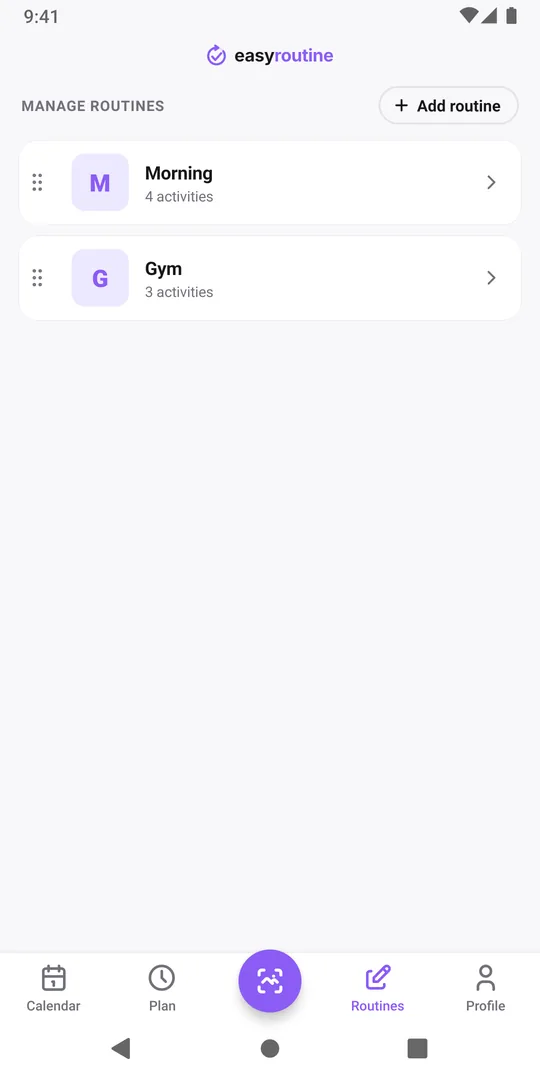
Tap Routines in the bar at the bottom. It lists the routines you already have. Tap Add routine at the top right.
2. Name it and tap Add routine
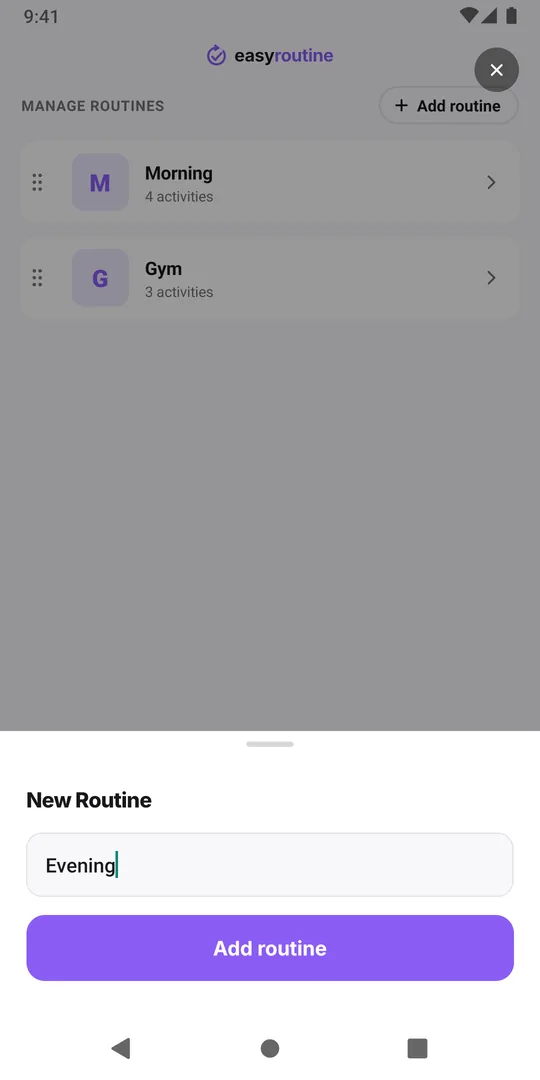
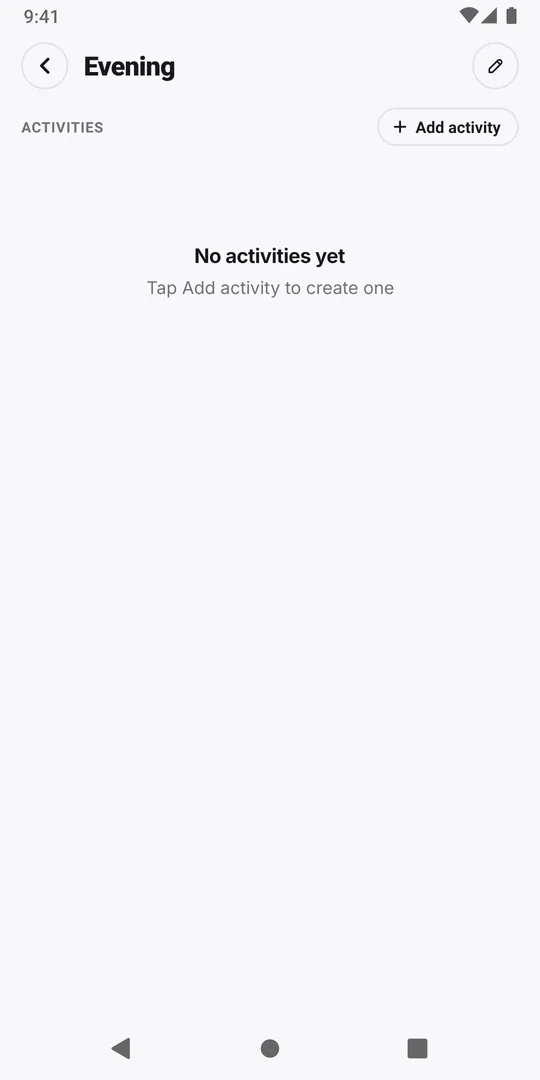
The New Routine sheet opens with the keyboard ready. Type a short name you will recognise at a glance, such as Evening, Gym or Dog, and tap Add routine. The new routine opens on its own screen, still empty, with the Add activity button.
3. Open the routine to fill
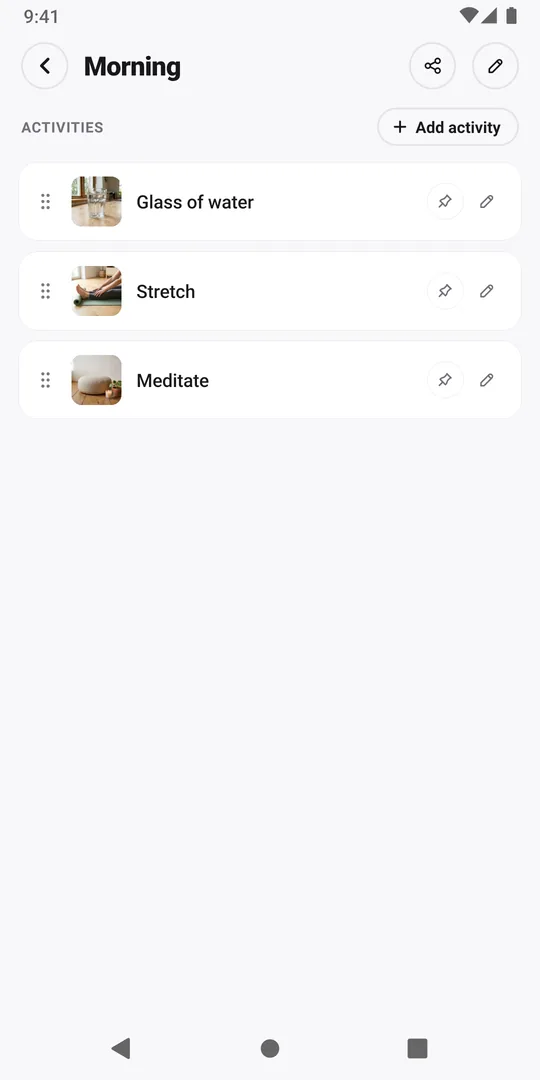
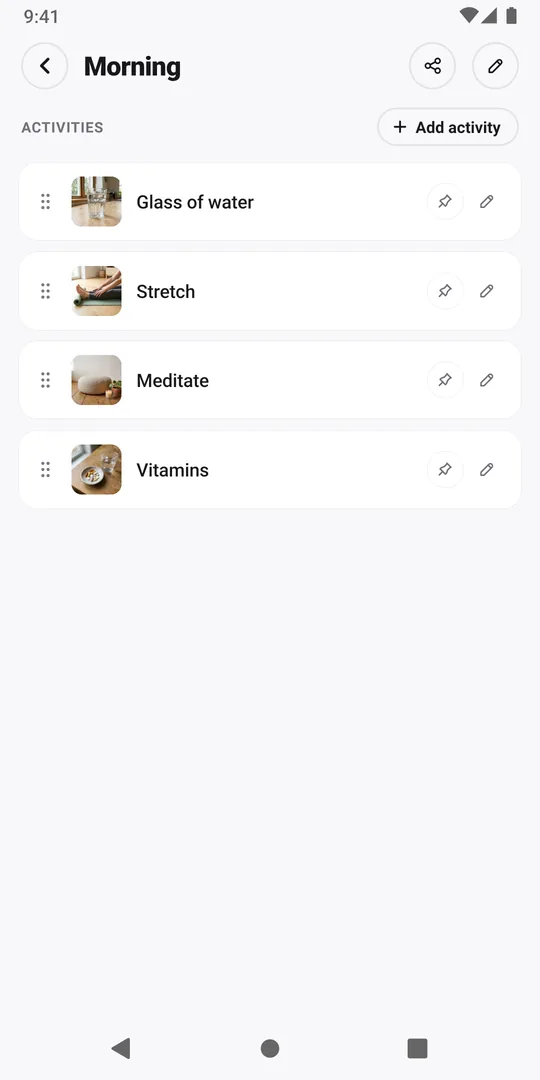
The new routine is ready to fill. To add to another, tap it in Routines; here it is Morning, which has three activities.
4. Tap Add activity
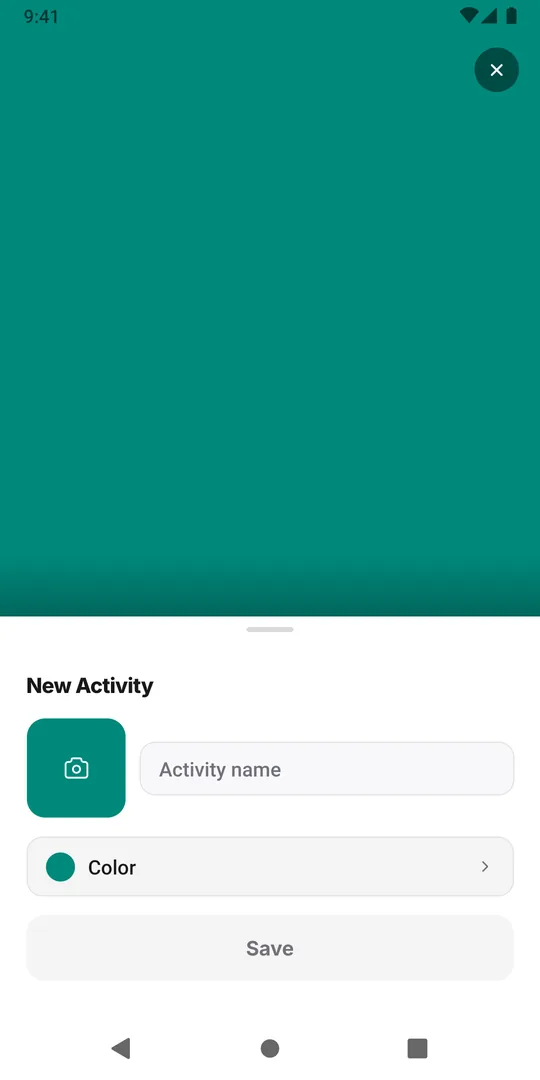
Tap Add activity. The New Activity sheet opens with an empty photo square, the name field and a color.
5. Tap the photo square
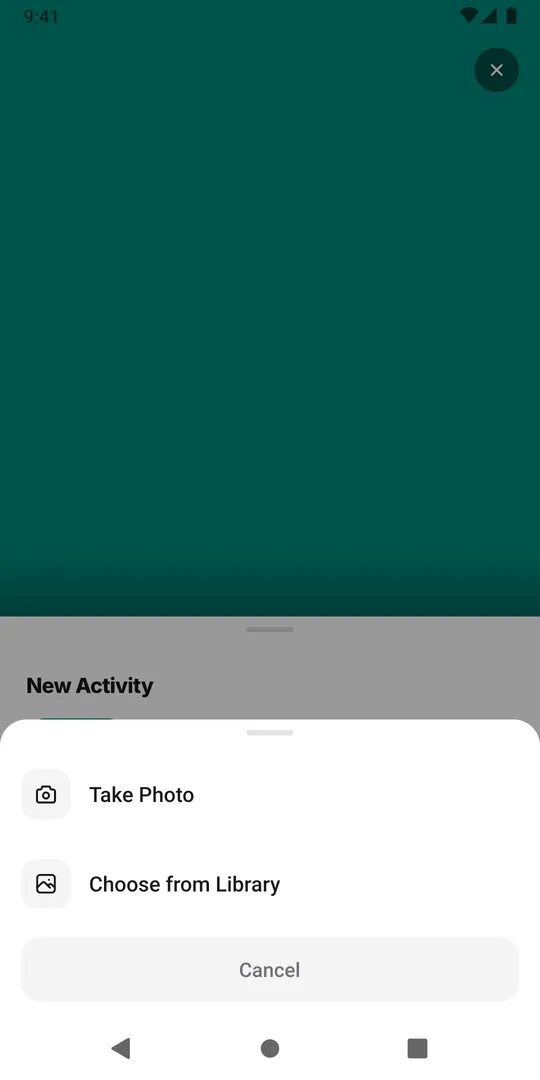
Tap the square with the camera icon. Choose Take Photo to use the camera, or Choose from Library to pick a photo you already have.
6. Take or pick the photo
Photograph the real thing, such as the bottle, the shoes or the plant, or pick a photo of it, and crop it to a square. A clear photo of the label works best: EasyRoutine also stores a short description of the photo, and that is what the scan matches against later.
7. Check the name
EasyRoutine shows Identifying… for a moment and fills in a name it suggests from the photo. Keep it, or tap the name and type your own.

8. Pick a color
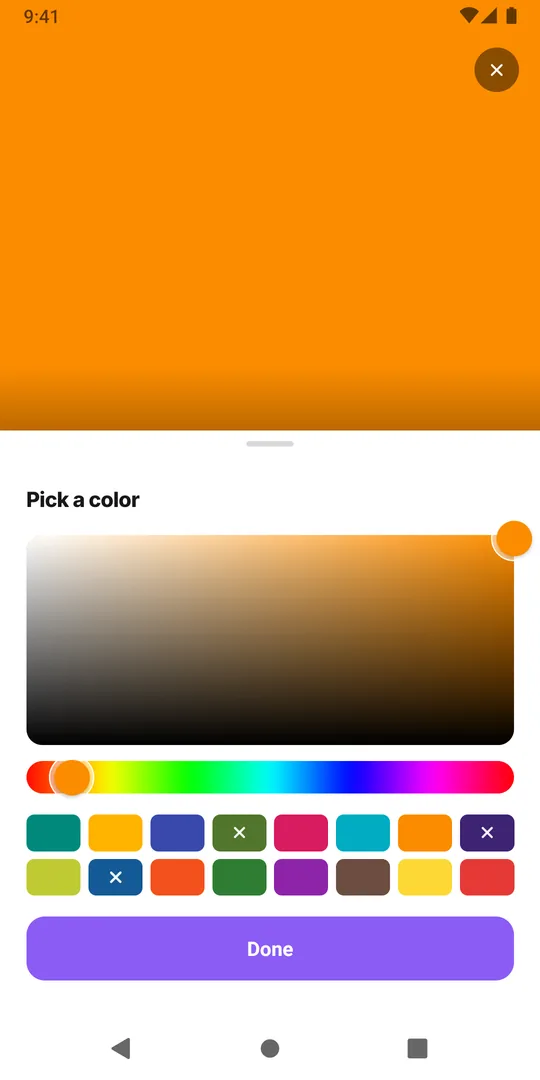
Tap Color and choose one of the swatches, or drag across the large color field and the rainbow bar under it for a color of your own, then tap Done. A swatch with a cross is already used by another activity in this routine. The color frames the activity on the calendar, and an activity without a photo shows as a tile in that color.
9. Tap Save
Tap Save. The activity appears in the routine's list with its photo, and on the Calendar tab as a tile above the calendar.
Managing your routines
With no routines yet, the Calendar tab shows a Create Routine button that opens the same New Routine sheet. To reorder your routines, press and hold one in the Routines tab and drag it. To rename or delete one, open it and tap the pencil at the top; deleting a routine also deletes its activities and their logs.
Next: log it
Add the rest of the routine the same way, then log an activity with a tap or by scanning a photo.
Common questions
What happens to the photo?
It is stored with your account as the activity's tile, and a smaller copy goes to an AI model to suggest the name; the Photo privacy page has the details.
Can I change the photo or color later?
Yes. Open the routine in the Routines tab and tap the activity, or press and hold its tile on the Calendar tab. Tap the photo to replace or remove it, or Color to change the color, then Save.
Keep reading
Free on iPhone and Android. Sign in with Apple, Google or your email to start.