How to add a note or flag to a log in EasyRoutine
Tap a logged entry on the calendar to open it. Pick a red, amber or green flag, type a note under Comment and tap Save. The same sheet changes the date and time, and deletes the log.
Before you start
- You need a log to annotate. Log an activity first, with a tap or a scan.
- Notes and flags are free. They belong to one log, not to the activity.
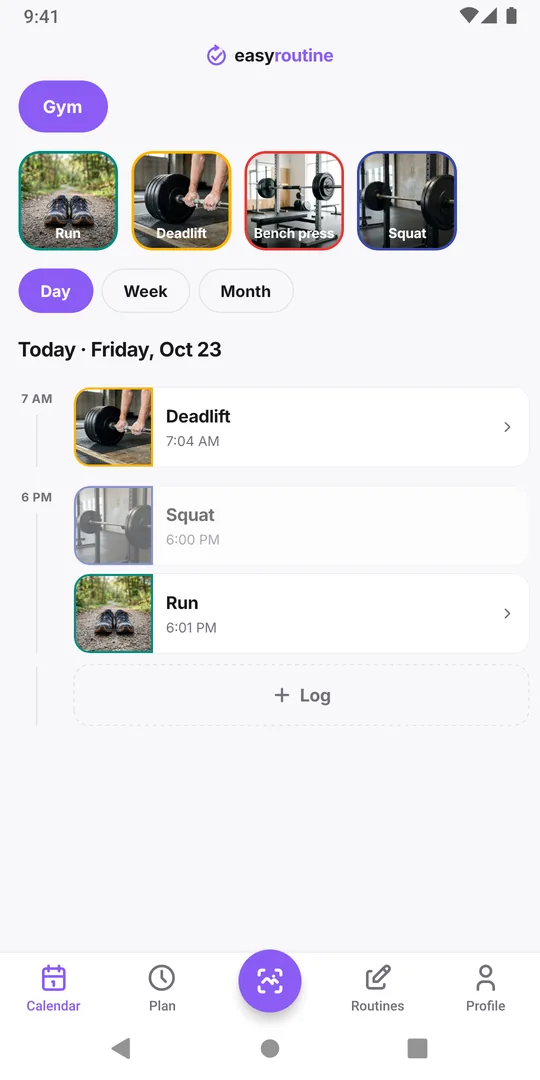
1. Tap the log on the calendar
On the Calendar tab, find the entry in Day or Week view and tap it. The Log Entry sheet opens, with the activity's photo at the top.
2. Pick a flag
Under Flag, tap the red, amber or green dot. What each color means is up to you; a common use is green for went well, amber for partly or late, red for a problem. The dot with a cross means no flag.
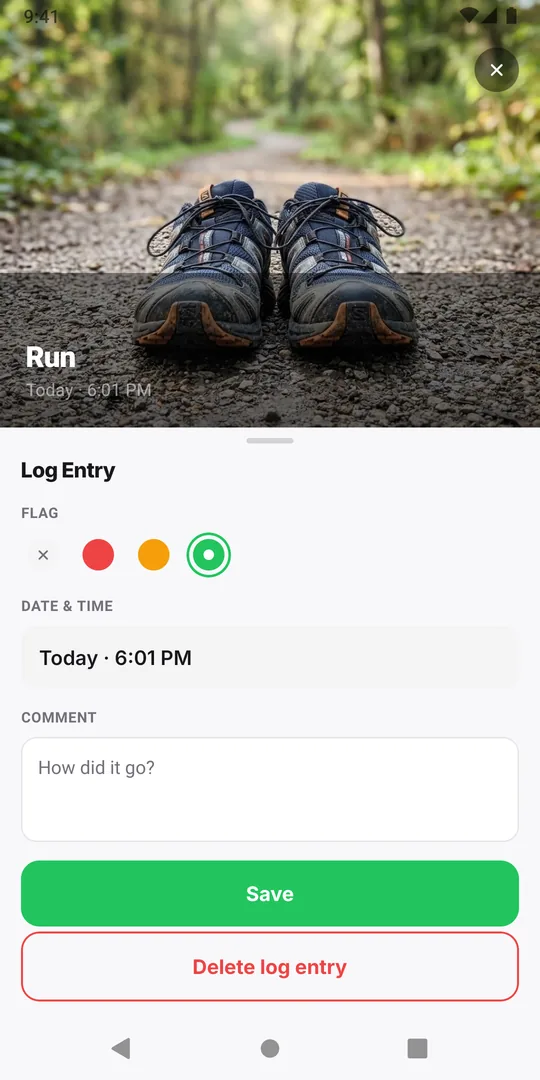
3. Type a note
Tap Comment (it says "How did it go?") and type a note, for example "5 km, felt easy". A note can be up to 2,000 characters. If earlier logs of the same activity have notes, the last five show above as Previous comments.
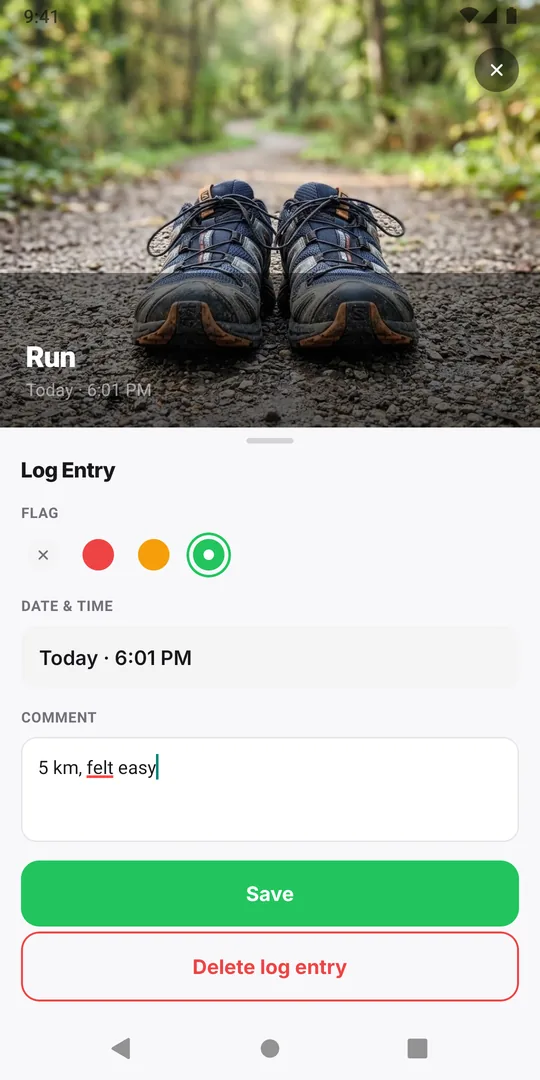
4. Tap Save
Tap Save. The entry now shows a small dot in the flag's color.
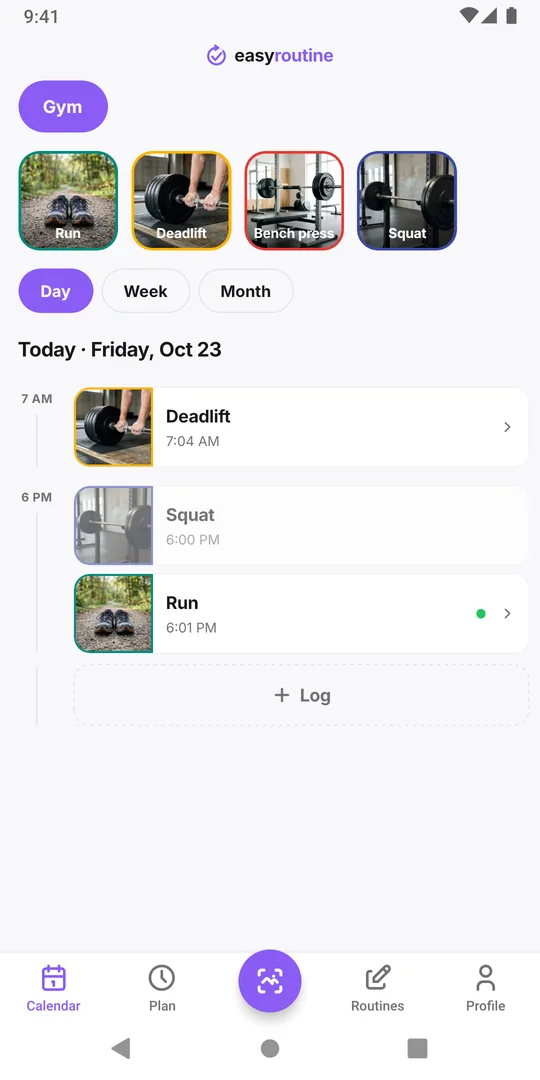
5. Change the date or time
Tap the entry again to change its note, flag or Date & time, then tap Save; for late logs, see forgot to log?.
6. Delete a log
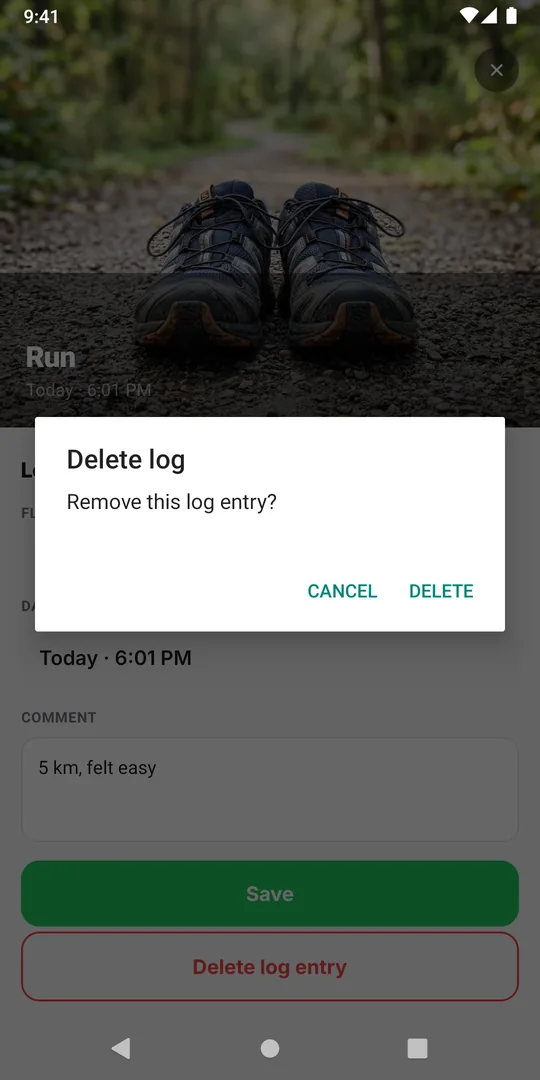
To remove a log, open it, tap Delete log entry and confirm with Delete. The entry disappears from the calendar, and its note and flag go with it.
Common questions
Can I add a note when I log several activities at once?
Logging several at once with the Log button saves them without notes. Tap each entry afterwards to add a note or flag.
Who can see my notes and flags?
Only you. They stay in your account and are never shared, not even when you share the routine they belong to.
Keep reading
Free on iPhone and Android. Sign in with Apple, Google or your email to start.