How to share a routine in EasyRoutine
Open the routine, tap the share button, and let the other person scan the QR code or tap Send link to send it by message or email. They pick the activities they want and get their own copy. Stop sharing turns the link off.
Before you start
- Sharing is free. The routine needs at least one activity; the share button appears once it has one.
- What the link shows: the routine's name and its activities' names, colors and photos, as they are right now.
- What it never shows: your logs, notes, flags, streaks, schedules, reminders, or your name and email.
1. Open the routine
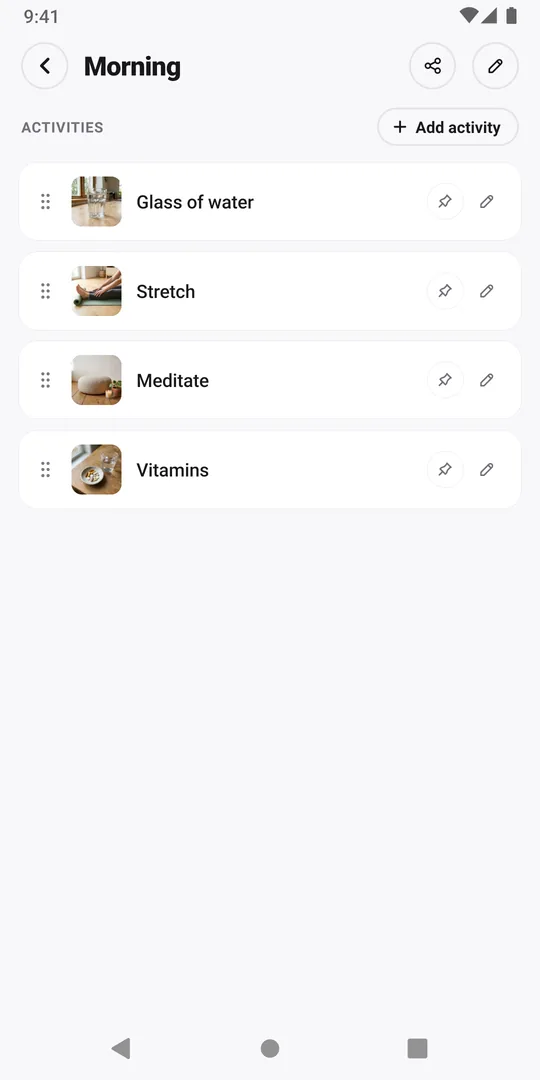
Tap Routines at the bottom and tap the routine you want to share.
2. Tap the share button
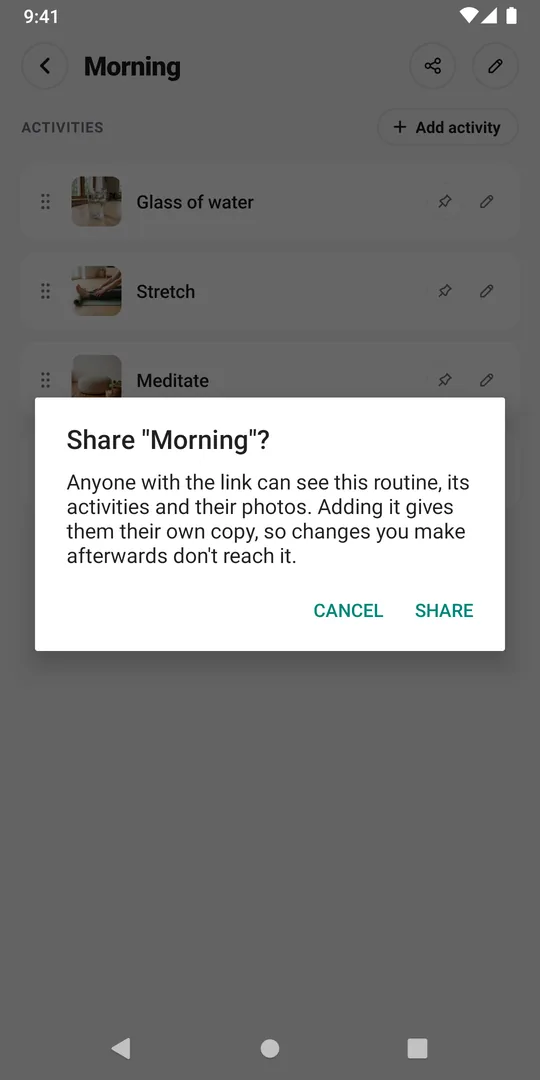
Tap the share button at the top, next to the pencil. The first time, EasyRoutine explains that anyone with the link can see the routine, its activities and their photos, and that adding it gives them their own copy.
3. Tap Share
Tap Share to turn on the routine's link. Later taps on the share button skip this message.
4. Show the QR code or send the link
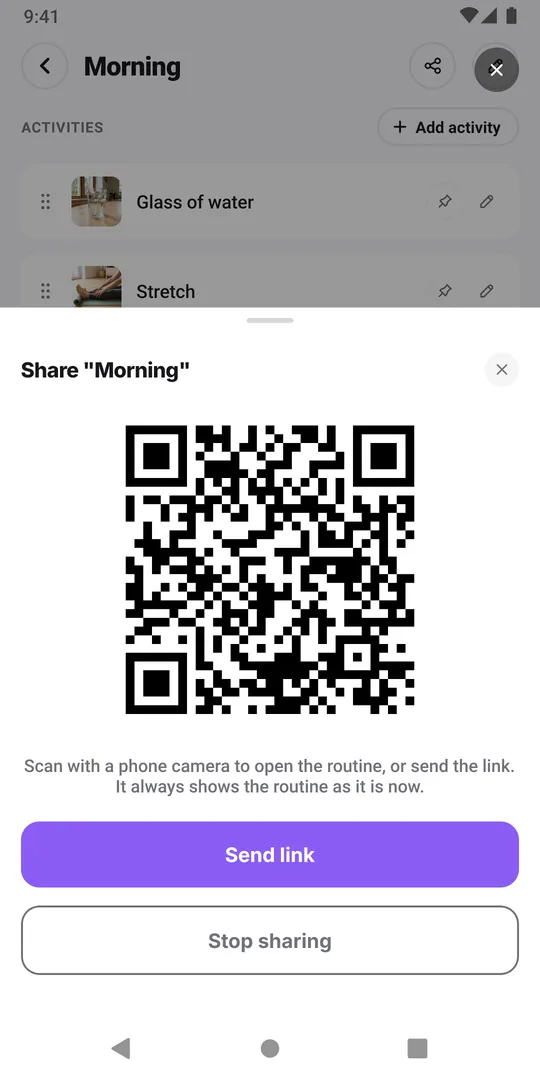
The sheet shows a QR code and two buttons. If the other person is next to you, they scan the code with their phone camera. Otherwise tap Send link and pick a messaging app or email from your phone's share menu.
The routine has one link. Opening the share button again later shows the same code without asking.
5. The other person adds their copy
They open the link, untick what they do not need and tap Add routine; the full steps are in how to add a routine someone shared with you.
6. Stop sharing
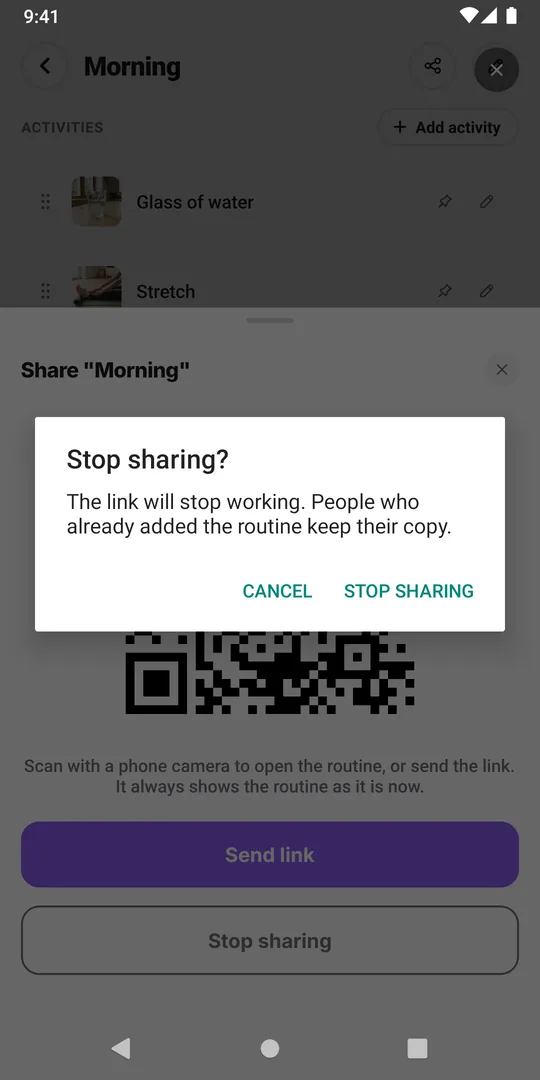
Open the routine, tap the share button and tap Stop sharing, then confirm. The link stops working. Copies people already added stay theirs. Sharing again later gives a new link. Deleting the routine also turns its link off.
Common questions
Can we track the same routine together?
No. Each person logs in their own copy, and nobody sees the other's logs, notes or streaks. Sharing hands over the setup, not the record.
Does the other person need Premium?
No. Adding a shared routine is free. Schedules and reminders are never shared, so they set their own times with Premium if they want them.
Keep reading
Free on iPhone and Android. Sign in with Apple, Google or your email to start.