How to set up a daily routine app, step by step
You want a morning routine that sticks, and a way to answer "did I actually do it today?". In EasyRoutine, a daily routine app that doubles as a habit tracker, that takes three building blocks and about two minutes. Here is the whole setup as a checklist, a full example to copy, and a blank worksheet for your own.
The three building blocks of the routine app
Everything in the app is one of three things. Get these straight and the rest is obvious.
- Routine: a named group of things you do together, like Morning, Evening skincare, Gym or Dog. It is just a name and a place in your list. Make as many as you like.
- Activity: one thing inside a routine that you want to track, like Vitamin D or Stretch. Each has a name, a color and, if you like, a photo. Activities are what you log, and with Premium, what you schedule.
- Log: a record that you did an activity, at a moment. It holds the time, plus an optional note and a red, amber or green flag.
A quick test: if you would tick it off, it is an activity. If it is a heading over several of those, it is a routine. Every tick is a log.
Step-by-step checklist
- Pick one routine to start with. The one you already half do is best: mornings, evenings, or a gym day.
- Name it. On the Routines tab, tap Add routine. Short names work best: Morning, not "My new healthy morning routine".
- Add the activities. Open the routine and tap Add activity for each step. Three to five is a good start; you can add more later.
- Add a photo if it helps. Photograph the real thing (the bottle, the yoga mat) and EasyRoutine suggests a name from the photo. The photo also lets you log by scanning later.
- Pick colors. Each activity gets a color automatically; change it under Color if you want, so the calendar reads at a glance.
- Log the first one today. Do the step, then tap + Log on today in the calendar and pick it. That is your first log.
- Optional, with Premium: schedule it. In the Plan tab, set the days and time for each activity and add a reminder if you want one.
Steps 1 to 6 are free. Scheduling and reminders in step 7 are part of Premium.
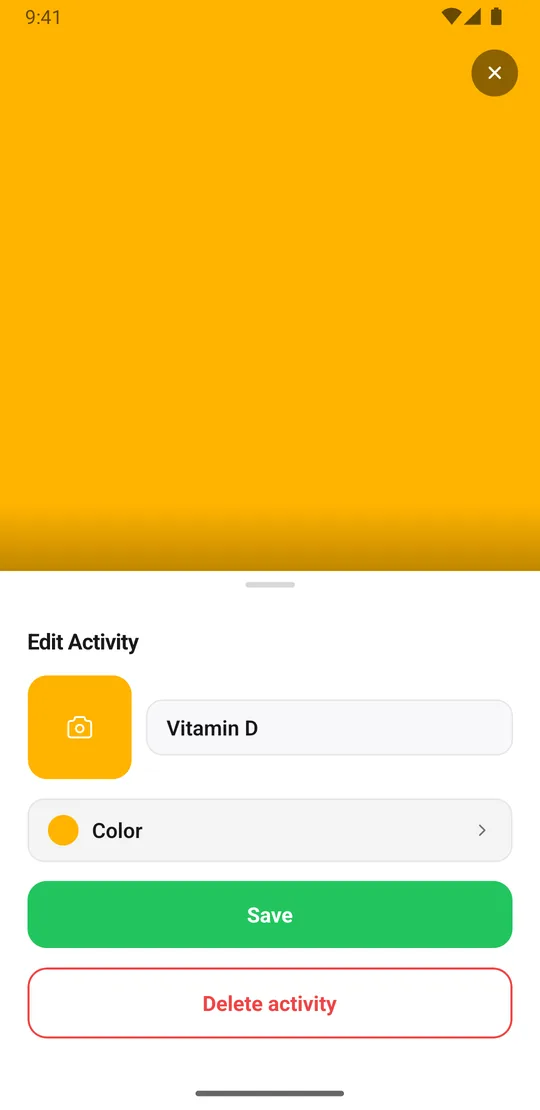
A full example: the morning supplement routine
This is the example we use on how EasyRoutine works, written out as a template you can copy.
Routine: Morning
Activities
- Vitamin D
- Omega 3
- Magnesium
Schedule (Premium): all three every day at 7:30, with a reminder at 7:30
Active period: none, it runs until you change it
How it is logged: each morning, scan each bottle as you take it, tap each faded planned entry and save it, or log all three at once with + Log
How it is checked: on Friday, open the week view; any gap is a morning you missed
That is the whole thing. One routine, three activities, and one log per bottle per day. After a week the calendar shows exactly which mornings happened.
Your worksheet
Copy this into a note, fill it in, then type it into the app.
Routine name: ______________
Activities (one line each, short names):
- Activity 1: ______________
- Activity 2: ______________
- Activity 3: ______________
- Activity 4: ______________
Days: every day / weekdays / specific days: ______________
Time for each activity, or "any time": ______________
Active period: ongoing, or from ________ until ________
Reminder: off / on time / 5, 10, 15 or 30 minutes before
How I will log it: + Log, one or several at once / tap the planned entry (Premium) / scan the photo
Days, time, active period and reminder only matter if you schedule with Premium. Leave them blank and the routine still works as a free checklist you log whenever you do things.
Logging, day to day
There are three ways to add a log:
- Use + Log on a day and pick one activity or several, for example when you did a whole routine in one go. Today gets the current time, a past day 12:00; tap a logged entry to change its time, note or flag.
- Scan with the Scan tab: point the camera at something you photographed when you created the activity. The scan only knows your own activities that have a photo. How the photo scan works.
- Tap the faded planned entry on the calendar, if the activity has a Premium schedule. The Log Entry sheet opens with the planned time, and you save it.
Forgot to log? Add it later and set the time to when you did it; any earlier day works. Logs cannot be added for the future, which is what scheduling is for. Add a note when something is worth remembering, like "took with food", and the log sheet will show it next time.
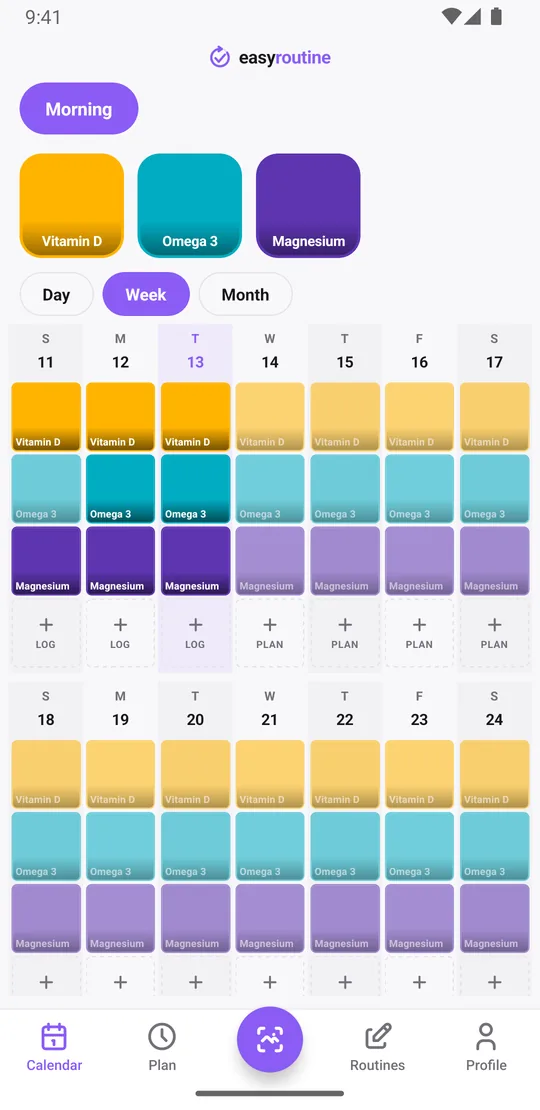
Look back: the last time, notes and flags
The record is free, and it answers more than "did I do it today?".
- When did I last do it? Tap an activity's tile at the top of the calendar to show only that activity; the last tile is the last time. Tap it again to see everything.
- The long pattern: the month view shows up to four dots per day, so a slipping habit shows up as thinning dots.
- Notes worth writing: a new brand of Vitamin D, "skipped, ran out", "took with breakfast". When you log that activity again, the log sheet shows your last few notes, so you know when you switched bottles.
- Flags: mark a log green, amber or red, for example amber for a dose taken late. Notes and flags live on the log; the calendar tiles do not show them.
Where to go next
Once the first routine runs, add a second for another part of your day, or schedule what you have. Two templates help with common next steps: a two-week habit trial for testing something new with a start and end date, and a weekday-only routine for things that only happen on workdays. Everything about days, times and date ranges is on the scheduling page.
Common questions
What is the difference between a routine, an activity and a log?
A routine is a named group, like Morning. Activities are the individual things inside it, like Vitamin D. A log is the record that you did an activity at a certain time, with an optional note and flag.
How do I set up my first routine?
Tap Add routine on the Routines tab and give it a short name, then add three to five activities with Add activity. When you do one, log it with the + Log button on that day. Scheduling with days, times and reminders is optional and part of Premium.
How do I see when I last did an activity?
Tap the activity's tile at the top of the calendar. The calendar then shows only that activity, so the last tile is the last time you logged it. The month view shows the longer pattern.
What is an example of a full routine?
A Morning routine with three activities, vitamin D, omega 3 and magnesium, scheduled every day at 7:30 with a reminder. Each morning you log or scan each bottle, and the week view shows any morning you missed.
Do I need Premium to set up a routine?
No. Routines, activities, logging, the photo scan and the calendar are free with no limits. Premium adds scheduling, reminders and removes ads.
Can I use EasyRoutine as a habit tracker app?
Yes. Add each habit as an activity and log it when you do it. The calendar shows which days you kept it, and the Profile shows a day streak across all activities. The app records that and when you did something, not amounts.
Keep reading
Free on iPhone and Android. Sign in with Apple, Google or your email to start.