How to find an old note you left on a log
In EasyRoutine a note lives on the log it was written on, so you find it by finding the log: narrow down the day in the month view, open that day, and tap the entry to read its note. For recent notes there is a shortcut: any log of the same activity shows the last five notes you wrote for it.
Narrow it down before you look
Old notes are hard to find because you remember the words but not the date. Before opening anything, pin down what you can:
- Which activity was it on? "Tingling" was probably on the new serum, "knee felt off" on a run.
- Roughly when? Tie it to something you do remember: before the holiday, the week you started the new product, around the last appointment.
- Did you flag it? If you mark notable logs with a red or amber flag, those are the ones to check first.
The answer to these three turns "somewhere in the last three months" into "one of about ten logs".
Shortcut: the last five notes on any log
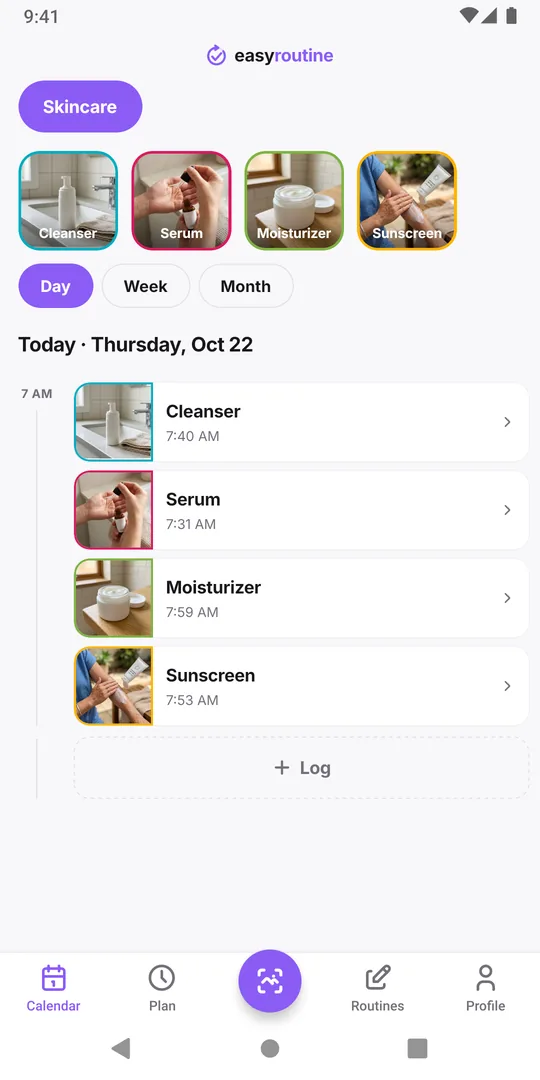
If the note is fairly recent, open any log of that activity: tap its entry on the Calendar tab in Day or Week view. The Log Entry sheet shows up to five earlier notes for the same activity under Previous comments, each with its date. Tap a long one to show it in full.
This is often enough for questions like "what did I write after the last few runs?" Logs without a note are skipped, so the five you see are the five most recent notes, however far apart they are.
Older notes: go through the month view
For anything further back, browse the calendar:
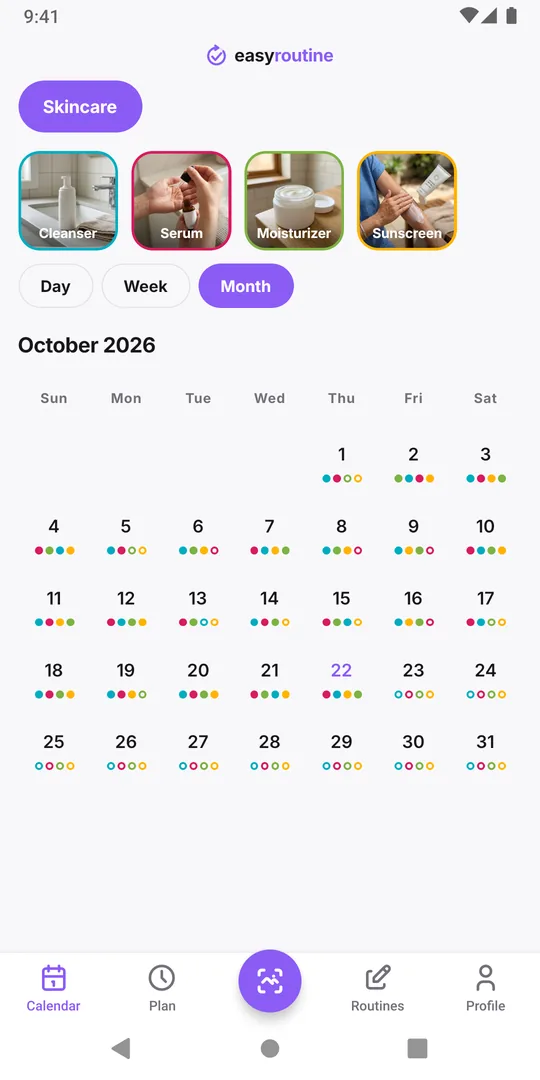
- Open the Calendar tab, pick the routine and switch to Month. Scroll up to earlier months.
- Tap the activity's tile above the calendar. Its dots get bigger, so you see at once which days it was logged.
- Tap a day in the period you have in mind. The calendar opens that day in Day view.
- Tap the activity's entry to open it and read the note. A small colored dot on the entry means it has a flag.
- Swipe up or down for the previous or next day, or go back to the month and pick another day.
There is no search box for notes, so this is a browse, not a search. With the activity highlighted and a rough date it rarely takes more than a few taps.
Getting ready for an appointment or a review
Notes are most useful when you bring them to someone: a dermatologist asking when the irritation started, a physio asking how the knee has been, or your own training review at the end of a block. EasyRoutine has no export, so a few minutes before the appointment:
- Go through the relevant period as above.
- Write the important ones down in a short list with their dates, for example "3 Sep, serum: tingling" and "10 Sep, serum: dry patch on chin".
- Bring the list, or the phone with the right month open.
The app keeps the record; what it means is for the doctor, pharmacist or coach to judge. If a reaction worries you, contact them rather than waiting for the next review. For skin reactions in particular, finding which product caused a reaction shows how to line up notes with new products.
Write notes you can find again
A note is only as findable as the log it sits on. A few habits make the next search quicker:
- Flag what matters. Pick a meaning, such as red for a reaction, and stick to it. Flagged entries show a dot in the day and week views, so they stand out while you browse. More in what the flag colors mean.
- Write it on the right activity. "Tingling" belongs on the serum's log, not on the cleanser's, or the previous-notes shortcut will not show it where you look.
- Start with the key word. "Tingling, 10 min after" is easier to spot than "Felt a bit of tingling afterwards".
- Note when something starts and stops. "Dry patch gone" closes the story and saves a search later.
Notes and flags are free and stay private: they are never shared, not even when you share the routine. How to add them: add a note or flag to a log.
Common questions
Can I search my notes in EasyRoutine?
No, there is no search for notes. Find the log instead: highlight the activity in the month view, open the day and tap the entry. Any log also shows the last five notes for that activity.
How many old notes does the log sheet show?
Up to five earlier notes for the same activity, the most recent ones, with their dates. Logs without a note are skipped.
Can I export my notes for my doctor?
There is no export in the app. Write the relevant notes and dates down before the appointment, or show the calendar on your phone.
Are my notes deleted after a while?
No. A note stays on its log until you delete the log, the activity or the routine, or your account.
Keep reading
- I missed a day and lost my habit streak: what now?Missed a day and lost your habit streak? Why one miss does not undo a habit, how to restart without missing twice, and what EasyRoutine keeps when it resets.
- Can't tell which habit you're slipping on? Read the month, one habit at a timeFeel behind on your habits but can't say which one? Read a month of logs habit by habit, find the one that thins out, and fix that habit, not the whole routine.
- Can't see future scheduled days on your calendar?Only past logs on your calendar and nothing for the week ahead? Why future days stay empty, what makes them fill in, and what to check when a plan is missing.
- Want a completion percentage or streak per habit?Want a completion rate or a streak for each habit? How to work one out by hand in a few minutes, and what EasyRoutine shows instead of per-habit statistics.
- Can you compare habits from different routines on one calendar?Want your gym days next to your skincare nights on one calendar? Why EasyRoutine shows one routine at a time, and how to group habits you want to compare.
- Compare this week to last week: are you doing better?Want to know if this week went better than last week? What to compare, what to ignore, and how to read two weeks side by side in EasyRoutine's calendar.
- How do I check if I already did something today?Did I already take it, feed the cat, water the plants? How to get a quick yes or no before doing something twice or skipping it, and where EasyRoutine shows it.
- What do the flag colours mean on my log?Red, amber and green flags on your logs mean whatever you decide. Common ways to use them, how to pick one meaning and stick to it, and where the dots show up.
- Which days did I actually miss this week?Hectic week and not sure what slipped? How to find the days you missed for each habit, tell a real miss from a forgotten log, and decide what to do about it.
Free on iPhone and Android. Sign in with Apple, Google or your email to start.