I don't want to photograph every product: do I have to?
No. A photo is optional for every activity. An activity can be just a name and a color, and you log it exactly the same way. Only the camera scan needs a photo, so add one only for the few items you would actually scan.
What a photo does, and what works without one
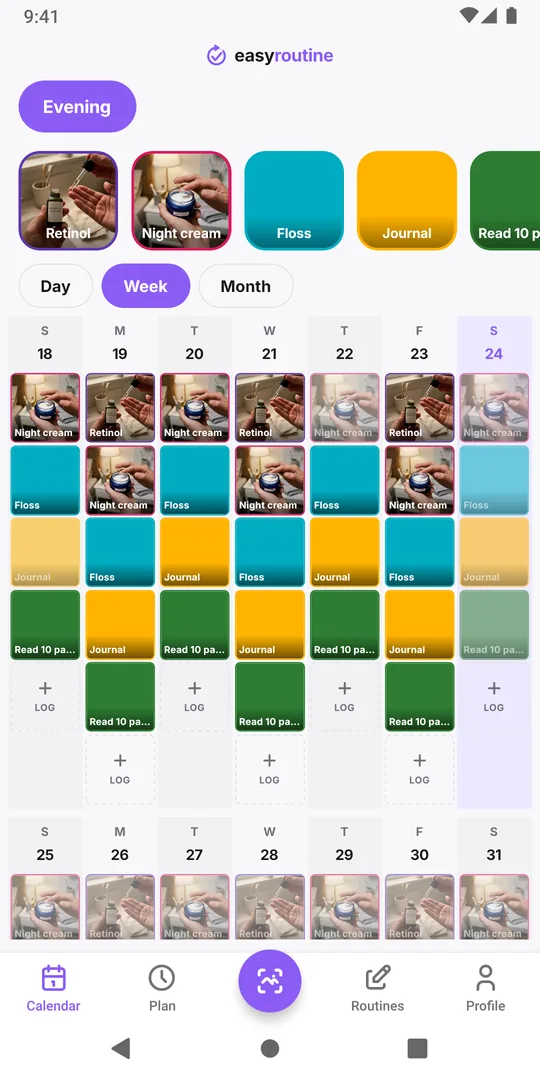
An activity photo does two jobs: it shows on the activity's tile so you recognize it at a glance, and it makes the activity a candidate for the AI photo scan. That is all. Everything else works the same with or without it:
- logging with Log under the day on the Calendar, today or on a past day;
- notes and the red, amber or green flag on a log;
- the Day, Week and Month calendar and the streak;
- with Premium, schedules and reminders.
An activity without a photo shows as a tile in its color with its name. You pick the color in the activity sheet, or EasyRoutine assigns one that no other activity in that routine uses. A ten-step skincare routine with ten distinct colors is easy to read without a single picture.
Where a photo is worth it
The scan saves you a few taps when you are already holding the thing: you point the camera at the bottle and the matching activity is logged. It pays off for:
- Items you handle every time you do the task. A supplement bottle, a serum, the dog's food bag.
- Items that look different from each other. A blue tube and a brown dropper bottle are easy for the scan to tell apart.
- Things you use with full hands or in a hurry, when finding the right tile takes longer than a photo.
A photo adds little for:
- Habits with no object. Meditation, stretching, a walk, journaling.
- Look-alikes. Two white bottles of the same brand can confuse the scan, so one photo on one of them, or none, is often better. Why the scan mixes up look-alikes.
- Things you do once in a while, like changing a filter. Logging by hand is just as quick.
A practical way to set it up
- Create the routine and type every activity's name, without photos. It takes a minute. Add an activity shows the sheet.
- Use the routine by hand for a week. You will notice which two or three items you always reach for.
- Add photos only to those: long-press the tile to open Edit Activity, tap the photo square, then Take Photo or Choose from Library. Photograph the label side in good light.
You can add, change or remove a photo whenever you like, and the activity keeps all its logs. Removing a photo takes that activity out of the scan, nothing more.
Shortcuts that save photos
- Use a photo you already have. Choose from Library works for activity photos, for example a picture you took of your shelf earlier. Only the scan itself needs the live camera.
- One photo for a routine step, not every product. If you always use the same three products together, one activity such as "Evening skincare" with one photo can be enough. You lose the detail of which product you used, so only do this if you do not need it.
- Name first, photo later. If you add a photo to an activity that already has a name, your name stays. An activity without a name gets one suggested from the photo, which you can edit. Either way, the photo is described once by the AI so the scan can recognize it.
Common questions
Do I have to take a photo for every activity?
No. A name is the only thing an activity needs. The photo is optional and only matters for the camera scan.
Can I add a photo later?
Yes. Long-press the activity's tile, tap the photo square in Edit Activity and add one. Its existing logs stay as they are.
Can activities without a photo be scanned?
No. The scan only chooses between activities that have a photo. Log the others with Log under the day on the Calendar.
Is there a limit on photos?
No. There is no limit on activities or photos on either plan. Each photo you add or change uses one AI request, within the 300 per day: the AI writes the short description the scan matches against, which is also offered as the name when the activity has none yet.
Keep reading
- How EasyRoutine's AI recognizes photos, and what it can scanHow EasyRoutine's AI names an activity from its photo and matches a scan to your own activities, what it can and cannot recognize, and what happens on no match.
- The AI scan keeps logging the wrong activity: why correcting it does not help, and how to fix itPhoto scan picked the wrong supplement again? Deleting the wrong log does not teach the scan anything. Fix the names and photos it compares against so look-alikes stop mixing up.
- The camera permission keeps popping up: how to fix it for the scanEasyRoutine keeps asking for camera access? The scan cannot work without it. Why the prompt comes back and how to allow it once in iPhone or Android settings.
- The scan doesn't work without internet: what you can do insteadThe EasyRoutine scan runs on a server, so it cannot work offline, and neither can logging. What you see without signal, and how to log it later at the real time.
- The scan is slow or doesn't respond: what is going onEasyRoutine scan stuck on Matching? The match happens on a server, so a weak connection is the usual cause. What else slows it, and how to log by hand right now.
- The scan suggested the wrong name for my activity: what to doEasyRoutine suggested a wrong name from your photo? Edit it before you save. Your own name does not stop the scan working, and a retaken photo fixes a bad guess.
Free on iPhone and Android. Sign in with Apple, Google or your email to start.