The AI scan keeps logging the wrong activity: how to fix it
When the scan picks the same wrong activity again and again, two of your activities look alike to it. Delete the wrong log first, then change what the scan compares against: the activity names and the photos behind them.
First, undo the wrong log
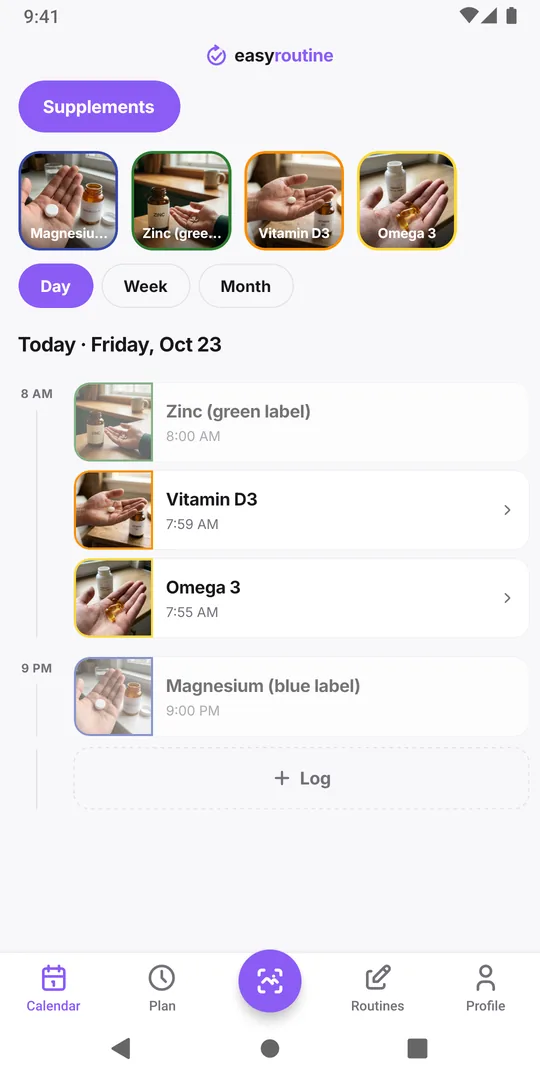
A match is logged at once with the current time, without a question first. After a scan the app opens the Calendar on the routine of the activity it picked, so the wrong entry is right in front of you.
- Tap the wrong entry to open its Log Entry sheet.
- Tap Delete log entry and confirm.
- Log the right activity: tap its planned entry on the day, or use Log and pick it. Set the time if it was not just now.
A log cannot be moved to another activity, so delete and re-log is the way to correct it. If you added a note to the wrong log, copy it before you delete.
Why the scan keeps choosing the same one
The scan does not compare your new picture with the activity's stored photo. It compares it with text: each activity's name, its routine's name, and a short description the AI wrote from the activity photo when you added it, like "white supplement bottle". If two activities end up with nearly the same words, your scan matches both equally well, and the scan tends to settle on the same one every time. That is why the mix-up repeats instead of happening once.
The usual causes:
- Look-alike packaging. Two bottles from the same brand, white caps, the same label design.
- The photo shows the wrong side. A cap, the back or a blurry shot gives a vague description.
- Vague names. "Pill 1" and "Pill 2" give the scan nothing to tell apart.
- One object, two activities. "Magnesium AM" and "Magnesium PM" with the same bottle look identical in a photo. The scan does not look at the clock, so it cannot know which one you mean.
- Something you never set up. Scan an item that has no activity of its own and the scan may pick the closest-looking activity instead of saying no match.
Fix it in this order
Start with the cheapest change and stop when the mix-up stops.
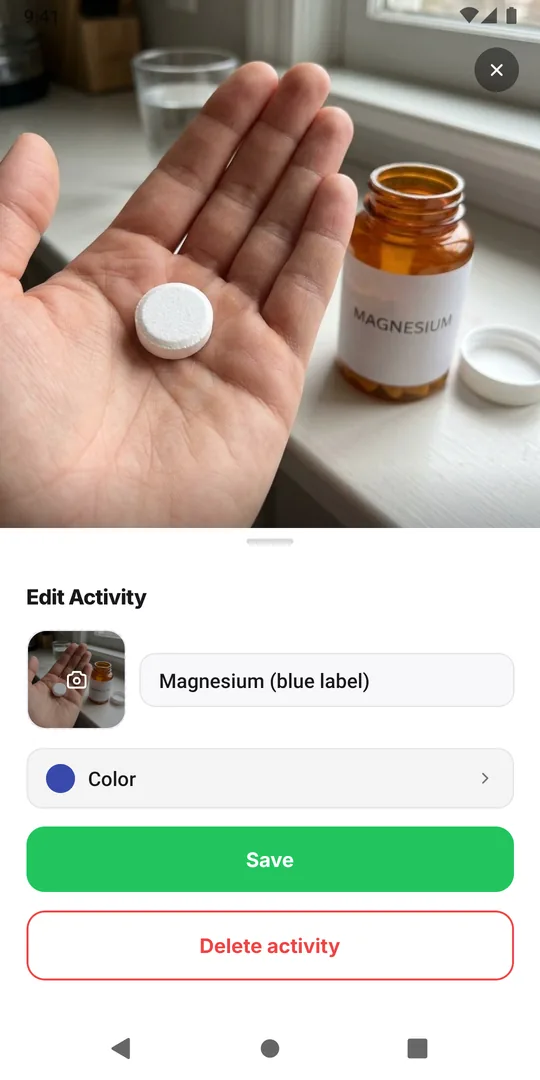
- Rename both activities distinctly. Use words you can see on the pack: "Magnesium (blue label)" and "Zinc (green label)". Long-press the tile to open Edit Activity and change the Activity name. This works right away.
- Retake each photo, label side out. In Edit Activity, tap Change photo, then Take Photo, with the printed name facing the camera in good light. A new photo gets a new description.
- Scan the same side you photographed. Label to label, not cap to cap.
- Archive what you no longer take. A finished bottle that is still an activity is still a candidate. Archive keeps its history on the calendar and the scan skips it.
- Remove the photo from one of them. For an AM and PM dose of the same thing, or two items you cannot tell apart yourself, tap Remove Photo on one. Activities without a photo are never chosen, so the scan can only land on the other one, and you log the photo-less one by hand.
Does keeping them in separate routines help?
A little, and only for ties. The scan looks at all your activities that have a photo, in every routine, not just the one you have open. The routine selected on the Calendar tab does get a nudge: when two activities match equally well, the scan leans toward the one in that routine. A clearly better match in another routine still wins.
So if your morning and evening supplements sit in two routines, opening the right routine before you scan can break a tie between two look-alikes. It will not stop a wrong pick when the wrong activity simply matches the photo better. Clear names and label-side photos do more.
Check after scanning medicines
Because a match logs without asking, glance at the calendar after each scan of medicines or supplements with look-alike packs, and if two packs are hard to tell apart even for you, use step 5 above so one is always logged by hand. The log records that you took something and when, not what dose, so ask your pharmacist about doses (using EasyRoutine as a medication log).
Common questions
Can I move a wrong log to the right activity?
No. A log stays with the activity it was made for. Delete it in its Log Entry sheet and log the right activity on the same day and time.
Does the scan learn from my corrections?
No. Deleting a wrong log does not teach it anything. What changes its answer is what it compares against: the activity names, the routine names and the descriptions written from the activity photos.
Can I make the scan look only at the routine I have open?
No. It considers your activities with a photo in every routine and only leans toward the open routine when two match equally well. To keep an activity out of the scan, remove its photo or archive it.
Why did the scan pick something instead of saying no match?
The scan chooses the closest of your activities and only says no match when none of them fit. An item with no activity of its own can land on a look-alike. Give it its own activity with a photo, or log it by hand.
Keep reading
Free on iPhone and Android. Sign in with Apple, Google or your email to start.