The scan suggested the wrong name for my activity: what to do
Just type over it. The name EasyRoutine suggests from a photo is only a starting point, and you can change it before tapping Save or at any time later. Your own name does not stop the scan from recognizing the activity, because the scan also uses a description of the photo.
Where the suggested name comes from
When you add a photo to an activity that has no name yet, the app shows Identifying… for a moment. Meanwhile an AI model looks at the photo and comes up with a short name of one to four words, using text it can read on the pack where possible. That name is filled into the Activity name field.
The guess can be wrong or too vague for several reasons:
- The label is not readable. Glare, a blurry shot or the back of the bottle give the AI little to go on, so you may get "White bottle" or the wrong product type.
- The packaging looks like something else. A vitamin C serum in a dropper bottle can come out as "Retinol serum" if nothing on the visible side says otherwise.
- It names the brand, not what you call it. You think of it as "Night cream"; the AI reads the brand name off the jar.
- The photo shows several things. On a shelf of bottles the AI picks one, not necessarily yours.
The name comes in the app's language: English, German, French, Spanish, Portuguese, Japanese, Italian, Korean, Indonesian, Dutch or Polish, following your phone.
Change the name
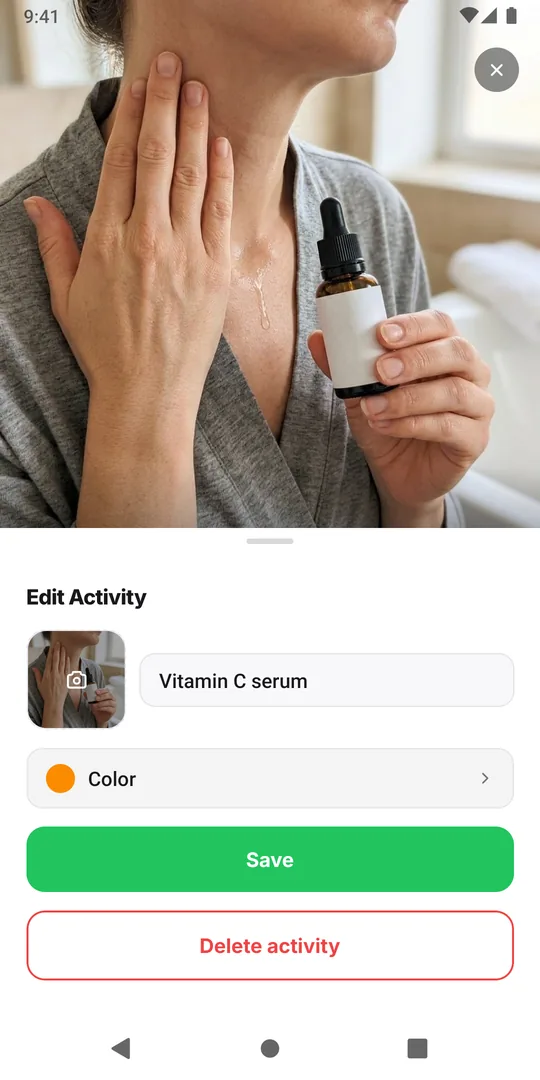
Before saving: tap the Activity name field, clear the suggestion and type your own, then tap Save.
After saving: long-press the activity's tile above the calendar to open Edit Activity, change the Activity name and tap Save. Renaming keeps all the activity's logs.
To skip the suggestion altogether, save the new activity with just its name, then add the photo later in Edit Activity. An activity that is already saved with a name keeps that name when you add a photo.
Does your own name affect the scan?
Not in a bad way. When you scan, the AI compares your photo with a text list of your activities that have a photo. Each entry holds three things: the activity name, the routine name, and the short description the AI wrote from the activity photo when you added it. The description is kept even if you type a different name, so the scan still has it.
A clear name of your own usually helps. "Vitamin C serum" tells the scan more than a brand name it cannot see from the cap side. What you cannot do is edit the stored description directly; the app does not show it.
That matters when the AI's guess was badly off, say "Retinol serum" for your vitamin C serum, and you also have a real retinol in the same list. Two entries now mention retinol, and the scan may mix them up. The fix is a better photo:
- Open Edit Activity and tap Change photo.
- Take the photo with the label facing the camera, in good light, filling most of the frame.
- Keep your own name and tap Save.
A new photo gets a new description, so the old wrong guess is gone. If mix-ups continue, the scan keeps logging the wrong activity goes through the rest of the fixes.
Common questions
Will renaming the activity break the scan?
No. The scan matches against the activity name, the routine name and the description of the activity photo. Your new name simply replaces the old one in that list.
Can I turn off the name suggestion?
There is no setting, but you can avoid it: save the activity with your name first, then add the photo in Edit Activity. A saved name is kept.
Why is the suggested name in another language?
Names are suggested in the app's language, which follows your phone's language. Supported are English, German, French, Spanish, Portuguese, Japanese, Italian, Korean, Indonesian, Dutch and Polish.
Does a new photo replace the old description?
Yes. Changing the photo writes a new description from the new picture, and the scan uses that one from then on.
Keep reading
- How EasyRoutine's AI recognizes photos, and what it can scanHow EasyRoutine's AI names an activity from its photo and matches a scan to your own activities, what it can and cannot recognize, and what happens on no match.
- The AI scan keeps logging the wrong activity: why correcting it does not help, and how to fix itPhoto scan picked the wrong supplement again? Deleting the wrong log does not teach the scan anything. Fix the names and photos it compares against so look-alikes stop mixing up.
- The camera permission keeps popping up: how to fix it for the scanEasyRoutine keeps asking for camera access? The scan cannot work without it. Why the prompt comes back and how to allow it once in iPhone or Android settings.
- I don't want to photograph every product: do I have to?Photos are optional in EasyRoutine. An activity can be just a name and a color and logs the same way. Only the camera scan needs a photo, so add it where it pays.
- The scan doesn't work without internet: what you can do insteadThe EasyRoutine scan runs on a server, so it cannot work offline, and neither can logging. What you see without signal, and how to log it later at the real time.
- The scan is slow or doesn't respond: what is going onEasyRoutine scan stuck on Matching? The match happens on a server, so a weak connection is the usual cause. What else slows it, and how to log by hand right now.
Free on iPhone and Android. Sign in with Apple, Google or your email to start.