The scan is slow or doesn't respond: what is going on
The match is made on a server over your internet connection, so a slow or unstable connection is the most likely reason a scan hangs on Matching. If you cannot wait, close the scan and log the activity by hand: that takes a few taps and needs no AI.
What happens while it says Matching
After you take the photo, the app shows Matching…. In that moment:
- Your phone shrinks the photo and uploads it to EasyRoutine's server.
- The server sends it to an AI model, together with a short text list of your activities that have a photo.
- The model answers with one activity or no match.
- On a match, the app shows Logging…, saves the log and takes you back to the Calendar.
Each step depends on the connection between your phone and the server. A scan that normally takes a moment can feel stuck when the upload in step 1 crawls along on a weak signal.
The usual causes
- A weak or unstable connection. One bar of mobile data, a crowded Wi-Fi network, or a phone switching between the two. This is by far the most common cause. Try again on Wi-Fi or where the signal is better.
- No connection at all. The scan then ends with No connection and Check your internet and try again., or the app shows No Internet Connection until you are back online. The scan doesn't work without internet.
- The AI service is busy. Then the scan ends with Scan failed. Try again or select manually. That is not your phone's fault. Waiting a moment and scanning again usually works.
- You reached the scan limit. Each account can make 20 AI requests a minute and 300 a day, counting scans and photo name suggestions together. Many retries in quick succession can hit the per-minute limit. Wait a minute before trying again.
- EasyRoutine's server cannot be reached. The app shows Server Unreachable and checks again by itself.
Log it by hand instead
If the scan is not worth the wait right now, close it. Logging by hand needs no AI:
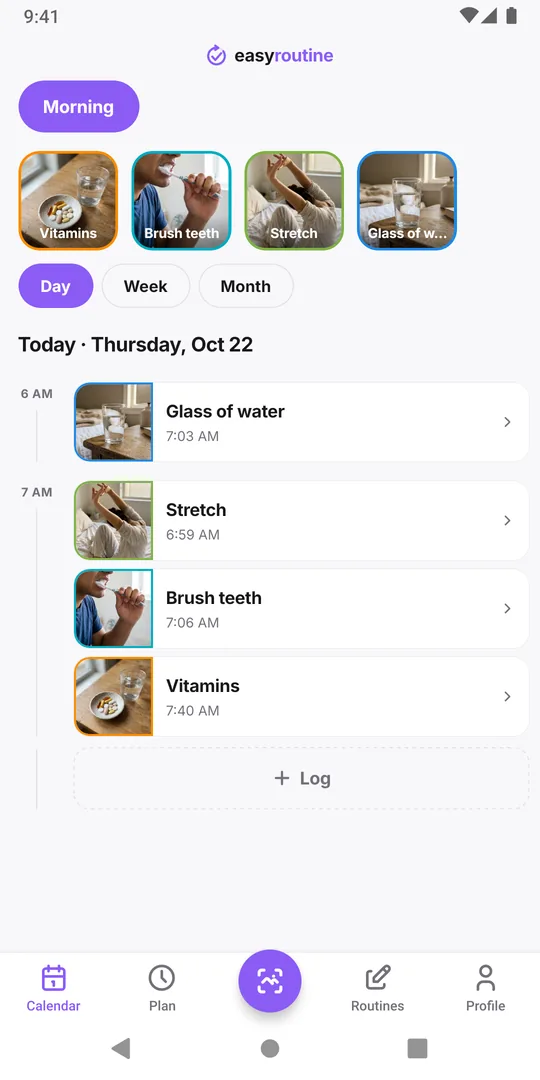
- Open the Calendar and pick the routine.
- Tap Log under today.
- Tick the activity and tap OK.
When a scan ends with a message, the app also shows a form where you pick the routine and activity yourself and tap Log it.
Before you log by hand after a slow scan, glance at today on the Calendar. If the scan did get through, the entry is already there, and logging again would record it twice. A duplicate is easy to remove: tap it and choose Delete log entry.
Make scans quicker
- Scan where the signal is good. If your supplements live in a room with poor reception, scan them on Wi-Fi.
- Do not retake the photo again and again. Each retry is another upload and another request toward the limits. If two tries fail, log by hand.
- Keep clear names and photos. This does not change the speed, but it means fewer wrong matches to fix later. Why the scan picks the wrong activity.
The scan is free and works the same on the free plan and on Premium.
Common questions
How many scans can I make?
Up to 20 AI requests a minute and 300 a day per account, counting scans and photo name suggestions together.
Is the scan faster with Premium?
No. The scan is free and the same on both plans. Premium adds scheduling, reminders and no ads.
The scan failed. Was anything logged?
Usually not, but check today on the Calendar. If the entry is there, the scan got through and you do not need to log it again.
Does a long list of activities make the scan slower?
The scan considers at most 150 of your activities that have a photo, preferring the open routine. If scans are slow, check your connection first.
Keep reading
- How EasyRoutine's AI recognizes photos, and what it can scanHow EasyRoutine's AI names an activity from its photo and matches a scan to your own activities, what it can and cannot recognize, and what happens on no match.
- The AI scan keeps logging the wrong activity: why correcting it does not help, and how to fix itPhoto scan picked the wrong supplement again? Deleting the wrong log does not teach the scan anything. Fix the names and photos it compares against so look-alikes stop mixing up.
- The camera permission keeps popping up: how to fix it for the scanEasyRoutine keeps asking for camera access? The scan cannot work without it. Why the prompt comes back and how to allow it once in iPhone or Android settings.
- I don't want to photograph every product: do I have to?Photos are optional in EasyRoutine. An activity can be just a name and a color and logs the same way. Only the camera scan needs a photo, so add it where it pays.
- The scan doesn't work without internet: what you can do insteadThe EasyRoutine scan runs on a server, so it cannot work offline, and neither can logging. What you see without signal, and how to log it later at the real time.
- The scan suggested the wrong name for my activity: what to doEasyRoutine suggested a wrong name from your photo? Edit it before you save. Your own name does not stop the scan working, and a retaken photo fixes a bad guess.
Free on iPhone and Android. Sign in with Apple, Google or your email to start.