The scan doesn't work without internet: what you can do instead
Right: the AI photo scan runs on a server, so with no connection there is no scan. EasyRoutine as a whole has no offline mode either, so the practical fix is to log it once you are back online, with the time you actually did it.
Why the scan needs a connection
Your phone does not recognize the item itself. When you scan, the photo is resized and sent over the internet to EasyRoutine's server, which passes it to an AI model together with the names and photo descriptions of your activities. The model's answer comes back, and only then is the matching activity logged. Without a connection, none of those steps can happen.
Any working connection is enough: Wi-Fi or mobile data. The scan sends one resized photo, so it does not need a fast one, but it does need a stable one.
Logging offline does not work either
It is tempting to think you can skip the scan and log by hand until the signal returns. EasyRoutine cannot do that: your routines and logs live on the server and sync across your phones, and the app has no offline mode. Without a connection it shows No Internet Connection and waits until you are back online. If your phone has internet but EasyRoutine's server cannot be reached, it shows Server Unreachable instead.
If you lose the connection in the middle of a scan, you may see No connection with Check your internet and try again.
What keeps working offline: reminders that are already scheduled still fire on your phone (reminders are part of Premium scheduling). Changes to them need a connection to sync. If you often have no signal where you do your routine, an app built for offline use may suit you better: see EasyRoutine vs an offline app.
Log it later, at the real time
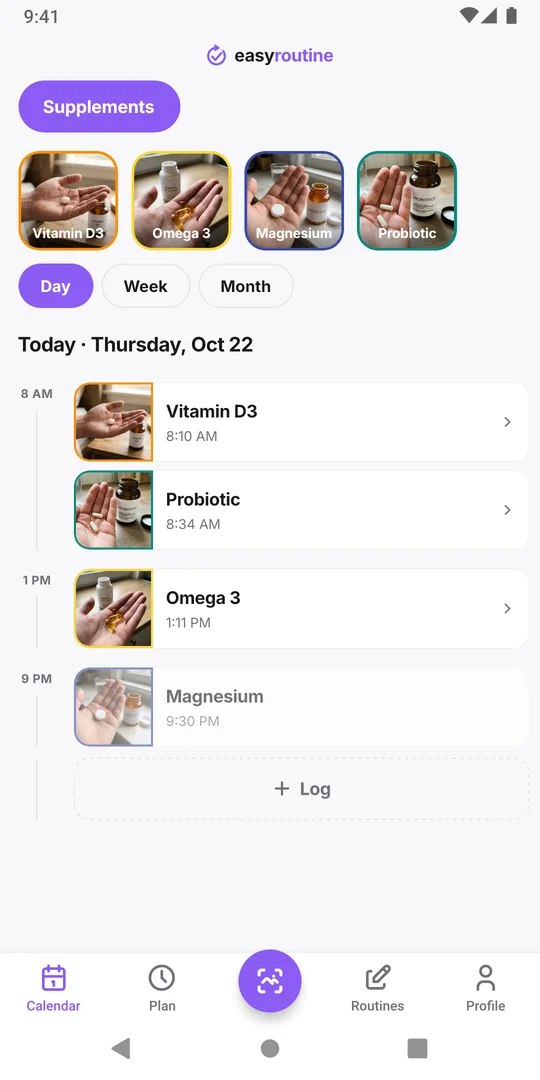
A missed log is easy to catch up on, because EasyRoutine lets you log on past days and set the exact time:
- When you are back online, open the Calendar and select the routine.
- Tap Log under the day you did it, tick the activity and tap OK.
- Tap the new entry and set the Date & time to when you really did it, if it was not just now.
Your calendar then shows the log at the right time, as if you had scanned it. Logs can go back as far as 1 January 2020, so even a few days without signal can be filled in. Forgot to log? covers this step by step.
Tips for a weak signal
- Remember the time. A quick note on your phone, or simply remembering "after breakfast", is enough to back-date the log accurately.
- Use Wi-Fi when you can. A bathroom or basement with poor mobile signal often has Wi-Fi.
- Try again after a few seconds. If the scan stops with a connection message, wait until the connection is back and scan again, or pick the activity by hand in the form the app shows.
- Check before you re-log. If you lost signal right after a scan, look at the Calendar before logging by hand, so you do not log the same thing twice.
If scans are slow rather than impossible, see the scan is slow or doesn't respond.
Common questions
Can I log offline and let it sync later?
No. EasyRoutine has no offline mode. Log the activity when you are back online and set the date and time to when you did it.
Does the scan work on mobile data?
Yes. Any working connection is enough. The scan sends one resized photo per scan.
Can I take the photo now and scan it later?
No. The scan only uses the camera, not saved photos. Log by hand later instead and set the time.
Do reminders work without internet?
Reminders that are already scheduled on your phone still fire offline. Reminders are part of Premium scheduling, and changes to them need a connection.
Keep reading
- How EasyRoutine's AI recognizes photos, and what it can scanHow EasyRoutine's AI names an activity from its photo and matches a scan to your own activities, what it can and cannot recognize, and what happens on no match.
- The AI scan keeps logging the wrong activity: why correcting it does not help, and how to fix itPhoto scan picked the wrong supplement again? Deleting the wrong log does not teach the scan anything. Fix the names and photos it compares against so look-alikes stop mixing up.
- The camera permission keeps popping up: how to fix it for the scanEasyRoutine keeps asking for camera access? The scan cannot work without it. Why the prompt comes back and how to allow it once in iPhone or Android settings.
- I don't want to photograph every product: do I have to?Photos are optional in EasyRoutine. An activity can be just a name and a color and logs the same way. Only the camera scan needs a photo, so add it where it pays.
- The scan is slow or doesn't respond: what is going onEasyRoutine scan stuck on Matching? The match happens on a server, so a weak connection is the usual cause. What else slows it, and how to log by hand right now.
- The scan suggested the wrong name for my activity: what to doEasyRoutine suggested a wrong name from your photo? Edit it before you save. Your own name does not stop the scan working, and a retaken photo fixes a bad guess.
Free on iPhone and Android. Sign in with Apple, Google or your email to start.