Changing my schedule made old weeks show the wrong missed days
Faded planned entries are drawn from the schedule as it is today, all the way back to the day the activity was created. So when you change a day or time, past weeks are redrawn as if the new plan had always been there. Your logs are untouched. To keep old weeks honest, end the old time and start a new one instead of editing it.
What you are seeing
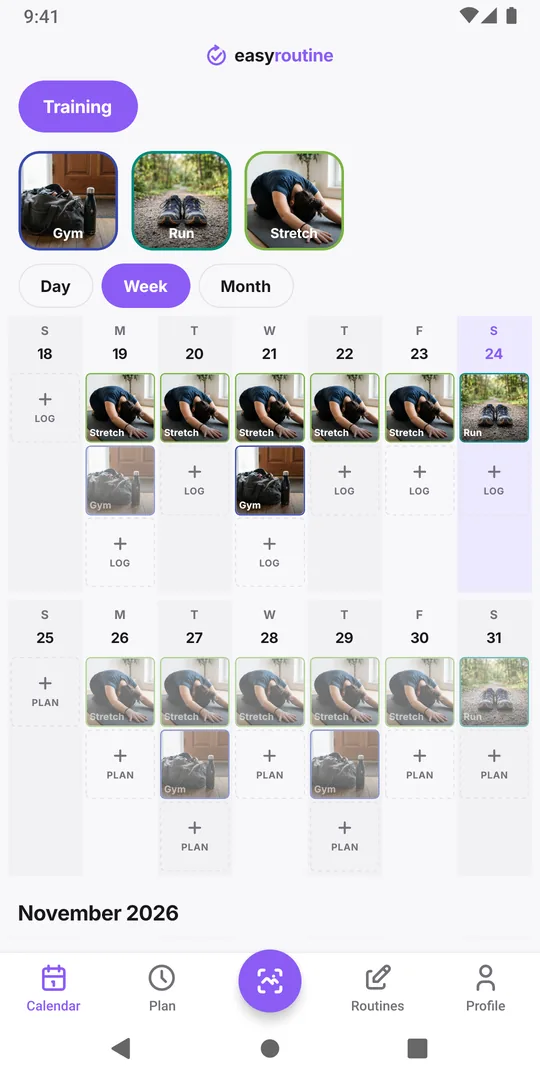
A typical case: you went to the gym on Monday and Wednesday for two months, then moved to Tuesday and Thursday. After the edit, the old weeks look odd:
- the Mondays and Wednesdays you missed are no longer faded, so those gaps have vanished
- every past Tuesday and Thursday you did not train now shows a faded entry, as if you had skipped a plan you never had
- the weeks look worse, or better, than they really were
Nothing was lost. Every log is still on its day, at its time. Only the faded entries, which show what was planned, changed.
Why it happens
EasyRoutine does not store a separate "missed" record for each past day. A faded entry on a past day simply means: the current schedule says this was planned, and there is no log for it. That keeps things simple and means a missed day turns into a normal entry as soon as you log it late.
The catch is that the calendar has only one schedule to draw from, the current one. Edit a time's days or clock time, and that edited time is drawn over every past week since the activity was created. The one limit is the creation day: an activity never shows planned entries from before it existed.
Change a plan without rewriting the past (Premium)
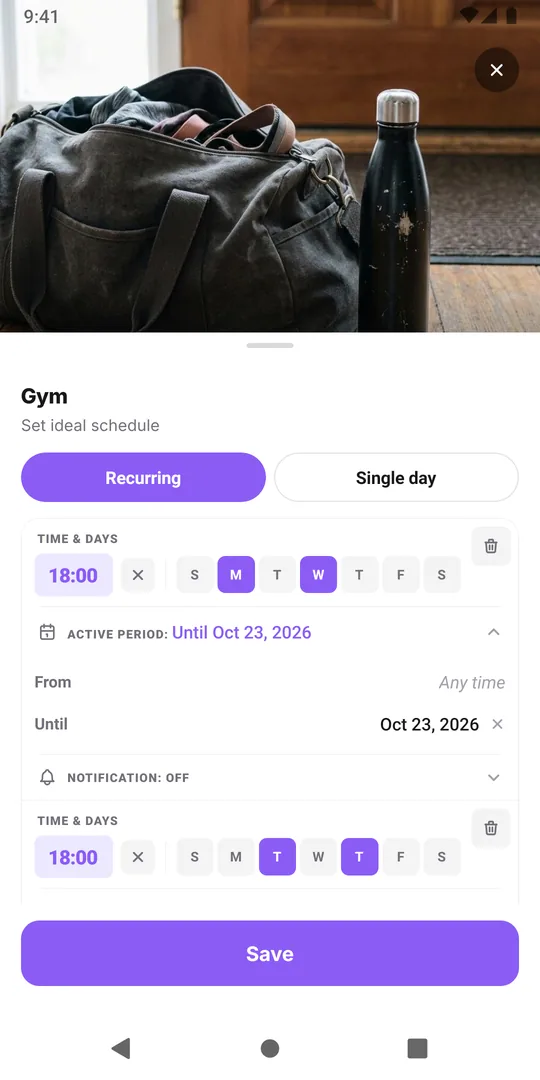
A scheduled time can have an active period, with a From date and an Until date, both included. Use it to close the old plan and open the new one:
- Open the Plan tab and tap the activity.
- On the old time, set Until to yesterday. Leave its days and clock time as they were.
- Tap Add another time and set the new days and clock time.
- On the new time, set From to today, and add a reminder if you want one.
- Save.
Now past weeks are drawn from the old plan, up to yesterday, and everything from today on follows the new one. Logging and the calendar are free; creating and editing schedules is Premium, see scheduling.
Already edited? Put the old weeks back
If you already changed the time in place, you can still repair the history. Set the edited time back to the old days, give it Until yesterday, then add the new days as a second time From today, as above. The faded entries for past weeks return to what you actually planned. Your logs were never affected, so there is nothing else to restore.
When editing in place is fine
You do not always need the two-time approach:
- The old days were a mistake and you never followed them. Then redrawing the past is correct; see activity on the wrong weekdays.
- The activity is new. A week of history does not need protecting.
- You only care about the future. If you never look back at missed days, a simple edit is quicker.
Keep in mind that each activity holds up to four weekly times, and an ended time still uses one of them. Once the old weeks no longer interest you, remove the ended time to free the slot.
Common questions
Did changing my schedule delete any logs?
No. Logs are never changed by a schedule edit. Only the faded planned entries are redrawn from the current schedule.
Why does a missed day disappear after I change the schedule?
A faded entry only shows where the current schedule plans the activity and no log exists. If the new schedule no longer includes that past day, nothing is planned there any more, so nothing faded is drawn.
How do I keep my old missed days visible after a schedule change?
End the old time with Until set to yesterday and add the new time with From set to today. Past weeks then follow the old plan and future weeks the new one.
Does this affect my Day streak?
No. The Day streak counts days with at least one log of any activity. It does not look at schedules, so redrawn faded entries do not change it.
Keep reading
- Two-week habit trial: a schedule template with a built-in end dateTry a new habit for exactly two weeks: a copyable template, a keep-or-drop rule set in advance, free daily logging and a day 14 review that decides.
- Weekday-only routine schedule template: Monday to Friday, nothing on weekendsA copyable Monday to Friday routine template and how to schedule it in EasyRoutine so workday habits show only on weekdays and your weekend stays clear.
- Can EasyRoutine track a one-time task, or only recurring ones?Yes, within limits. Plan a one-time task on a single date with a reminder (Premium), or log it any time for free. EasyRoutine is built for repeating tasks.
- Your schedule doesn't match your actual routine anymore? Plan for the usual weekPlanned habits keep showing as missed? How to compare your plan with what you really do, move times and days to fit the usual week, and keep the old weeks honest.
- My activity runs on the wrong weekdays: how to fix days scheduled by mistakePicked the wrong days when you set up a schedule? Change the weekdays on that time and the new pattern replaces the old one. Your past logs stay as they are.
- Different times on weekdays versus weekends for the same activityRun at 7:00 on workdays and 9:00 at the weekend? Give one activity two scheduled times, each with its own weekdays, instead of two copies of the activity.
- How to pause a schedule temporarily without deleting itGoing away for a week? EasyRoutine has no pause switch, but you can end a schedule before the break and restart it after, mute reminders, or archive for a while.
- How to plan next week in advance (and see it on one calendar)Plan next week in advance in 15 minutes: look back, place fixed dates, fit habits around them. In EasyRoutine, scheduled activities already sit on future days.
- How to schedule an activity twice a day at different timesNeed a morning and an evening slot for the same activity? Add two scheduled times to one activity, such as 8:00 and 20:00, each with its own days and reminder.
- My scheduled activity didn't show up today: what to checkA scheduled activity is missing from today's calendar? Check the weekdays, the active period, the selected routine, a highlighted tile and whether it was archived.
- How to stop a treatment schedule automatically after two weeksSet a short treatment to end by itself: give the scheduled time a From and an Until date, and it shows and reminds you only between them. No deleting afterwards.
- What's the difference between scheduling and logging?Scheduling says when you plan to do something; logging records what you actually did. Why a new schedule changes little at first, and what is free.
Free on iPhone and Android. Sign in with Apple, Google or your email to start.