Reminders don't show up because of Do Not Disturb or Focus?
EasyRoutine reminders are ordinary phone notifications, so Do Not Disturb, Sleep, Work and other Focus modes silence them just like any other app's. That is by design. If a reminder must get through a quiet mode, add EasyRoutine to the apps that mode allows, in your phone's own settings.
Why the quiet mode wins
Do Not Disturb and Focus modes exist so that you decide which apps may interrupt you. An app cannot overrule that on its own, and a reminder app that could would be the first one people uninstall. So when a quiet mode is on and EasyRoutine is not on its allowed list, the reminder still arrives, but silently: it waits in the notification list without a banner or sound, and you see it later.
The common cases:
- Sleep Focus or bedtime mode starts before an evening tablet or a late floss reminder.
- Work Focus silences a midday supplement or a stretching break.
- Driving Focus catches a reminder before the gym.
- A schedule you forgot about turns Do Not Disturb on automatically at a set time each day.
Decide which reminders deserve to break through
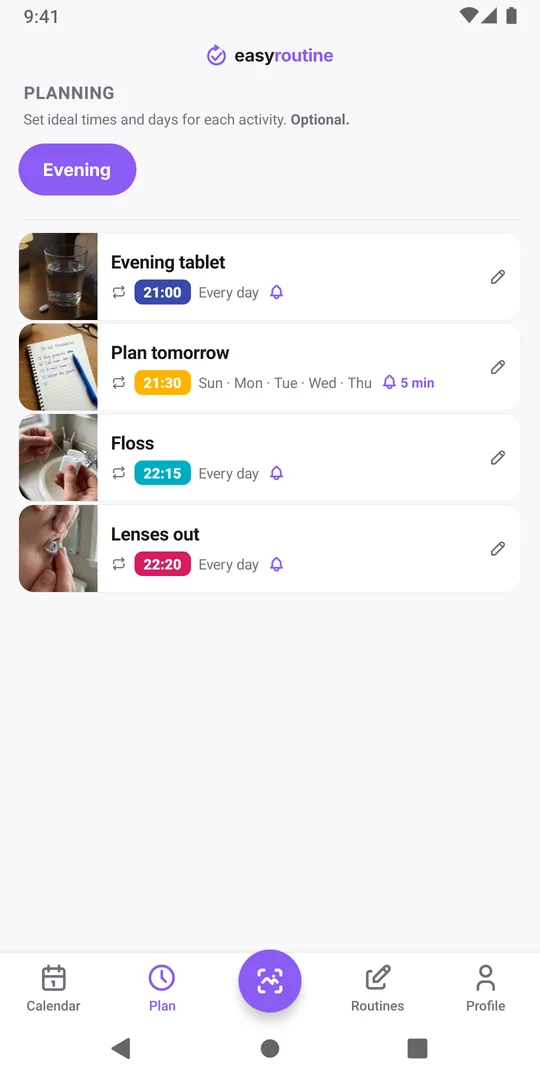
Before letting EasyRoutine through every quiet mode, look at your reminders in the Plan tab. A Focus mode allows or silences a whole app, not single reminders. If you let EasyRoutine through Sleep Focus, every EasyRoutine reminder during your sleep hours rings.
Often the better fix is the reminder time, not the setting. If your Sleep Focus starts at 22:30 and your floss reminder is at 22:45, move the reminder to 22:15 and both stay intact. Each scheduled time has its own Notification setting and lead time, so you can also ring a few minutes earlier while the mode is still off.
Allow EasyRoutine through a quiet mode
iPhone
- Open Settings and tap Focus.
- Pick the Focus that is on at reminder time, for example Sleep or Do Not Disturb.
- Under Allow Notifications, tap Apps and add EasyRoutine.
Repeat this for each Focus you use at reminder time. Apple's guide to allowing notifications for a Focus has the details for your iOS version.
Android
- Open Settings and find Do Not Disturb (on newer versions under Modes).
- Open the apps that may interrupt and add EasyRoutine.
Menu names differ between phone makers. Google's page on Do Not Disturb and modes covers stock Android. Also make sure EasyRoutine's Reminders notification category is on.
Check that it worked
Turn the quiet mode on and wait for the next reminder with a bell in the Plan tab, or set a test time a few minutes ahead. It should now arrive with a banner and sound. If it still does not appear at all, the cause is something else: work through the missing notifications checklist. On an iPhone, also check that EasyRoutine is not in the notification summary.
Reminders are part of Premium, together with the schedules they belong to.
Common questions
Can I let only one EasyRoutine reminder through Do Not Disturb?
No. Quiet modes allow or silence a whole app. To keep one reminder audible, move its time to before the quiet mode starts or after it ends.
Did I miss the reminder completely?
Usually not. A silenced reminder still lands in the notification list, and the planned entry stays faded in the Week and Day views (a hollow ring in the Month view) until you log it.
Does EasyRoutine change my Focus or Do Not Disturb settings?
No. The app never changes them. Which apps can interrupt a quiet mode is set only in your phone's settings.
Keep reading
- Missing your reminder notifications? Work through this checklistReminder notifications not arriving? Work through this checklist: a reminder that is really set, phone notification settings, Focus modes, and opening the app.
- Hit the "Too many reminders" limit? Here is how to make roomSaw "Too many reminders" after saving a schedule? A phone holds 60 upcoming EasyRoutine reminders. Here is how they add up and how to free room.
- How early should your reminder go off?How early should a reminder go off? Match the lead time to the task: on time for a tablet, 10 to 30 minutes early for anything you need to get ready or leave for.
- Is your iPhone notification summary delaying your reminder?Reminder arriving late, bundled with other notifications? Your iPhone's Scheduled Summary is holding it back. Switch EasyRoutine to Immediate Delivery.
- Not getting a reminder? The activity needs a scheduled time firstNot getting a reminder for an activity? In EasyRoutine a reminder belongs to a scheduled time. Without a weekday or date and a clock time, nothing can ring.
- One reminder for several activities at once?Want one reminder for several activities, like a whole morning routine? EasyRoutine reminders belong to one activity each. Here is the closest setup.
- Phone was offline and you missed a reminder?Missed a reminder while your phone was offline? EasyRoutine reminders are stored on the phone and fire offline, but dated ones are topped up only online.
- Turned off notifications by accident? Here is how to turn them back onTurned off notifications by accident or tapped Don't Allow? Reminders stay silent until you allow EasyRoutine notifications again in your phone's settings.
- Why are reminders a paid feature?Why are reminders a paid feature? In EasyRoutine a reminder lives on a scheduled time, and scheduling is Premium. Logging, the scan and the calendar stay free.
- Why did you get a reminder for something you already logged?Got a reminder for something you already logged? EasyRoutine reminders ring at their set time either way. The calendar, not the notification, shows what is done.
Free on iPhone and Android. Sign in with Apple, Google or your email to start.