Missing your reminder notifications? Work through this checklist
When EasyRoutine reminders do not arrive, the cause is almost always one of three things: the time has no reminder turned on, the phone is blocking or holding back the notification, or the phone has not opened EasyRoutine since the reminder changed. Check them in that order.
1. Check that a reminder is really set
Open the Profile tab and look at the Notifications tile. It counts the reminder times you have set. If it shows 0, nothing is scheduled and no setting on your phone will change that.
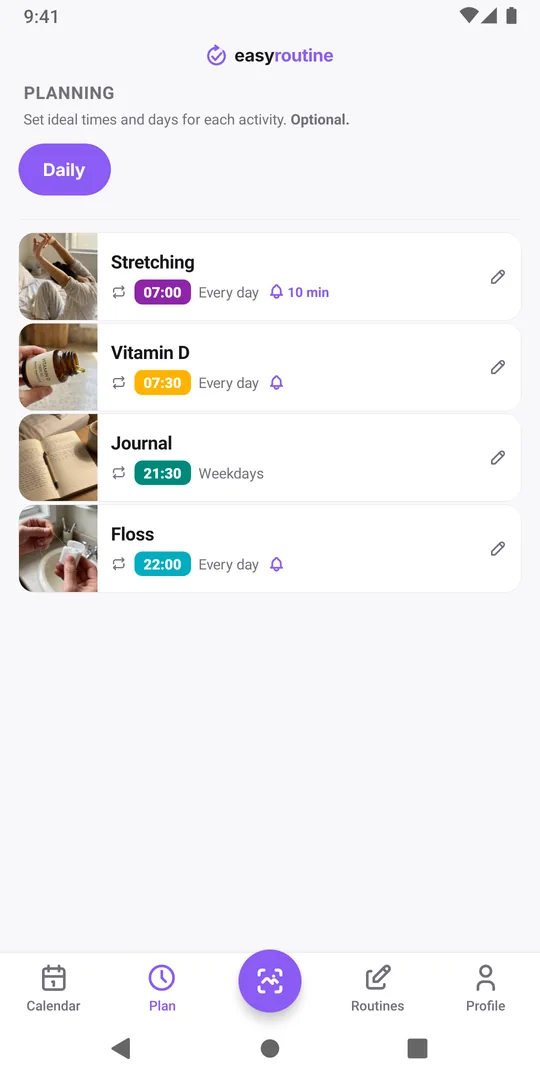
Then open the Plan tab and tap the activity:
- The notification is off. Every time in a schedule has its own Notification setting, and it starts as Off. Turning it on for the morning time does not turn it on for the evening one.
- The time is "Any time". A schedule without a clock time shows at the top of the day but can never remind you; the app says Set a time to enable.
- Wrong days or an ended period. Check that the weekdays are ticked and that the active period (Until) has not ended.
- The activity is archived. Archived activities never send reminders.
Schedules and reminders are part of Premium, so adding a reminder needs an active subscription.
2. Check your phone's notification settings
EasyRoutine asks for permission to send notifications only when you first set a reminder. If you declined, the app shows Notifications are off after you save a reminder, with a button to Open Settings. Turn notifications on for EasyRoutine there.
Even when notifications are allowed, the phone itself can hold them back:
- iPhone: Focus. Do Not Disturb, Sleep or Work Focus silence apps you have not allowed. Add EasyRoutine to the allowed apps of the Focus you use at reminder time (Apple: allow or silence notifications for a Focus).
- iPhone: Scheduled Summary. If EasyRoutine is in your notification summary, its reminders wait for the summary instead of arriving on time. Check Settings, Notifications, EasyRoutine (Apple: change notification settings).
- Android: notification categories. EasyRoutine sends reminders through a category called Reminders. Make sure both the app's notifications and that category are on (Google: control notifications on Android).
3. Open EasyRoutine on the phone that should ring
Reminders are not sent from a server. The app schedules them on the phone itself, which is why they still arrive without an internet connection. It also means a phone only knows about a change once EasyRoutine has been opened on it with a connection.
- Changed a reminder on another device? Open the app on this phone once so it picks up the change.
- New phone? Sign in and open the app once; the reminders are set up on that phone then. Switching phones covers the rest.
- Signed out? Signing out removes all EasyRoutine reminders from that phone until you sign in again.
4. Reminders with an end date, or too many reminders
A repeating reminder with no end date is handed to the phone as a weekly repeat, so it keeps firing even if you do not open the app for weeks.
Reminders with an Until date, a From date still in the future, or a single-day plan are scheduled date by date instead. On top of that, a phone holds at most 60 upcoming EasyRoutine reminders, soonest first, and every weekday of every reminder time counts: eight daily reminders already need 56. Above the limit, the app shows Too many reminders after you save and leaves out the furthest ones until there is room. Opening the app now and then lets it fill in later dates; turning off reminders you do not need makes room for the ones you do.
5. Check when it is meant to ring
A reminder set to 15 minutes before rings 15 minutes before the planned time, not at it, so check the time in the schedule rather than the time you remember. After travelling across time zones, repeating reminders follow your phone's clock; dated ones are moved once you open the app in the new time zone.
If the reminder arrives and you still miss it
Sometimes the notification does arrive and you swipe it away while busy. More alerts rarely help. What does:
- Move it to a moment you can act. A floss reminder at 22:00 works if you are in the bathroom then, not while you are still on the sofa.
- Use a lead time when the task needs preparing. Ten minutes before gives you time to get to the pill box or the gym bag.
- Act on the tap. Tapping the notification opens that routine, so you can log the activity there and then.
- Look back at the faded entries. Planned entries you never logged stay faded on the calendar. A row of faded entries at the same time shows which reminder to move. The broken streak guide has more on getting back on track.
Common questions
Why did I get a reminder for something I had already logged?
Reminders fire at their set time whether or not you logged the activity earlier. The calendar shows what you actually did.
Why do I get each reminder on two devices?
Every device where you are signed in and have opened EasyRoutine schedules your reminders. Signing out on a device removes its reminders.
Can an activity with no set time remind me?
No. An "Any time" schedule has no clock time to ring at. Give it a time in the Plan tab, then turn on its notification.
Keep reading
Free on iPhone and Android. Sign in with Apple, Google or your email to start.