Is your iPhone notification summary delaying your reminder?
If an EasyRoutine reminder shows up hours late, in a bundle with news and shopping apps, your iPhone has put EasyRoutine into its Scheduled Summary. Notifications from apps in the summary wait for the next summary time instead of arriving when they are sent. Switch EasyRoutine to Immediate Delivery and its reminders arrive at the time you set.
What Scheduled Summary does
Scheduled Summary is an iPhone feature that collects notifications from chosen apps and delivers them together at fixed times of day, for example 8:00 and 18:00. It is meant for apps whose news can wait. When you first turn it on, the iPhone suggests apps to include, often the ones that send the most notifications, and a reminder app can easily end up in that list.
For a reminder, waiting is the whole problem. A tablet reminder at 7:30 that arrives in the 8:00 summary, or an evening floss reminder held until the next morning, is no reminder at all.
Signs that the summary is the cause:
- The reminder arrives, but always at the same few times of day.
- It appears inside a stacked summary card instead of as its own banner.
- It never makes a sound when it arrives.
How to take EasyRoutine out of the summary
- Open the iPhone Settings app and tap Notifications.
- Scroll to EasyRoutine and tap it.
- Under Notification Delivery, choose Immediate Delivery instead of Scheduled Summary.
You can also do it from the other side: in Settings, Notifications, Scheduled Summary, turn off the switch next to EasyRoutine. Apple's guide to changing notification settings shows both screens.
While you are there, check that Allow Notifications is on and that banners and sounds are enabled, so the reminder is noticeable when it arrives.
Check the next reminder
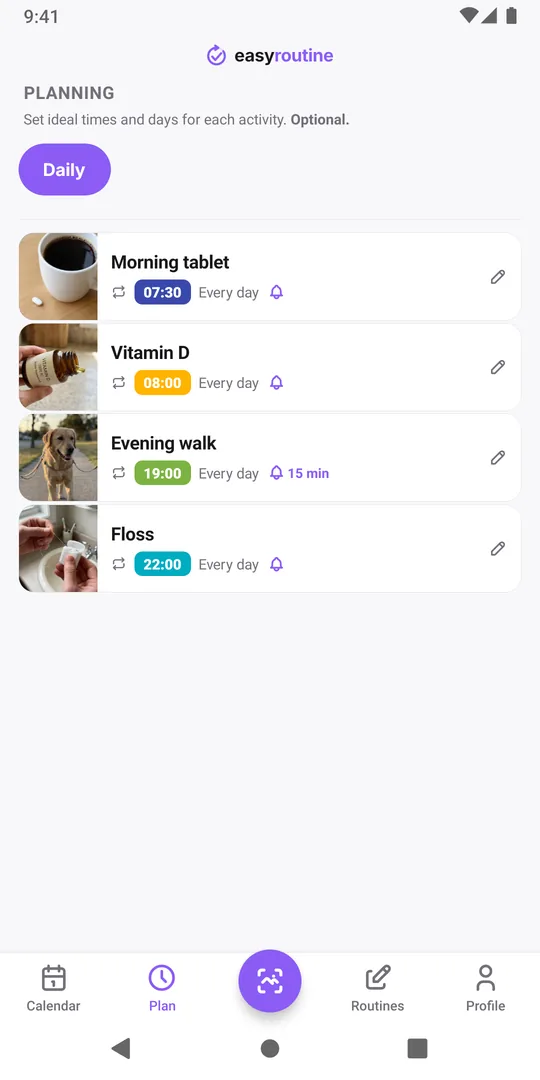
The change applies to reminders that arrive from then on. To check it, look in the Plan tab for the next time with a reminder bell and wait for it: it should appear as its own banner at that time. If you set the reminder to ring a few minutes early, it arrives that many minutes before the planned time, which is intended.
EasyRoutine reminders are scheduled on the phone itself, so nothing else needs resetting in the app. Reminders are part of Premium, together with the schedules they belong to.
Still late after that?
If a reminder is still delayed or silent with Immediate Delivery on, a Focus is the next suspect: Sleep, Work or Do Not Disturb hold back notifications from apps they do not allow. Reminders blocked by Do Not Disturb or Focus shows how to let EasyRoutine through. For reminders that do not arrive at all, work through the missing notifications checklist.
Common questions
Can I keep other apps in the summary and only take EasyRoutine out?
Yes. The summary is set per app. Switching EasyRoutine to Immediate Delivery leaves all other apps in the summary as they were.
Does Android have the same problem?
This page is about the iPhone's Scheduled Summary. On Android, check that EasyRoutine's notifications and its Reminders category are on, and that Do Not Disturb is not holding them back.
Will the reminders that were held back arrive later?
Yes, they appear in the next summary. A reminder that already went into a summary is not delivered again on its own; the change applies from the next reminder onward.
Keep reading
- Missing your reminder notifications? Work through this checklistReminder notifications not arriving? Work through this checklist: a reminder that is really set, phone notification settings, Focus modes, and opening the app.
- Hit the "Too many reminders" limit? Here is how to make roomSaw "Too many reminders" after saving a schedule? A phone holds 60 upcoming EasyRoutine reminders. Here is how they add up and how to free room.
- How early should your reminder go off?How early should a reminder go off? Match the lead time to the task: on time for a tablet, 10 to 30 minutes early for anything you need to get ready or leave for.
- Not getting a reminder? The activity needs a scheduled time firstNot getting a reminder for an activity? In EasyRoutine a reminder belongs to a scheduled time. Without a weekday or date and a clock time, nothing can ring.
- One reminder for several activities at once?Want one reminder for several activities, like a whole morning routine? EasyRoutine reminders belong to one activity each. Here is the closest setup.
- Phone was offline and you missed a reminder?Missed a reminder while your phone was offline? EasyRoutine reminders are stored on the phone and fire offline, but dated ones are topped up only online.
- Reminders don't show up because of Do Not Disturb or Focus?Reminders don't show up because of Do Not Disturb or a Focus? EasyRoutine reminders follow your phone's quiet modes. Here is how to let them through.
- Turned off notifications by accident? Here is how to turn them back onTurned off notifications by accident or tapped Don't Allow? Reminders stay silent until you allow EasyRoutine notifications again in your phone's settings.
- Why are reminders a paid feature?Why are reminders a paid feature? In EasyRoutine a reminder lives on a scheduled time, and scheduling is Premium. Logging, the scan and the calendar stay free.
- Why did you get a reminder for something you already logged?Got a reminder for something you already logged? EasyRoutine reminders ring at their set time either way. The calendar, not the notification, shows what is done.
Free on iPhone and Android. Sign in with Apple, Google or your email to start.