Track the new supplements you started in the new year
Did I already take the magnesium, or was that yesterday? With three or four new bottles on the counter in January, it is easy to lose track by the second week. EasyRoutine logs each supplement separately, by hand or with a photo, so today's view tells you what is done and what is still waiting.
One activity per supplement
Create a routine called Supplements and add each bottle as its own activity: Vitamin D, Omega-3, Magnesium, Probiotic. Take a photo of each bottle when you add it. The photo makes the tile easy to spot, EasyRoutine can suggest a name from it, and it lets you log by camera later.
Separate activities matter because "took my supplements" hides the one you forgot. If the vitamin D is logged and the omega-3 is not, you know exactly what is left. There is no limit on how many supplements you add, on the free plan too. The supplement tracker goes into more detail on everyday use.
Log a dose by hand or with a photo
When you take one on schedule, tap its faded planned entry: the Log Entry sheet opens with the planned time, and you save it. Without a schedule, or for your whole morning stack, tap Log on the day, pick one or several supplements and tap OK; they are logged with the current time.
Or open the Scan tab and point the camera at the bottle. The scan compares the photo against your own activities that have a photo and logs the one it matches, with no extra step. It does not recognize supplements in general and does not read labels for you: it only knows the bottles you added. Two very similar bottles are easier to keep apart by logging them by hand. How accurate the scan is.
See what you already took today
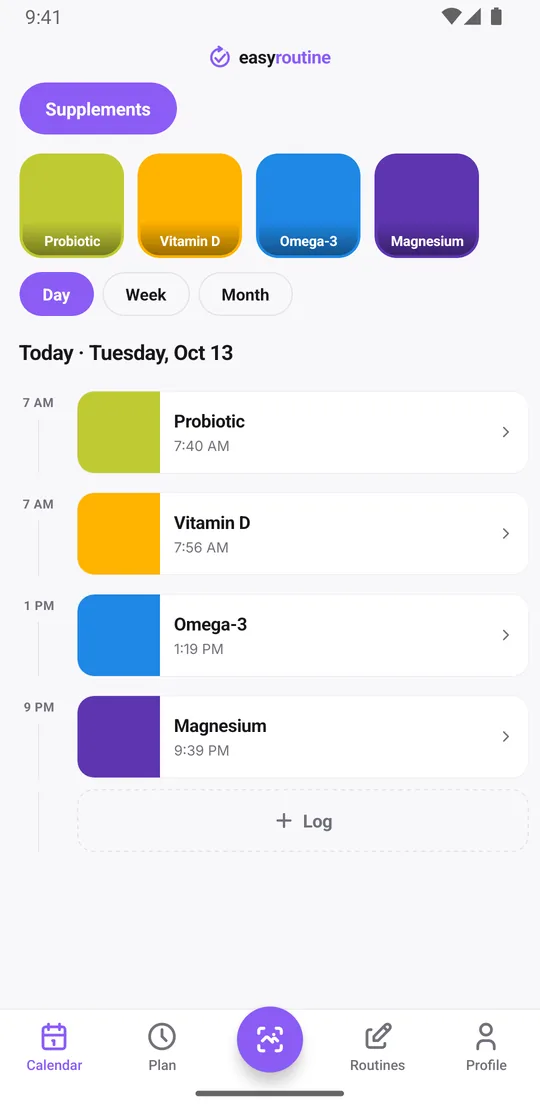
The day view is the answer to "did I take it?". Every supplement you logged today is listed with its time. If you schedule your supplements, the ones you have not logged yet show as faded entries, so the gap is obvious at a glance.
Forgot to log this morning but know you took it? Add the log with the right time. And if you are unsure whether you took it at all, the log is the record; the app does not guess for you. A daily supplement also keeps your Day streak going, since the streak counts every day with at least one log.
When did you last take it, and when did you start?
Not every supplement is daily: maybe one is only on some days, or you paused the probiotic during a trip. Tap a supplement's tile at the top of the calendar and the calendar shows only that one, so the latest entry is the last time you took it. Switch to the month view to see the whole pattern, and scroll back to the first entry to find the day you started.
Started on 1 January but only installed the app on the 5th? Add the first days afterwards; logs can be dated in the past, so the record begins when you really began. After a month, the month view shows whether the new stack became a habit or quietly faded after the first two weeks. All of this works on the free plan.
Notes worth keeping on a new supplement
Every log can carry a note and a green, amber or red flag, also on the free plan. With a new stack, a few notes save a lot of guessing later:
- New bottle: "opened new bottle" on the day you start one, so you know how long the last one lasted
- Brand or form: "switched to the new brand" or "capsules instead of tablets"
- How you took it: "with breakfast" or "forgot, took it at lunch"
- Questions for later: anything you want to ask your doctor or pharmacist, in your own words
Use the flag as your own marker, for example amber for a day you want to find again. When you log a supplement, the log sheet shows your last few notes for it, so the brand switch or the new bottle is right there. Notes are not shown on the calendar; open a log to read them. If you plan to look back on it in December, see the year in review.
A reminder for each supplement at its own time
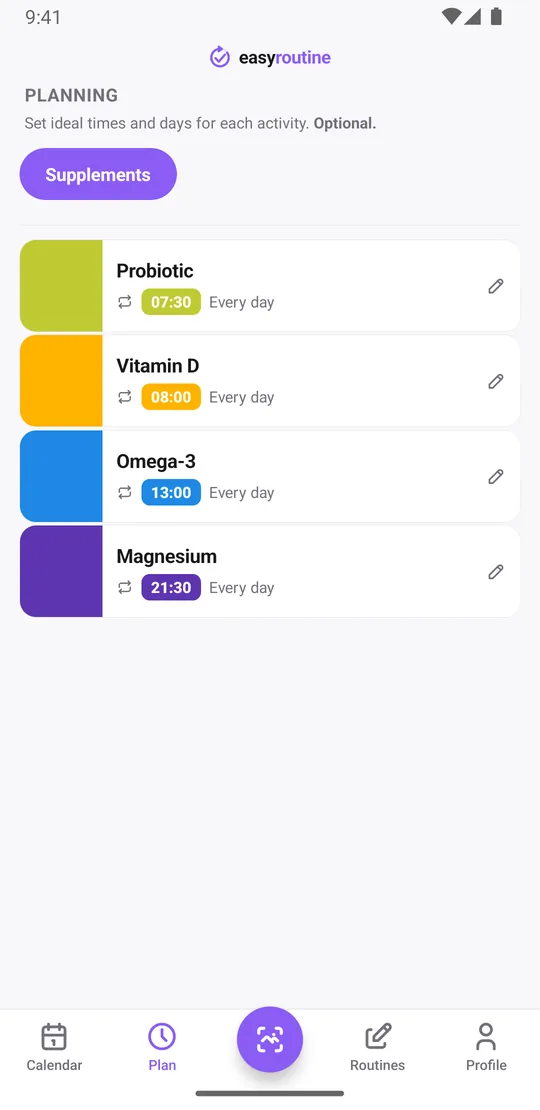
Everything so far is free. With Premium, the Plan tab gives each supplement its own days and time, so the reminders match how you take them:
- Probiotic at 7:30, before breakfast
- Vitamin D at 8:00, with breakfast
- Omega-3 at 13:00, with lunch
- Magnesium at 21:30
Each timed slot can carry a reminder, on time or 5, 10, 15 or 30 minutes before. If one supplement is taken twice a day, give it a second slot; each activity can have up to four recurring slots. To try a new supplement for a set period, add an end date to its schedule. The supplement timing schedule template shows a full setup. Scheduling and reminders are part of Premium. How reminders work.
What EasyRoutine does not do
EasyRoutine records that you took a supplement and when. It does not track amounts or dosages, check interactions, or tell you what or how much to take. You can write the amount in a note if that helps you, but it is your note, not a measurement. Questions about dosing, interactions or whether a supplement suits you belong with your doctor or pharmacist.
Part of a bigger resolution? The New Year's resolution tracker covers the rest, and the other seasonal guides cover moments like back to school and travel.
Common questions
How do I remember to take my new supplements every day?
Add each supplement as an activity and, with Premium, give it a time and a reminder in the Plan tab. Reminders arrive on time or up to 30 minutes before, only on the days you scheduled.
How do I track multiple supplements at once?
Make each one its own activity in a Supplements routine. If you take several together, the log button on a day lets you tick them all in one go.
How do I know if I already took a supplement today?
Open the day view. Every supplement you logged today is listed with its time, and scheduled ones you have not logged yet show faded. For a supplement you take less often, tap its tile to filter the calendar and see the last time.
Does the photo scan recognize supplement bottles?
It recognizes your own bottles, if you gave those activities a photo. It matches the camera image against your activities and logs the best match. It does not identify supplements in general.
Is there a limit to how many supplements I can track?
No. There is no limit on routines or activities on either plan.
Keep reading
Free on iPhone and Android. Sign in with Apple, Google or your email to start.