Supplement schedule template for morning and evening
Did I take the magnesium already, or was that yesterday? If you take several supplements at different times of day, a simple timing template plus a log you can check in a second keeps them straight. Here is one you can copy into EasyRoutine today.
Start from what you already take
This template does not tell you what to take or when a supplement works best. That comes from the label, your doctor or your pharmacist. It is a way to organize the bottles you already have into time slots you can actually keep, and then record each dose so you never have to guess.
Before you open the app, write down three things for each supplement:
- Name, as short as possible (it shows on a small tile)
- When you take it: morning, with a meal, or evening, as the label or your doctor says
- How often: once a day, twice a day, or only on some weekdays
The template
Copy this and swap in your own supplements. Times are examples; use the times your days really run on.
Routine: Supplements
Morning slot (7:30, with breakfast)
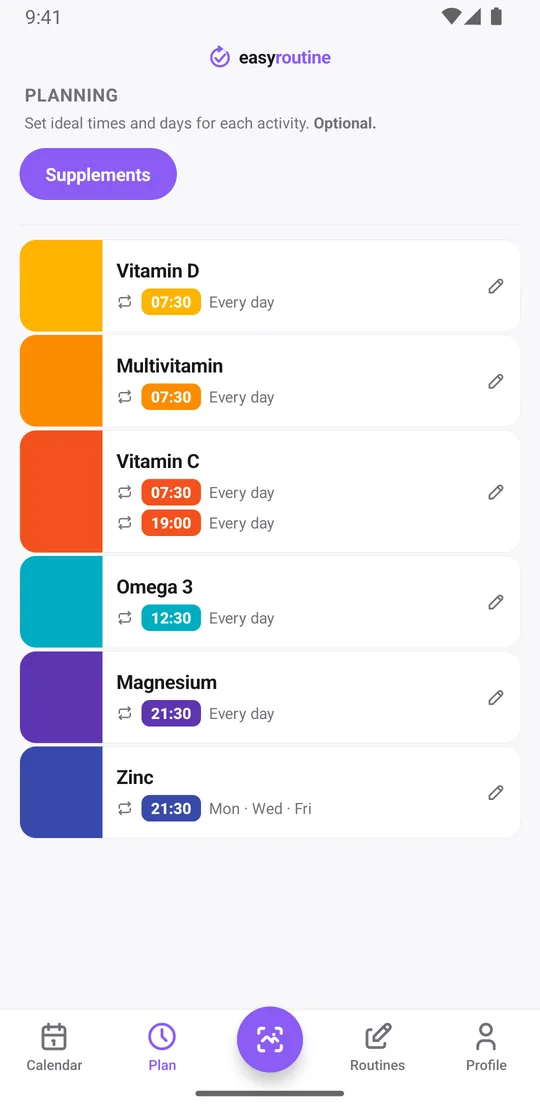
- Vitamin D: every day, 7:30
- Multivitamin: every day, 7:30
Midday slot (12:30, with lunch)
- Omega 3: every day, 12:30
Evening slot (21:30)
- Magnesium: every day, 21:30
- Zinc: Monday, Wednesday and Friday, 21:30
Twice a day
- Vitamin C: every day, 7:30 and 19:00 (one activity with two times)
Active period: none, these run until you change them. If you are trying something for a limited time, set an end date (see below).
One routine with one activity per supplement is usually the clearest setup. If you prefer, split it into two routines, Morning supplements and Evening supplements, as the supplement tracker page suggests. Either way, keep one activity per bottle, so the log tells you exactly which one you took.
Set it up in EasyRoutine
- On the Routines tab, tap Add routine and name it Supplements.
- Tap Add activity for each bottle. Photograph the label and EasyRoutine suggests a name; edit it if it is too long. Give each one a color so the calendar reads at a glance.
- With Premium, open the Plan tab and pick a supplement. Under Recurring, set the time and tap the weekdays it repeats on.
- Turn on a Notification for that time if you want one: on time, or 5, 10, 15 or 30 minutes before.
- Repeat for each supplement. The Plan tab then lists every bottle with its days and times.
Scheduling and reminders are part of Premium. Logging, the photo scan and the calendar are free, so you can also use the template as a plain checklist without any schedule. More about scheduling.
How to set a supplement to twice a day
A supplement you take morning and evening does not need two activities. Open it in the Plan tab, set the first time (say 7:30, every day), then tap Add another time and set the second (19:00, every day). Each time has its own weekdays and its own reminder. One activity can hold up to four recurring times.
Keeping it as one activity means both doses land on the same tile color, and the log shows two entries on a normal day. One entry by evening means the second dose is still to come.
Log each dose from the calendar or with a photo
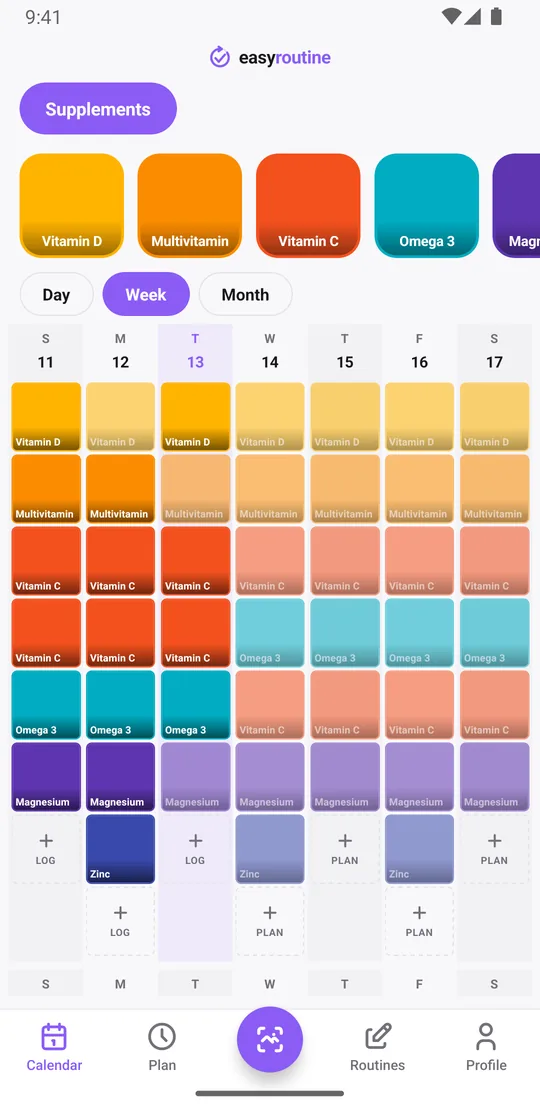
After you take a capsule, tap that supplement's faded entry on the calendar and save it in the Log Entry sheet, with the planned time filled in. Taking the whole morning slot at once? The + Log button on a day lets you tick several activities and log them together with the current time.
If you photographed the bottles, you can open the Scan tab and point the camera at the bottle instead. The scan matches it against your own activities that have a photo and logs the one it recognizes straight away. Bottles from the same brand can look alike, so logging them from the calendar is safer. How the photo scan works.
The app records that you took it and when. It does not track amounts. If the number of capsules matters to you, add a note to the log, like "2 capsules".
Check the log before a second dose
The most useful habit is a two-second check before you reach for a bottle: open the calendar and look at today.
- A colored tile for that supplement means you already took it today.
- A faded entry means it is planned and not logged yet.
- Two tiles on a twice-a-day supplement mean both doses are done.
If you logged one by mistake, open the log and delete it, so the record stays true. Forgot to log this morning's dose? Add it afterwards and set the time to when you actually took it.
Notes, flags and the last time you took it
Zinc on Monday, Wednesday and Friday is easy to lose track of. Tap the Zinc tile at the top of the calendar and the calendar shows only zinc, so the last tile is the last time you took it. The month view shows the longer pattern, up to four dots a day, for example whether the evening slot holds up as well as the morning one. Tap the tile again to see the whole routine.
Every log can also carry a note and a green, amber or red flag. Useful things to write down for supplements: "new bottle" on the day you open one, "2 capsules", "with food", or "skipped, ran out" with a red flag. Notes do not show on the calendar itself, but the log sheet shows your last few notes for that supplement the next time you log it. All of this is free; only the schedule and reminders above need Premium.
Trying a new supplement for a few weeks
If you are adding something new for a set time, give its schedule an active period. In the Plan tab, open the time, tap Active period and set From and Until dates. The supplement appears on your calendar, and reminds you if you set a reminder, only between those dates. Starting a new set of supplements in January? See the New Year supplement tracker.
Common questions
How do I organize taking multiple supplements at different times?
Add each supplement as its own activity in a Supplements routine, then group them by time slot: morning, with a meal, evening. With Premium, give each one its time and weekdays in the Plan tab. Logging each dose is free.
How do I set a supplement to twice a day?
Open it in the Plan tab, set the first time, then tap Add another time and set the second. Each time can have its own days and reminder, up to four times per activity. Scheduling is part of Premium.
How do I avoid taking a supplement twice?
Check today on the calendar before you take it. A colored tile means it is already logged; a faded entry means it is still planned. The app only shows what you logged, so log each dose as you take it.
Can I see when I last took a supplement I don't take daily?
Yes. Tap its tile at the top of the calendar and the calendar shows only that supplement, so the last tile is the last time you logged it. This is free.
Does EasyRoutine tell me the best time to take a supplement?
No. It gives no health advice. Follow the label, your doctor or your pharmacist, and use EasyRoutine to remember and record the times you settled on.
Keep reading
Free on iPhone and Android. Sign in with Apple, Google or your email to start.