Back to school routine: set up the school year once
Did the lunchbox get packed? Is it PE day? Was homework done before dinner? In the first weeks of a new school year, the routine lives in your head. EasyRoutine moves it onto your phone: each task on its school days, a reminder when it is due, and a calendar that shows what actually happened.
Build your back to school routine
Create a routine called School days and add each recurring task as its own activity:
- Lunchbox at 7:00
- PE kit on Wednesdays at 7:10
- Pack bag at 7:15
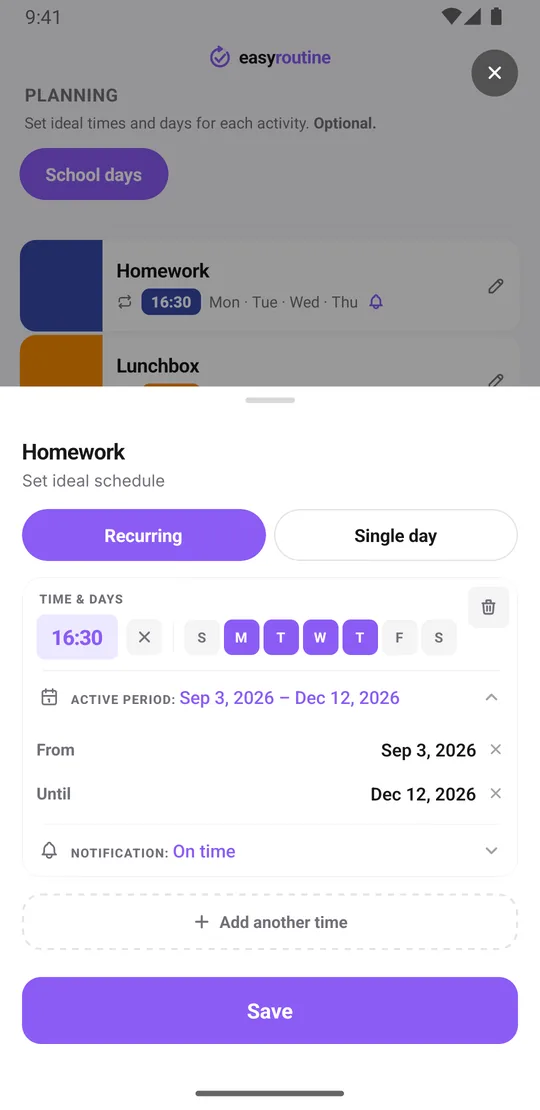
- Homework at 16:30, Monday to Thursday
- Reading at 19:30 on school nights
Separate activities matter because they do not share a schedule, and because "did we do the school stuff?" is not a question you can answer. "Was the bag packed on Tuesday?" is. Give each activity a color so the calendar reads at a glance. If you have two children, a routine per child keeps their tasks apart. Routines and activities are unlimited, on the free plan too.
Check that the routine was followed
When a task is done, tap + Log on the day and pick it; it is logged with the current time. If the bag, lunchbox and PE kit all happen in one go, pick them together in that list. Logging is free. Forgot to log last night's reading? Add it afterwards on that day: logs can go on past days, just not future ones. With a Premium schedule there is a shorter way: tap the task's faded planned entry and save it with the planned time.
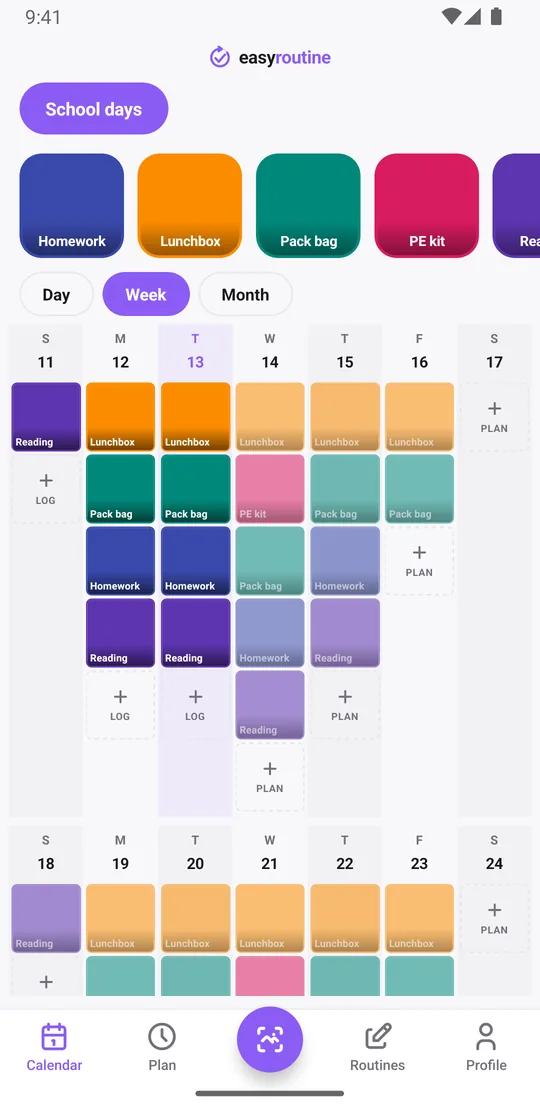
The day view shows this morning at a glance. The week view is the one to check on Friday: each school day shows a colored tile for every task that was logged and, with a schedule, faded entries for planned ones that were not. A missing homework tile on Thursday stands out. Calendar and streaks.
When did we last pack the PE kit, or when was the last reading night? Tap the activity's tile at the top of the calendar to show only that task; the last tile is the last time it was logged. The month view shows the pattern over the term, with up to four dots per day.
Notes, flags and a quick scan
Every log can carry a note and a green, amber or red flag, both free. School gives you plenty worth writing down: "spelling test Friday" on homework, "forgot the recorder" on the bag, "half the lunch came back" on the lunchbox, "chapter 6" on reading so you know where to pick up. An amber or red flag marks a day that went badly. When you open the log sheet, it lists the last few notes for that activity, so last week's test reminder is right there. Notes stay on the log and do not show on the calendar itself.
For a faster morning, give the PE kit or Lunchbox activity a photo of the actual bag or box. The free photo scan then logs it when you point the camera at it. It only matches your own activities that have a photo, and it logs with the current time.
Schedule it for weekdays only (Premium)
With Premium, open the Plan tab and choose the weekdays for each activity. A recurring slot can cover Monday to Friday, or only the days that apply, like Wednesday for the PE kit. Each slot has an optional time and an optional active period: set it from the first day of school until the last day of term, and the schedule stops by itself for the holidays.
An activity can have up to four recurring slots, so homework can sit at 16:30 on most days and at 18:00 on the day of football practice. One-off dates, like a school trip or a project deadline, can go in as single-day plans. The weekday-only schedule template walks through the setup. More about scheduling.
Reminders at the moment each task is due (Premium)
Every timed slot can carry a reminder, on time or 5, 10, 15 or 30 minutes before. A reminder at 6:55 for the lunchbox, one on Wednesday at 7:05 for the PE kit, one at 16:30 for homework. Because reminders belong to each activity's schedule, Saturday stays quiet. Reminders are part of Premium together with scheduling. How reminders work.
Reminders are scheduled on each phone signed in to your account, so if you are signed in on two phones, both will remind you.
On every phone, but not shared between accounts
Your routines live in your EasyRoutine account, so they are on every phone or iPad signed in to it, and they come along when you get a new phone. How sign-in and sync work.
There is no sharing between separate accounts, and EasyRoutine is meant for users aged 16 and over. For younger children, the routine lives on the parent's phone and the parent logs it. Students who are 16 or older can run their own school routine in their own account; the study routine tracker for students covers that. For the rest of the household, see the chore tracker for parents.
Free or Premium for school routines
Free covers routines, activities, logging by hand or with a photo, notes, flags, the calendar and sync, with a banner ad. Premium adds the Plan tab with weekday schedules and reminders, and removes the ad. If you mainly want to check off tasks and look back, free is enough. If you want the app to remind you at 6:55 every school morning, that is Premium. Compare the plans.
After a long summer, the first week back is often the hardest; getting back into routine after a break has more on restarting.
Common questions
How do I build a daily school routine with an app?
Create a routine for school days and add each task, like lunchbox, packing the bag and homework, as its own activity. With Premium, give each one its weekdays and a time in the Plan tab. When a task is done, tap its faded planned entry on the calendar and save it, or on the free plan log it with the + Log button on the day.
Can I schedule a routine for weekdays only?
Yes, with Premium. Each activity's recurring slot can be set to Monday to Friday or any other days, with an optional start and end date so it pauses for the holidays.
How do I remind myself or my child about daily tasks?
Add a reminder to each scheduled time, on time or up to 30 minutes before. Reminders arrive on the phone signed in to your account. EasyRoutine is for users 16 and over, so for younger children the reminders go to the parent's phone.
Can I note things like a test date or the last page read?
Yes, for free. Every log can carry a note and a green, amber or red flag, and the log sheet shows the last few notes for that activity. Notes are not shown on the calendar itself.
Can a parent and child share the same routine?
There is no sharing between separate accounts. A routine shows on every device signed in to the account it belongs to.
Keep reading
Free on iPhone and Android. Sign in with Apple, Google or your email to start.