How to get back into your routine after the holidays
When did I last go to the gym? Two weeks of holidays later, it is hard to say. EasyRoutine answers it from your calendar, shows the gap without judgment, and makes the restart as small as one log today.
Start by looking at the gap
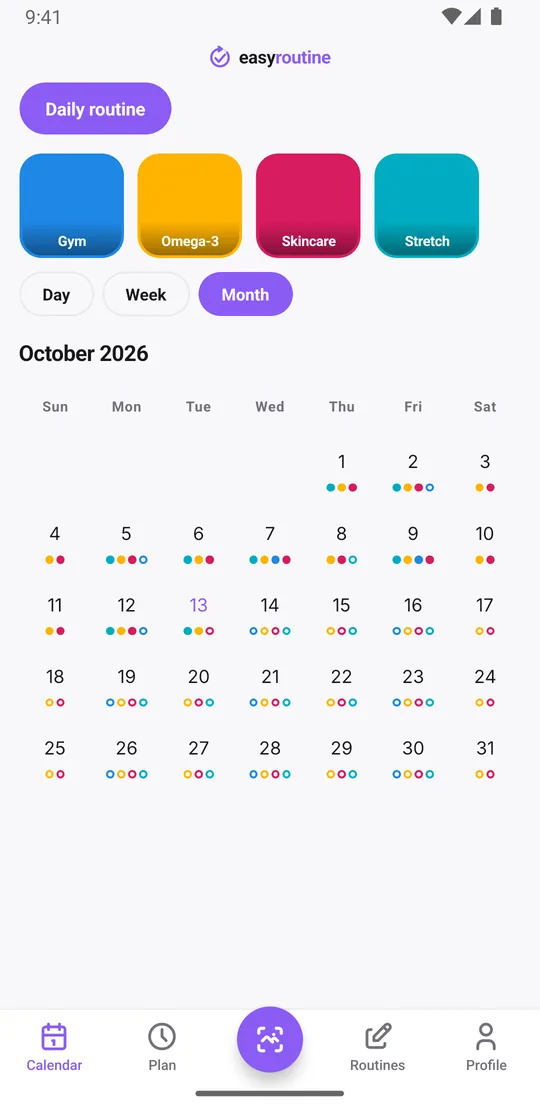
Open the Calendar tab and switch to the month view. Every day you logged something has colored dots, one color per activity. The holiday stretch is the part with no dots, or only the odd one from the day you remembered your vitamins.
For one habit, tap its tile at the top of the calendar, for example Gym. The calendar then shows only that activity, so the last tile before the gap is the last time you went. Tap it again to see everything.
If your activities had schedules, the planned days you did not log show as faded, outlined dots. That is how EasyRoutine marks a missed plan: there is no red cross and no separate missed counter, just the plan that did not turn into a log. To see how many days you missed, count the empty days on the month view; scroll back a month if the break started earlier.
Your history before the break is still there. Logs stay in your account until you delete them yourself, so the good weeks of November are right where you left them.
Your streak restarts with one log
The Day streak on the Profile tab counts days in a row on which you logged at least one activity, up to today. A day with nothing logged resets it, and there is no grace period, so after a break it will be back near zero.
That also makes it easy to restart. Log one thing today and the streak is 1. Log one thing tomorrow and it is 2. It does not matter which activity: the streak counts showing up, not doing everything. A good restart is one easy activity you can do every day, like a supplement or two minutes of stretching, to rebuild the run while the harder habits come back.
If you did keep up some things during the trip but never logged them, you can still add them: open the past day, tap + Log and pick the activity (it is saved at 12:00), then tap the entry to set the real time. Only add what really happened.
Restart the routine, one activity at a time
Nothing needs to be rebuilt. Your routines and activities are exactly as you left them. A few things help make the first week manageable:
- Pin the activity you are restarting first. "Pin activity" shows it before the other activities in the routine.
- Archive what is not coming back yet. Archived activities disappear from your routine and stop their reminders, but their logs stay on the calendar. Reactivate them later with one tap.
- Reactivate what you archived before you left. If you parked activities before the trip, now is the time to bring them back.
After a long break, three habits restarted properly beat seven restarted badly.
Make each restart log effortless
Tap + Log on today and pick the activity: it is logged with the current time. If you did several at once, pick them all in the same list. With a Premium schedule, you can instead tap the faded planned entry and save it. Activities with a photo can also be logged from the Scan tab: point the camera at your vitamin bottle and EasyRoutine logs the matching activity. The scan only knows your own activities that have a photo, so give the ones you log most often a photo. How the photo scan works.
Travelling again soon? Keeping your routine going while traveling covers the trip itself. Making it a fresh start for the year? See the New Year's resolution tracker.
Notes for the comeback
Every log can carry a note and a green, amber or red flag, and both are free. When you log an activity, the log sheet shows your last few notes for it, which is handy after a break: the notes from before the holidays tell you where you left off.
- Gym: "first session back, 30 min, lighter weights", so next time you know what you did
- Skincare: "skin dry after the flight", flagged amber until it settles
- Stretch: "only 5 min, still counts", flagged green
A few weeks in, the flags show the trend at a glance in the log sheet: more green, fewer amber. Notes are not shown on the calendar itself.
Rebuild the schedule (Premium)
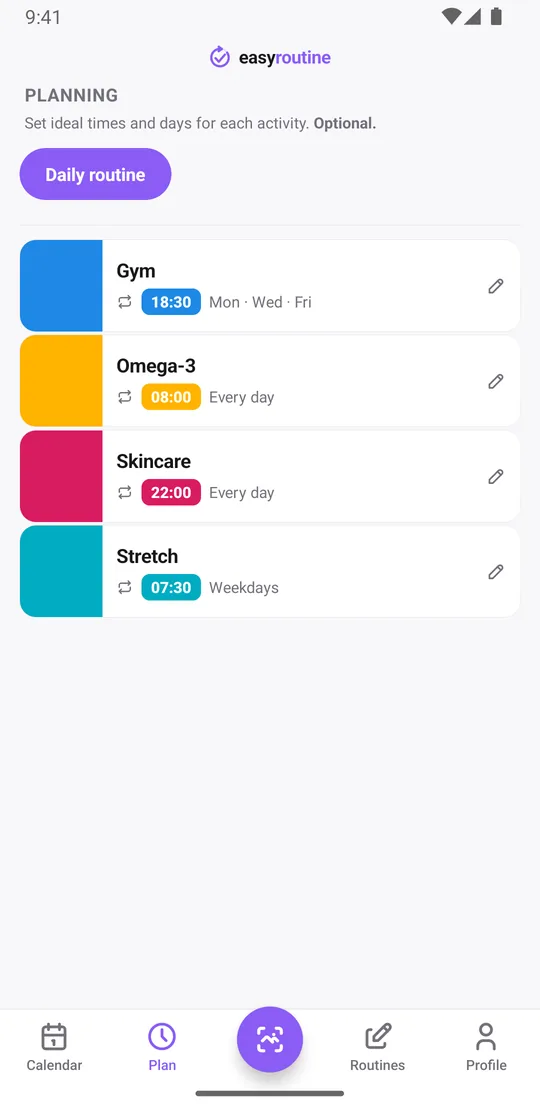
With Premium, the Plan tab lets you set each activity's weekdays, time and an optional active period. Two ways to use that after a break:
- Ease in. Schedule the gym for Monday and Thursday only, with an end date two weeks from now. Add a second slot starting the week after with the full Monday, Wednesday and Friday schedule. Each activity can hold up to four recurring slots.
- Start on a date. If you are back at work next Monday, set the slots to start from that day, so the calendar does not fill with missed plans before you are even home.
Each timed slot can carry a reminder, on time or 5, 10, 15 or 30 minutes before. More about scheduling and reminders.
Common questions
How do I get back into my routine after a break?
Look at the month view to see where things slipped, pick one or two activities to restart first, and log them today. With Premium, set a lighter schedule for the first weeks and add reminders. Archive what you are not restarting yet.
How do I see when I last did a habit before the break?
Tap that activity's tile at the top of the calendar. The calendar then shows only that activity, so the last tile before the gap is the last time you did it.
Can an app show me how many days I missed?
EasyRoutine shows it on the month view: logged days have colored dots and planned days you did not log have faded ones. There is no separate missed-days counter, so you count the empty days yourself.
How do I restart a habit streak?
Log at least one activity today. The streak counts consecutive days with any log, so it starts again at 1 and grows each day you log something.
Is my old history still there after a long gap?
Yes. Logs stay in your account until you delete them, so everything before the break is still on the calendar.
Keep reading
Free on iPhone and Android. Sign in with Apple, Google or your email to start.