How to keep up your routine while traveling
Did I take my vitamin this morning, or was that yesterday at the airport? Travel scrambles the days. EasyRoutine keeps logging on the road just like at home, as long as you have a connection, and lets you bend the schedule around the trip instead of breaking it.
Before you leave: plan for a connection
One thing to know up front: EasyRoutine has no offline mode. Your routines and logs live in your account on the server, so the app needs internet, from Wi-Fi or mobile data, to show and log anything. Offline, it shows a notice until you are connected again.
Two things soften that on a trip:
- Reminders still arrive offline. They are scheduled on your phone, so the vitamin reminder still fires in airplane mode.
- You can log afterwards. Logs can be added for any earlier day and time. Took the vitamin on the plane? Log it at the hotel with the time you took it.
So a day without signal does not have to leave a hole in your history, or in your streak, as long as you fill it in honestly.
Use it on another phone or tablet
Taking a work phone, a spare, or an iPad? Sign in with the same account, using the same method you always use: Sign in with Apple (iPhone and iPad), Sign in with Google, or an email code. Your routines, activities and history appear on that device, and anything you log there shows up on your own phone too. How sign-in and sync work.
Reminders are scheduled on each signed-in device separately. If you do not want the same reminder on two devices, sign out of the one you are not using; your data stays in your account.
Logging away from your usual setup
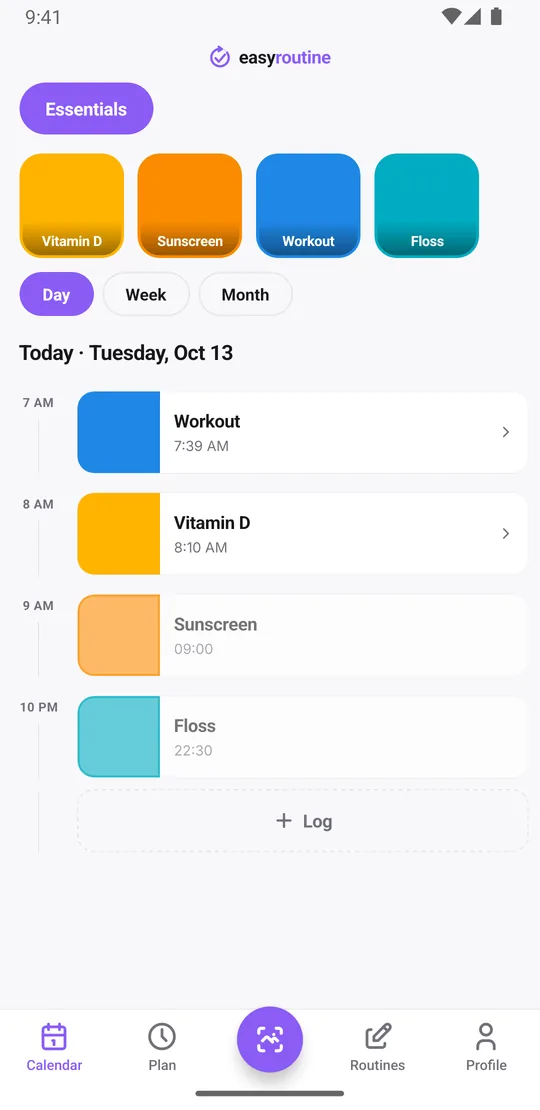
Logging from the calendar works anywhere: tap a faded planned entry and save it, or tap + Log on the day and tick one or several activities at once.
The photo scan also works on the road if your activities have photos: point the camera at your sunscreen and EasyRoutine logs the matching activity. It matches against your own activities only. Travel-size bottles may look different from the ones at home, so if the scan does not find a match, it offers a manual pick, or you can log it from the calendar. How the photo scan works.
A note on a log helps later, like "hotel gym, 30 min", "took it at the airport" or "skipped, long drive", and a red, amber or green flag marks how it went. Notes do not show on the calendar itself, but the log sheet shows your last few notes for that activity when you log it again. Logging, notes, flags and the scan are all free.
Keeping the streak alive
Your Day streak counts days in a row with at least one log of any activity. On a hectic travel day, logging just the vitamin keeps it going even if the workout does not happen. And when you get home, the month view shows exactly which parts of the routine survived the trip. If more slipped than you hoped, getting back into routine after a break helps with the restart, and a trip at the turn of the year is a natural moment for the New Year's resolution tracker.
Back home and wondering when you last flossed or took the vitamin? Tap that activity's tile at the top of the calendar: the calendar shows only that activity, so the last tile is the last time. Tap it again to see everything.
Adjust the schedule around the trip
There is no pause button for a schedule, but there are a few ways to fit it around travel dates. Editing schedules is part of Premium.
- Leave it as it is. Planned entries you do not log show as faded on the calendar. If you are keeping most of the routine going anyway, this is the simplest option.
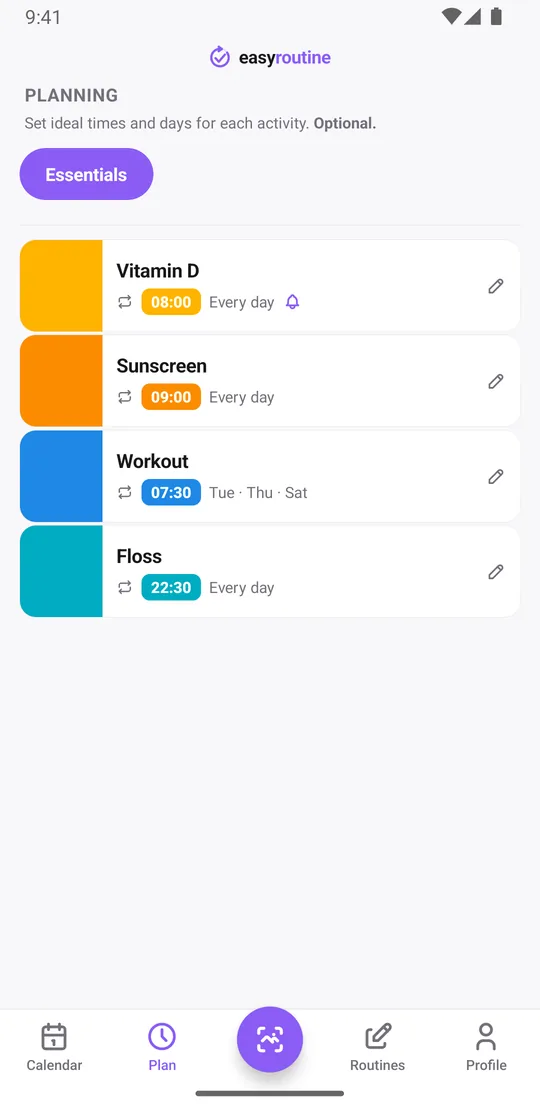
- Split the schedule around the dates. Give the workout slot an end date on the day before you leave, and add a second slot that starts the day you are back. Each activity can have up to four recurring slots, each with its own From and Until dates.
- Add one-off plans for the trip. Single-day plans put an activity on a specific date and time, such as a hotel gym session on Wednesday at 7:00.
- Archive what stays at home. An activity you will not do at all, like the weekly yoga class, can be archived. That hides it and stops its reminders, but keeps its logs on the calendar. Archiving does not need Premium; reactivate it when you are back.
Each timed slot can also carry a reminder, on time or 5, 10, 15 or 30 minutes before. Give the hotel gym session on Wednesday at 7:00 a reminder 15 minutes before, and it fires like any other. Scheduling and reminders are part of Premium.
Common questions
Can I keep tracking my routine while traveling?
Yes, whenever you have an internet connection. EasyRoutine has no offline mode, but reminders already scheduled on your phone still arrive offline, and you can add logs afterwards with the right day and time.
Will my routine tracker work on a different phone or tablet while I'm away?
Yes. Sign in on any iPhone, iPad or Android phone with the same account and method, and your routines and history are there. Sign in with Apple is only available on Apple devices.
Can I adjust a scheduled activity during a trip?
Yes, with Premium. Give a recurring slot an end date before the trip and add a second one that starts when you return, or add single-day plans for trip days. You can also archive an activity for the trip and reactivate it later.
Do reminders work without internet?
Yes. Reminders are scheduled on the phone itself, so ones that are already set keep firing offline. Changes to schedules need a connection to sync.
Keep reading
Free on iPhone and Android. Sign in with Apple, Google or your email to start.