Cleaning schedule app: know what you cleaned and when
Did I clean the bathroom last weekend, or was that the one before? EasyRoutine turns your cleaning schedule into something you check off: log each chore when you do it, for free, and the calendar shows what you cleaned and when. With Premium you can also set when each chore is due and get a reminder on its day.
One routine, one activity per chore
Create a routine called Cleaning and add each chore as its own activity: vacuuming, kitchen, bathroom, dusting, mopping. Give each one a color, so a glance at the calendar tells you which chore a tile belongs to. If a picture helps, add a photo to an activity and EasyRoutine can suggest a name from it.
Splitting the list into separate chores is what makes the record useful. A single "Clean the house" task only tells you that something happened. Separate activities tell you that the kitchen got done on Wednesday and the bathroom has been skipped twice.
Bigger jobs that come round only a few times a year, like windows, the oven or under the beds, can go in a second routine called Deep cleaning, so the weekly list stays short.
There is no limit on how many chores one routine can hold, on the free plan or on Premium.
Free: log every chore you do
When the bathroom is clean, open the day on the calendar, tap + Log and pick the chore. If you did several chores in one go on a Saturday morning, pick them all at once. Today's logs get the current time.
Forgot to log the vacuuming yesterday? Add the log to yesterday and tap it to change the time if you want.
All of this is free, with no limit on chores or logs.
Free: see what you cleaned and when
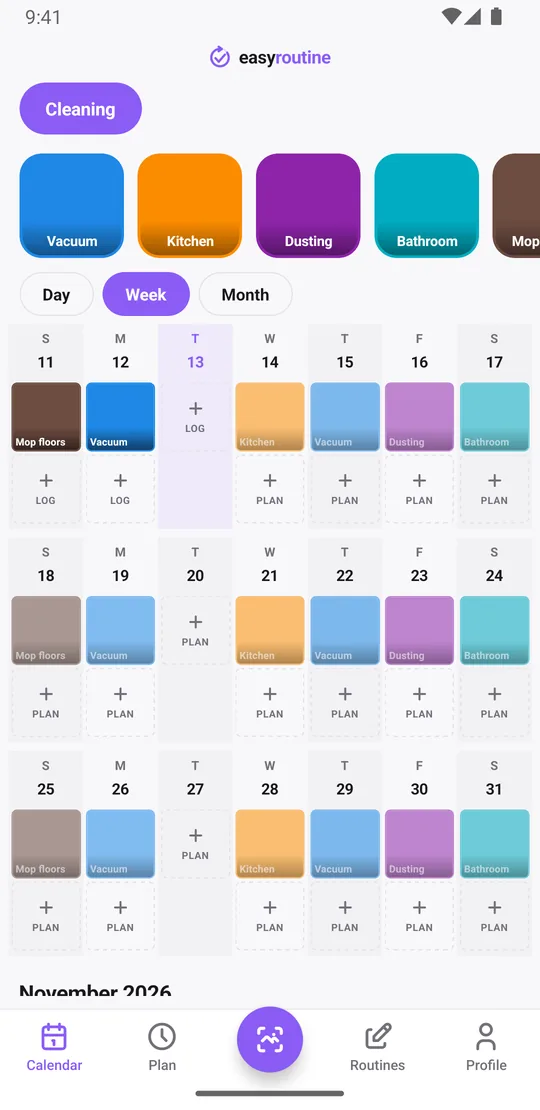
The week view shows a colored tile for every chore on the day you did it, so "did I already do the kitchen?" takes one look. Tap a chore's tile at the top to show only that chore, and the calendar becomes its history: the last tile is the last time you did it.
The month view shows the longer rhythm. Each logged chore leaves a dot in its color on that day, so a steady weekly line of blue dots means vacuuming really happened every week, and gaps show the weeks it did not. More about the calendar.
Free: notes, flags and the photo scan
Every log can carry a short note and a green, amber or red flag. Notes do not show on the calendar, but the log sheet shows your last few notes for that chore each time you log it again. Things worth writing down:
- Bathroom: "descaled the shower", "grout needs scrubbing next time"
- Kitchen: "cleaned inside the fridge", "ran out of floor cleaner"
- Vacuum: "emptied the bin, filter looks dirty"
Use the flag for how thorough it was: green for a full clean, amber for a quick once-over, red for a chore you had to cut short. After a few weeks you can see which chore keeps getting the rushed version.
If you gave a chore a photo, the free AI photo scan can log it too: take a picture of the mop bucket and EasyRoutine matches it to your own chores that have a photo.
Premium: build a weekly cleaning schedule
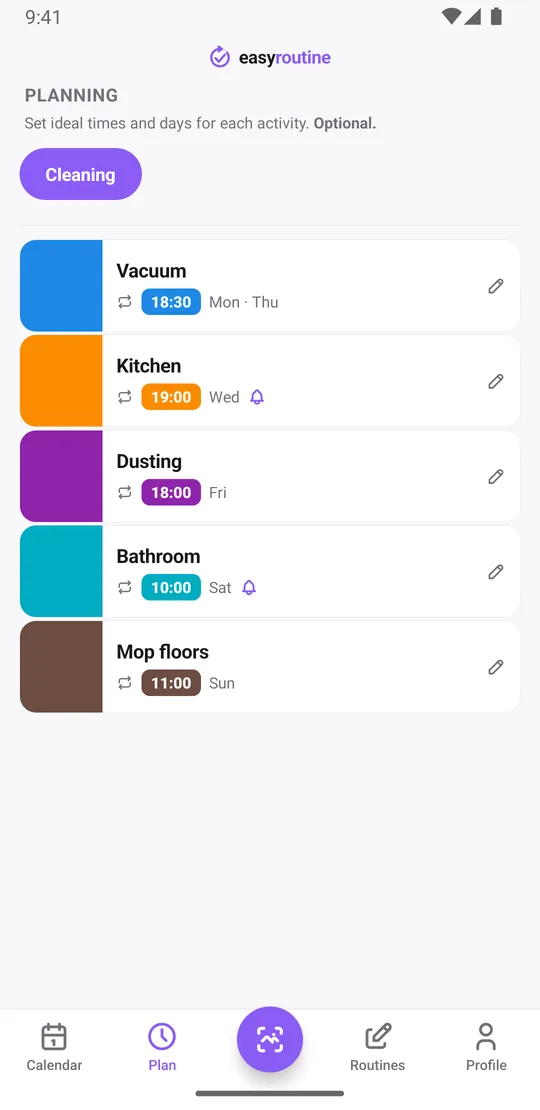
With Premium, open the Plan tab and choose the days and time for each chore. A typical rotation might look like this:
- Vacuum: Monday and Thursday at 6:30 pm
- Kitchen: Wednesday at 7:00 pm
- Dusting: Friday at 6:00 pm
- Bathroom: Saturday at 10:00 am
- Mop floors: Sunday at 11:00 am
Planned chores show as faded entries on the calendar until you log them. So on Wednesday evening, a quick look shows Monday's vacuuming solid and the kitchen still faded. A faded entry on a day that has passed means that chore was skipped. After cleaning, tap the faded entry and save: the planned time is already filled in.
Each chore can have up to four recurring time slots, and a slot can have a start and end date, for example for a spring-cleaning month. Schedules follow weekdays, not a count of days. For a chore you do once a month, like cleaning the oven, add single-day plans for the next dates instead. More about scheduling.
Premium: get reminded on the day a chore is due
Every timed slot in the plan can carry a reminder, on time or 5, 10, 15 or 30 minutes before. Because the reminder belongs to the chore, Saturday morning reminds you about the bathroom and Wednesday evening about the kitchen. A slot set to "Any time" has no reminder, which suits chores you just want to see on the calendar without a nudge. Premium also removes ads. How reminders work.
What the streak counts
The Profile tab shows a Day streak: the number of days in a row on which you logged anything at all in EasyRoutine. It counts across all your activities, so a weekly chore like vacuuming cannot have its own streak. For the record of one chore, use the month view or tap its tile. The Profile tab also shows your total number of completed logs.
Common questions
Can I track what I cleaned and when for free?
Yes. Add each chore as its own activity and log it when you do it. The calendar shows every chore on its day, and tapping a chore's tile shows only that chore's history. Logging and the calendar are free with no limit on chores.
Can I note what I did or how thorough a clean was?
Yes, for free. Each log can carry a note, like "cleaned inside the fridge", and a green, amber or red flag. The log sheet shows your last few notes for that chore when you log it again.
How do I set a cleaning schedule with different chores on different days?
With Premium, open the Plan tab and give each chore its own weekdays and time. Monthly chores can use single-day plans for their next dates.
Can I make a daily, weekly and monthly cleaning schedule?
Yes, with Premium. Daily chores like wiping the kitchen counters get all seven weekdays, weekly chores like vacuuming get one or two weekdays, and monthly chores like cleaning the oven get single-day plans for their next dates. Logging what you cleaned is free either way.
Can I get reminded on the day a chore is due?
Yes, with Premium. Give the chore a time in its schedule and set a reminder on time or up to 30 minutes before. You only get reminded about the chores planned for that day.
Can I keep a streak for a weekly chore like vacuuming?
Not a separate one. The day streak counts days on which you logged any activity. To check one chore over months, look at the month view, where each time it was done shows a dot in its color.
Keep reading
Free on iPhone and Android. Sign in with Apple, Google or your email to start.