How to track a skincare treatment that comes and goes
A cream for two weeks, a spot treatment during a breakout, a new retinol you are easing into. Short treatments are easy to lose track of because they are not part of your usual routine. This template sets one up in EasyRoutine with a start date, an end date and a log of every use, so you always know whether you used it last night.
Why a treatment needs its own entry
Your daily steps, like cleanser and night cream, run every day with no end. A treatment is different: it starts on a certain day, it may only be used on certain nights, and it stops. If you fold it into a general "PM routine done" entry, you lose the one thing you want to know: did the treatment actually go on, and how often?
So give it its own activity. In EasyRoutine, that activity can sit in your evening routine next to your daily steps, but it keeps its own schedule, its own color and its own history.
Free: log each use and see the last time at a glance
Logging is free. On a treatment night, tap the treatment on the calendar or use + Log on the day, and the use is saved with its time. Forgot to log last night? Add it afterwards on yesterday's date.
To answer "did I use it last night?", tap the treatment's tile at the top of the calendar. The calendar then shows only that activity, so the latest entry is the last time it went on. The month view shows the whole course as colored dots, up to four per day.
Each log can also carry a note and a green, amber or red flag, also free. For a treatment, write down what you will want to know later: how your skin reacted ("stinging", "peeling around the nose"), where you applied it, or why you skipped a night. The log sheet shows your last few notes for that activity, so you can see whether a reaction is settling. Notes stay on the log; flags show as dots in the Day and Week views.
The template
Fill this in before you start. You only need it once per treatment.
- Name: short enough for a small tile, and clear in three weeks' time. Product or type plus purpose works well: "Retinol intro", "Rx cream", "Spot gel", "Patch test".
- Routine: usually your evening routine, for example PM skin, so it shows next to your other steps. Use the morning routine if you apply it in the morning.
- Days and time: the nights you use it and roughly when, for example Monday and Thursday at 22:05.
- Start date: the first day you will use it.
- End date: the last day of the course, from the label, the prescription or your dermatologist.
- Reminder: on time or 5, 10, 15 or 30 minutes before, if you want one.
- Photo (optional): the tube or bottle, so you can log it with the scan.
How often and how long to use a treatment is not something this template decides. Take that from the product label or your dermatologist.
Set it up, step by step
- Open your PM skin routine and tap Add activity. Type the name, for example Retinol intro. If you add a photo of the product, EasyRoutine can suggest a name from it, and you can later log the treatment by pointing the camera at it in the Scan tab. About the photo scan.
- Pick a color that stands out from your daily steps, so treatment nights are easy to spot on the calendar.
- With Premium, open the Plan tab, choose the activity and add a Recurring time: the weekdays and the time.
- Set the active period: a From date and an Until date. Both days are included.
- Turn on a reminder if you want one. Reminders need a set time; an "Any time" slot cannot carry one.
Scheduling, active periods and reminders are part of Premium. Without Premium you can still add the treatment and log every use for free; it just will not show as planned on the calendar. How scheduling works.
Example timeline: a retinol introduction
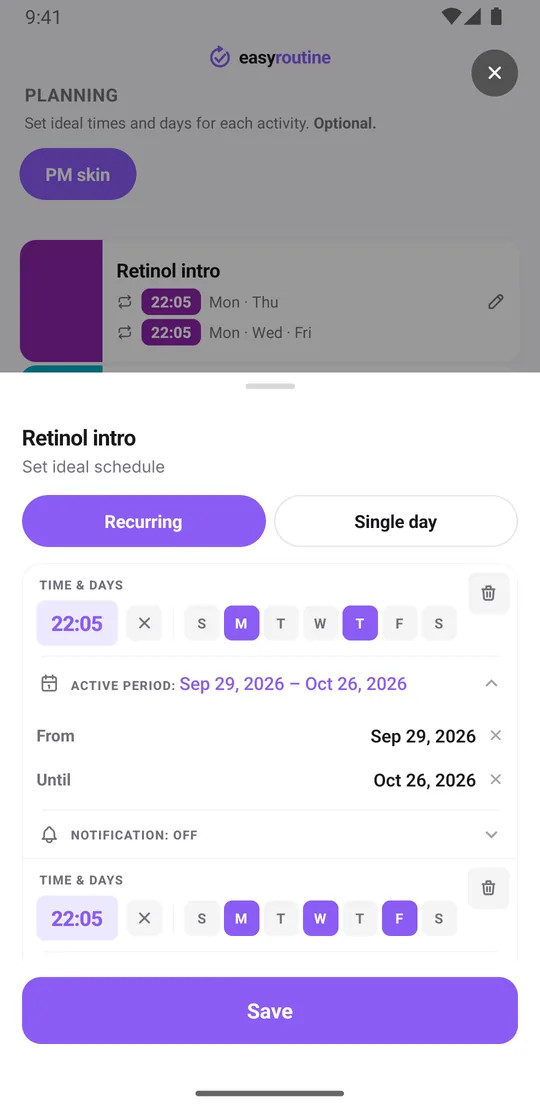
Say the label suggests starting a new retinol a couple of nights a week and using it more often later. One activity can hold up to four recurring times, each with its own active period, so you can plan the whole course in one go:
- Weeks 1 to 4: a recurring time on Monday and Thursday at 22:05, From 3 November Until 30 November.
- Weeks 5 to 8: a second recurring time on Monday, Wednesday and Friday at 22:05, From 1 December Until 28 December.
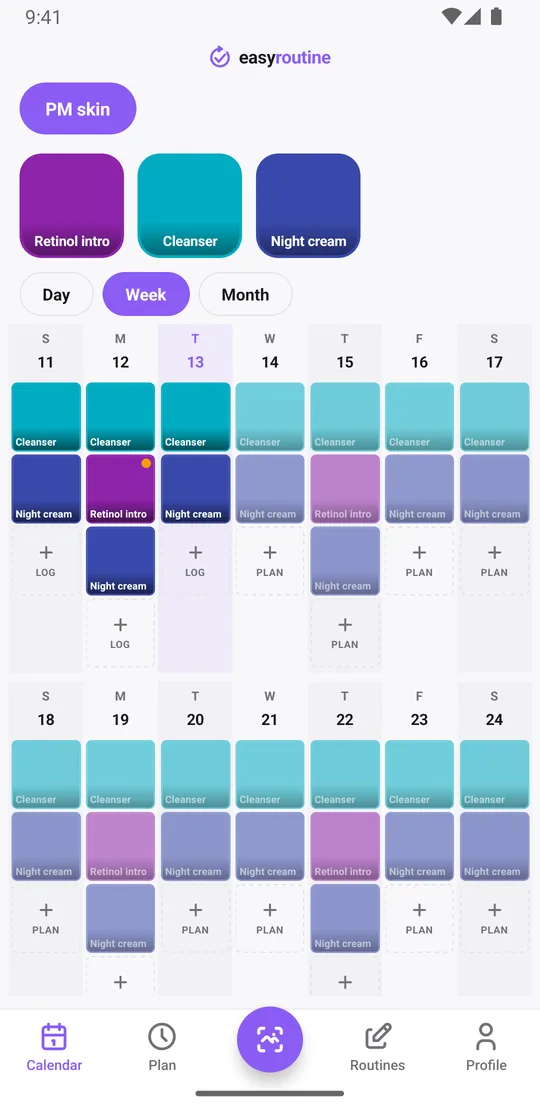
Each week, the retinol shows up as planned only on its nights. When you apply it, tap the faded entry and save it in the Log Entry sheet. If your skin reacts, add a note and flag the log amber or red, as described above.
The dates and nights here are just an example of how to enter a plan. Your own schedule should come from the label or your dermatologist.
When does the treatment stop showing up?
After the Until date, the treatment no longer appears as planned on your calendar and its reminders stop. Your daily steps carry on as before. Nothing you logged is removed: the past nights stay on the calendar, so you can look back at how the course went.
The activity itself stays in your routine until you archive it. When the course is over and you will not use it again, archive the activity: it is hidden from the routine, skipped by the scan and by reminders, and you can unarchive it if the treatment comes back. If it comes back for another round, unarchive it and give it new dates.
Treatments that do not follow weekdays
Schedules repeat on chosen weekdays, not every N days. For something on a looser rhythm, like a peel you use roughly every ten days, add Single day plans for the next dates instead. Each activity can hold up to 20 of them, so you can plan a few ahead and add more as you go.
Treatment vs routine: a quick comparison
- Daily step: recurring every day, no end date, stays in the routine.
- Some-nights step: recurring on chosen weekdays, no end date.
- Short-term treatment: recurring on its nights with a From and Until date, archived when it is finished.
Keeping them apart means a night without the treatment is not a missed step, and a missing night during the treatment is easy to see, because planned entries you have not logged appear faded. For the rest of your evening, see the evening skincare routine checklist and the morning skincare routine checklist. The same approach works for a medication course with a clear end.
Common questions
How do I track a skincare treatment I'm only using for a few weeks?
Add it as its own activity in your skincare routine and log each use from the calendar or with a scan. With Premium, give it the nights you use it and an active period with a start and end date.
How is a short-term treatment different from a daily routine in the app?
Technically both are activities. The treatment gets a From and Until date on its schedule and is archived when it ends, while daily steps repeat with no end date.
When does the treatment stop showing up?
After its end date it no longer appears as planned on the calendar and its reminders stop. Past logs stay. The activity stays in the routine until you archive it.
Can I plan a treatment that gets more frequent over time?
Yes. An activity can have up to four recurring times, each with its own active period, so you can enter a first phase and a later phase in advance.
Keep reading
Free on iPhone and Android. Sign in with Apple, Google or your email to start.