New phone checklist: move your routines without starting over
Moving EasyRoutine to a new phone takes one sign-in, because your routines and logs are stored in your account. This checklist makes sure you sign in to the right account and that everything, including reminders, works before you let go of the old phone.
Before you switch: on the old phone
Five minutes on the old phone saves guessing later.
- Write down your account email. It is shown on the Profile tab.
- Note how you sign in: Sign in with Apple, Sign in with Google, or an email code. If you are not sure, it is the button you tap when the app asks you to sign in.
- Note your numbers. The Profile tab shows your Day streak and totals for routines, activities and completed logs. You will compare them on the new phone.
- Log today's activities. Your streak counts days with at least one log, so a logged day is safe whatever happens next.
- Check you can still get into the sign-in account. That means your Google account, your Apple ID, or the email inbox the codes go to.
Which sign-in method keeps your data safe?
All three do. Your data is stored in your EasyRoutine account, and the sign-in method is only the key to it. What matters is using the same key on the new phone. A different method with a different email address opens a new, empty account.
- Apple: available on iPhone only. Moving to Android with an Apple account? Contact support before you switch.
- Google: works on iPhone and Android.
- Email code: works on both. No password, just a 6-digit code sent to your inbox, valid for 10 minutes.
Switching between iPhone and Android? How sync works across both.
On the new phone
- Install EasyRoutine from the App Store or Google Play.
- Sign in with the same method and email address you noted.
- When the app asks to send notifications, allow it if you use reminders. Reminders are scheduled on each phone separately, and the app sets them up on the new phone from your saved schedules after you sign in.
- If you have Premium and it does not show as active, open the Premium screen and tap Restore purchases, signed in to the store account you subscribed with.
Check that everything arrived
Tick these off before you reset the old phone:
- Routines tab: every routine is there, with its activities, photos and colors.
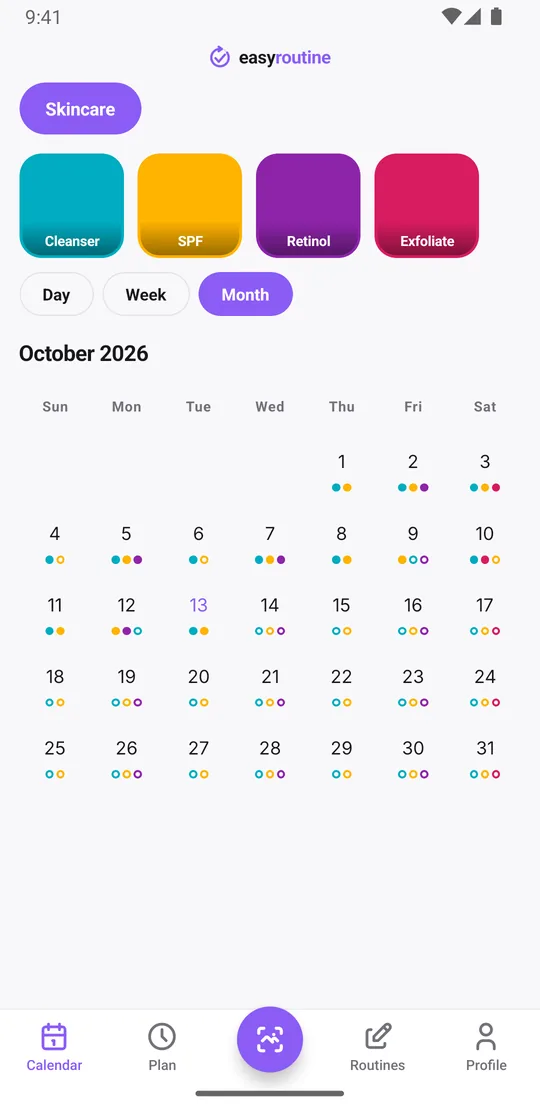
- Calendar: switch to the month view and scroll back a few months. The colored dots should match what you remember logging.
- One activity: tap an activity's tile at the top of the calendar. The calendar then shows only that activity, and the latest entry should be the last time you did it.
- Photo scan: activities that had a photo still have it, so the scan in the Scan tab can match them on the new phone right away.
- A note: tap an old log that had a note or flag and check it is there.
- Profile tab: Day streak, Routines, Activities and Completed match the numbers you noted.
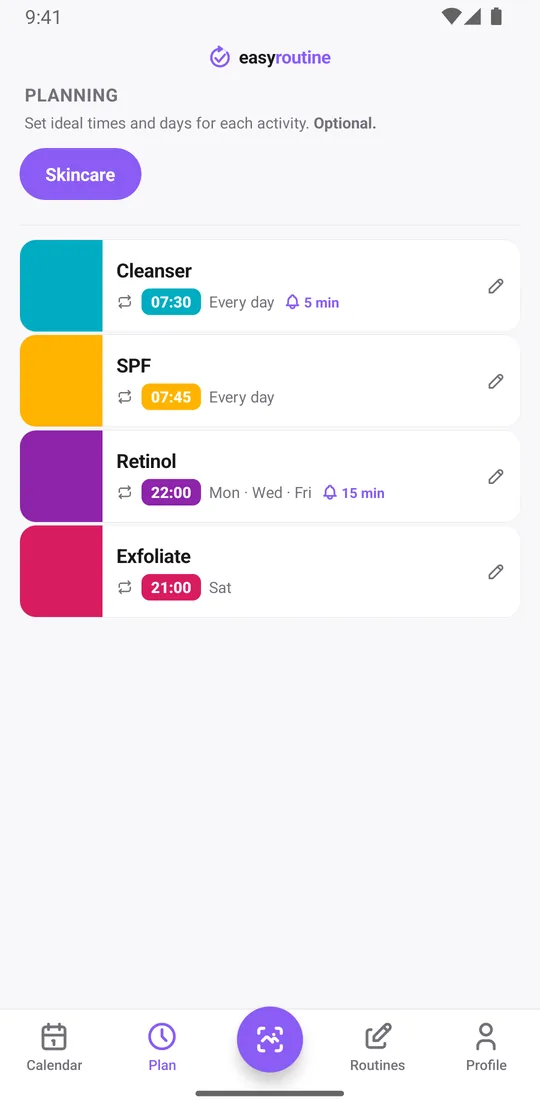
- Plan tab (Premium): each activity shows its weekdays, times and reminders.
- Notifications tile on Profile: shows your active reminders.
Your history, notes, flags and the photo scan are free, so they arrive whatever your plan. Only the Plan tab check needs Premium, because schedules and reminders are part of it.
If the numbers are all zero, you are almost certainly in a different account. Sign out on the Profile tab and sign in again with the method and email you wrote down.
Finish up on the old phone
Once the new phone checks out, open the Profile tab on the old phone and tap Sign out. That also removes the reminders scheduled on it, so you are not reminded twice. Then reset or pass on the phone as you like.
Do not tap Delete Account. That deletes your routines, activities, logs and photos for every phone, immediately and for good.
If the old phone is already lost
You can skip the first part. Nothing needs to be recovered from the lost phone: install EasyRoutine on the new one and sign in with your usual method. If you are unsure which one that was, try the method you most likely used, and check the Profile numbers. Seeing zeros means a new account, so sign out and try the other way.
Days you could not log while you had no phone can be added afterwards on the right date and time, if you did the activity. That also closes the gap in your streak. Keep your streak on a new phone.
Common questions
How do I move my routines to a new phone?
Install EasyRoutine on the new phone and sign in with the same method and email address as on the old one. Your routines, activities, logs and schedules load from your account. Then check the Profile numbers match.
Will I lose my streaks if I switch phones?
No. The streak is counted from the logs in your account, so the new phone shows the same one. Log something on switch day so the day counts.
Which sign-in method keeps my data safe?
All of them. The data is in your account either way. Use the same method on the new phone, and pick one you will keep access to. Sign in with Apple only works on iPhone.
What if my old phone is lost before I sign out?
Sign in on the new phone with your usual method and everything comes back. Your data was never only on the lost phone.
Keep reading
Free on iPhone and Android. Sign in with Apple, Google or your email to start.