How to cancel EasyRoutine Premium
Premium is billed by Apple or Google, so you cancel it in your App Store or Google Play subscription settings, not inside the app. Premium keeps working until the end of the month you already paid for, and your routines, activities and logs stay where they are.
Cancel on iPhone or iPad
- Open Settings and tap your name.
- Tap Subscriptions, then EasyRoutine.
- Tap Cancel Subscription and confirm.
The same screen shows the date your current period ends.
Cancel on Android
- Open the Google Play app and tap your profile picture.
- Tap Payments & subscriptions, then Subscriptions.
- Choose EasyRoutine and tap Cancel subscription.
Use the Google account you subscribed with. If EasyRoutine is not in the list, you may have subscribed on an iPhone, or with another Google account.
Cancel at least 24 hours before renewal
Premium renews automatically each month unless you cancel at least 24 hours before the current period ends. Cancel a few days early and you are safe. Cancelling never shortens the time you paid for: Premium stays active until that period is over. How auto-renewal works.
What happens when Premium ends
- Kept: all your routines, activities, logs, notes, flags and photos.
- Still free: logging with the + Log button or the photo scan, back-dating, notes and flags on each log, the Day, Week and Month calendar (tap an activity tile to see when you last did it) and your streak.
- Ads come back: a banner at the bottom of the Calendar and Profile tabs.
- Planning is locked: the Plan tab and future days on the calendar open the Premium screen again. Schedules you already set stay saved, but you cannot change them without Premium.
You can subscribe again any time from the Profile tab, and your schedules are still there to edit.
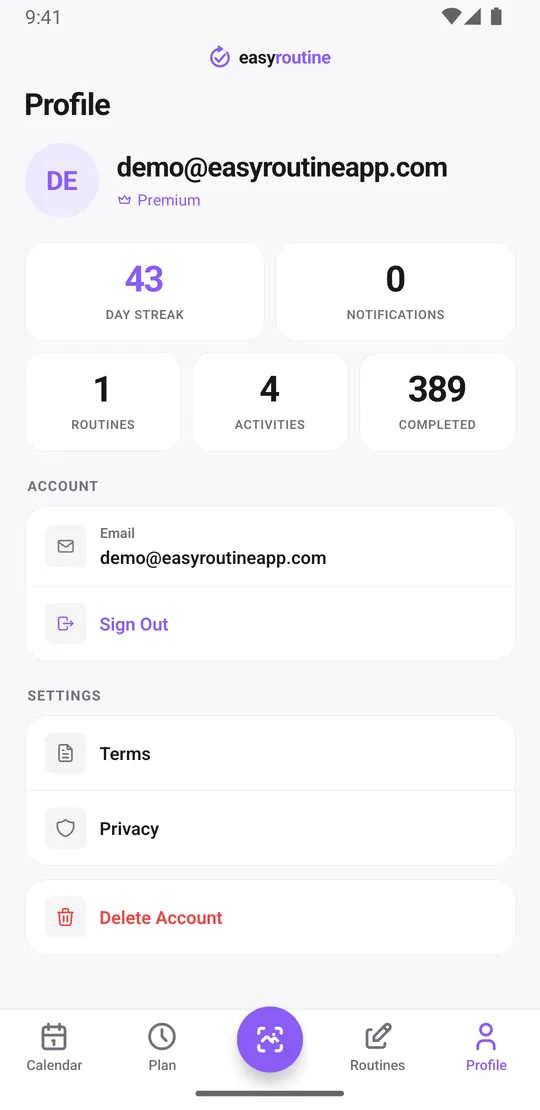
Deleting your account does not cancel Premium
Delete Account on the Profile tab removes your data, but it does not stop the store from billing you. The app warns about this before you confirm. Cancel the subscription in the store first, then delete the account if you want to.
Billing problem the store cannot sort out? Email info@easyroutineapp.com with the details. For money back on a period already charged, see refunds.
Common questions
How do I cancel EasyRoutine Premium?
On iPhone: Settings, your name, Subscriptions, EasyRoutine, Cancel Subscription. On Android: Google Play, your profile picture, Payments & subscriptions, Subscriptions, EasyRoutine, Cancel subscription.
Do I cancel in the app or through the App Store or Google Play?
Through the store. Apple and Google handle the billing, so the subscription can only be cancelled in their settings.
Does cancelling stop Premium immediately?
No. Premium stays active until the end of the period you already paid for. After that the ads come back and planning is locked.
What happens to my reminders and schedules after I cancel?
Your schedules stay saved with your activities, but editing them needs Premium again. Your routines, activities and logs are not touched.
Does deleting my account cancel the subscription?
No. Cancel in the App Store or Google Play first, because deleting your EasyRoutine account does not stop the store from billing you.
Keep reading
Free on iPhone and Android. Sign in with Apple, Google or your email to start.